AI Coach and External AI Chat
Ask questions about your games directly in PB Vision with AI Coach. You can also download game data for your preferred AI chatbot or connect a compatible assistant through MCP. This guide explains where to start with each option.
📍 Quick Start Summary
AI Coach
Sign in to PB Vision, open a processed game, and use the AI Coach (below the video). You can also open the AI Coach tab to select games for a conversation. Ask what to work on, compare patterns, and follow links to relevant shots.
See an example AI Coach conversation (look below the video).
Download for another AI chatbot
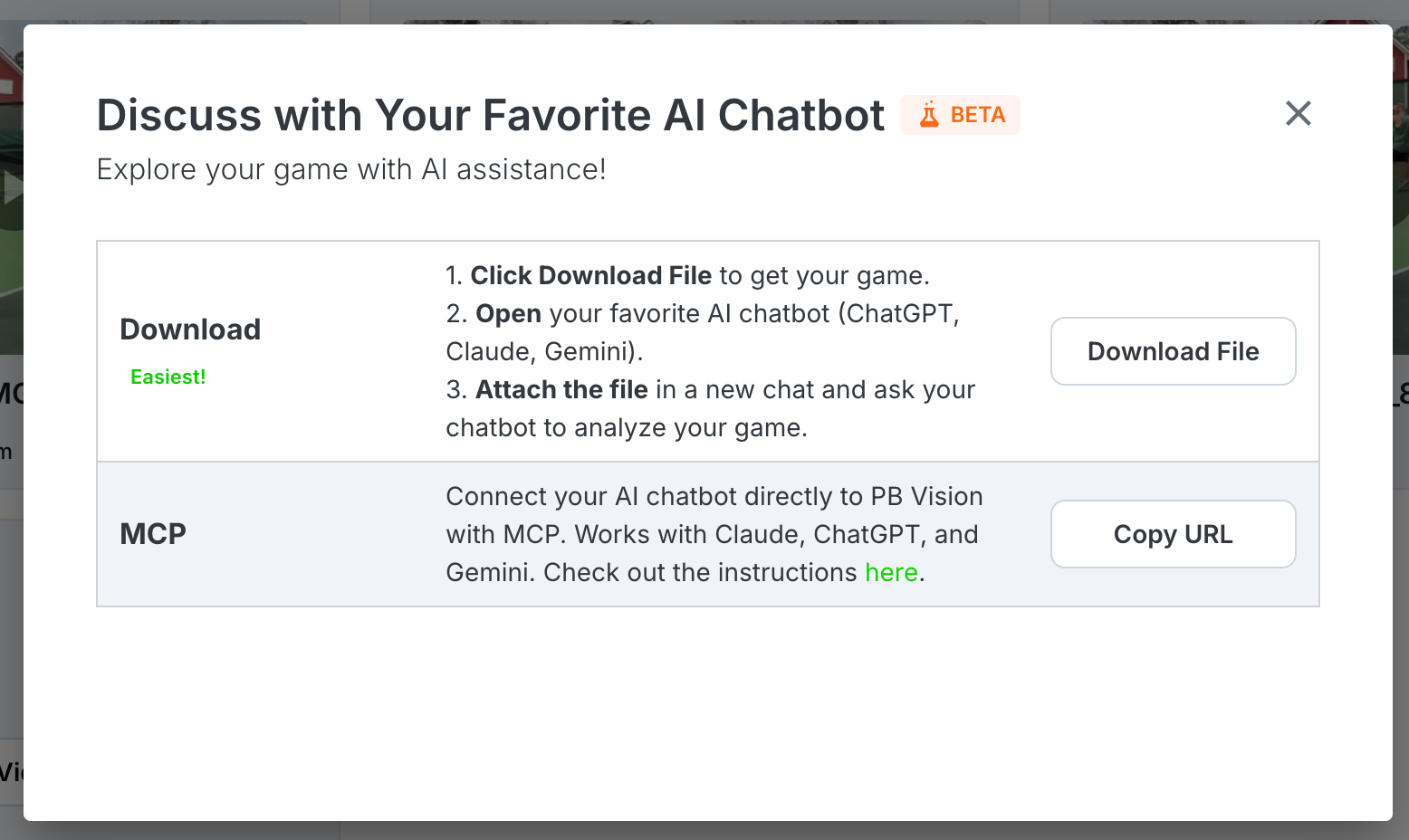
Open an AI Coach conversation's menu and choose “Use Your Favorite External AI”. Select Download File, then attach it in a chatbot that supports file uploads, such as ChatGPT, Claude, or Gemini.
Connect through MCP
Use the MCP setup instructions below to connect a supported external assistant to PB Vision game data.
Using AI Coach
Sign in to PB Vision and open a processed game's AI Coach card (below the video). To discuss several games, open the AI Coach tab and select the games you want to include.
If you're reviewing your own play, tag yourself so AI Coach knows which player you are.
Ask a focused question, such as "What should I work on from this game?"
Review the answer and open any linked shots. Ask follow-up questions to dig into a pattern.
Subscribers receive a weekly coaching allowance. Free accounts can try coaching on their first successfully processed video with a limited allowance. Check Settings → AI Usage for your current usage and credits. Subscribers can also see when their weekly allowance resets.
The game picker shows your account's conversation limit. The conversation menu also lets you change the coaching model (Standard, Deep, Deepest); available options and credit requirements are shown there.
🌱 Download Chat File
This works with any AI chatbot, free or paid, including ChatGPT, Claude, Gemini, and others.
How It Works
Open an AI Coach conversation containing the game or games you want to export.
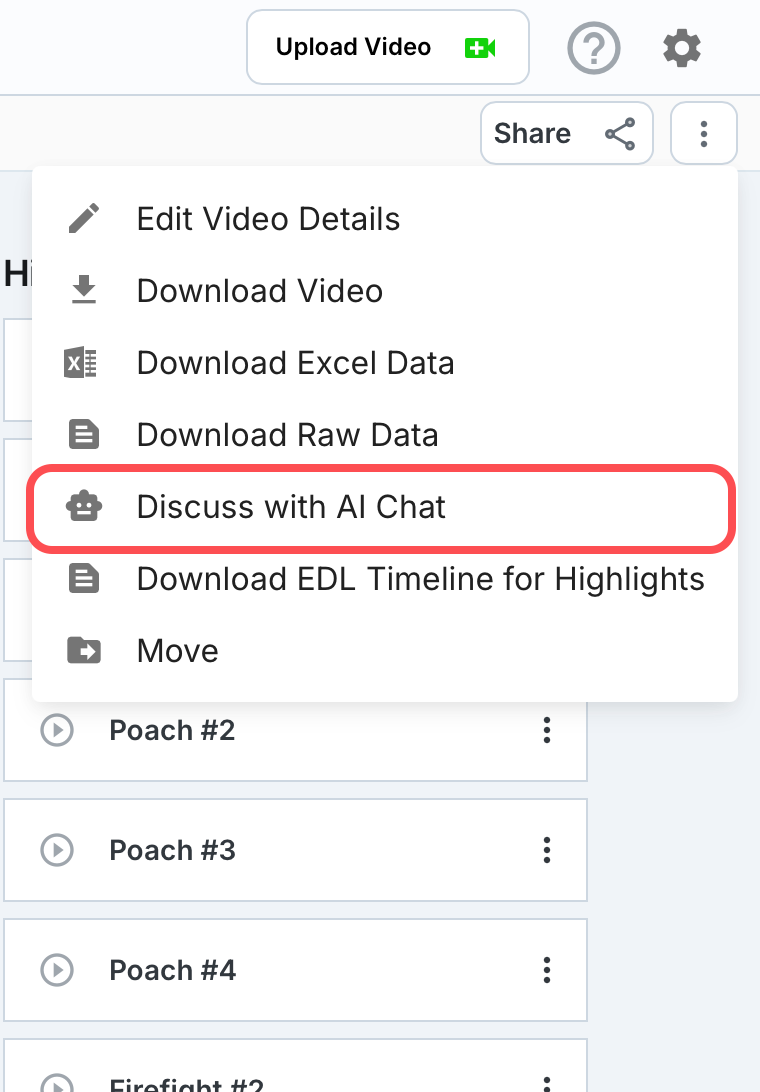
Open the conversation menu and choose Use Your Favorite External AI.
Select Download File.
Attach the downloaded file in your preferred AI chatbot and ask about your game.
📝 Recommended Prompt
I am [Player Name]. Analyze this match and identify my strengths, weaknesses, and areas for improvement.
The AI will use your PB Vision data to provide personalized insights and answer questions about your performance.
Single Game
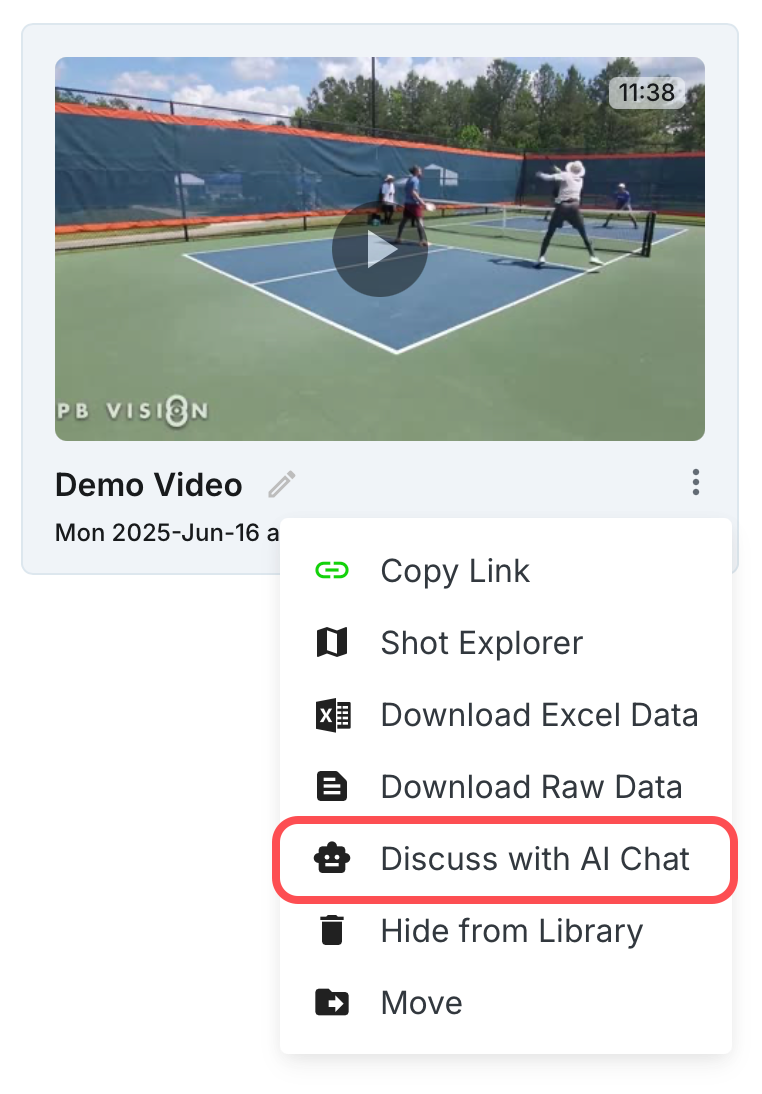
Open the game's AI Coach card, then choose Use Your Favorite External AI from its conversation menu. Select Download File to export that game's data.
Attach the file in your preferred AI chatbot and ask a question about the game.
From Video Library
From Video
Multi-Game
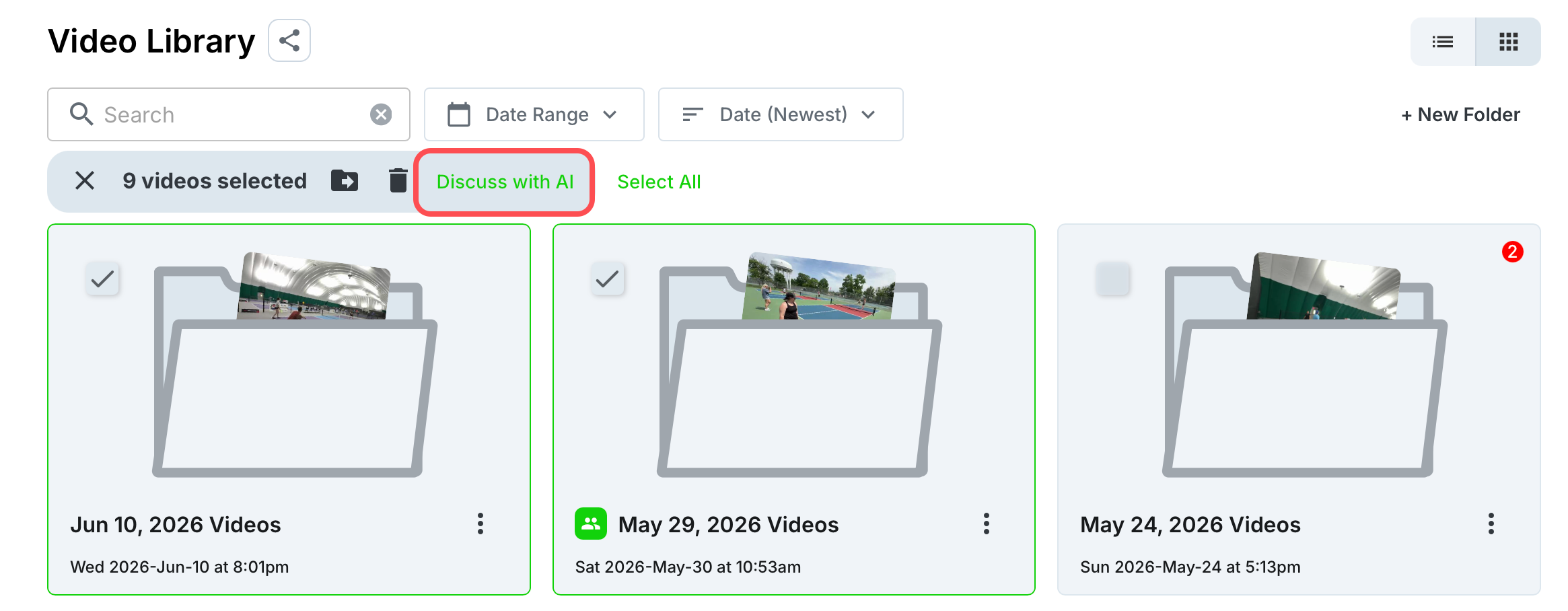
Select the games you want to discuss in the AI Coach tab, or use Discuss with AI Coach from the Library's selection or folder menu. From the conversation menu, choose Use Your Favorite External AI, then Download File.
The app shows which games are eligible and any selection limit that applies to your account.
Tips for Best Results
Use File Uploads
Attach the downloaded chat file directly to your AI assistant instead of copying and pasting the contents. Large match files may exceed text limits when pasted manually.
Ask Focused Questions
For longer matches, consider asking about specific areas such as serves, returns, third shots, or unforced errors. Focused questions often produce more detailed insights.
Note - Longer games can use more tokens from your AI chat agent.
Most AI Assistants Are Supported
The downloaded file can be used with ChatGPT, Claude, Gemini, and other AI assistants that support file uploads. Paid plans may support larger files and provide more comprehensive responses.
Tagged Player Names Are Included
If players are tagged in PB Vision, their names will be included in the exported data, allowing the AI to reference them throughout the analysis.
Video Walkthroughs
🧠 MCP Setup
MCP (Model Context Protocol) allows supported AI assistants to access your PB Vision game data directly. Instead of downloading and uploading chat files, you can connect your AI client to PB Vision and analyze matches on demand.
This option is best for users who want a more streamlined workflow and are comfortable configuring AI tools.
Requirements
An AI client that supports MCP servers or custom connectors (such as ChatGPT, Claude Desktop, Cursor, Gemini CLI, or Gemini Code Assist).
A PB Vision account with uploaded and processed games.
Connect to PB Vision
Note - If your client allows configuring the HTTP method, ensure it is set to POST.
No API keys or authentication are required. Simply copy the MCP URL below and add it to your supported AI platform.
MCP URL
https://share.pb.vision/mcp
Claude (Desktop)
Note - You'll need a paid Claude plan (Pro or Max).
Quick Steps
Open Claude Desktop → Select the “+” button → Connectors → Add a custom MCP connector → Paste the PB Vision MCP URL → Complete setup and begin chatting.
ChatGPT
ChatGPT works well with the downloaded chat file. We do not currently provide customer-facing ChatGPT MCP setup steps in this guide, so use the Download Chat flow for ChatGPT until this section is updated.
Gemini Advanced (CLI)
Note - Gemini CLI must be installed locally on your machine. You’ll also need a Google Gemini subscription that supports Code Assist features.
Connect PB Vision directly to Gemini CLI using MCP. Once connected, Gemini can access your PB Vision match data and analyze games without requiring file downloads.
Quick Steps
Open the Gemini settings file → Add the PB Vision MCP server configuration → Launch Gemini CLI → Verify the connection → Start analyzing your PB Vision data.
Gemini Code Assist (VS Code)
Note- Gemini Code Assist must be installed and enabled in VS Code, and you must be signed in to a Google Gemini subscription that supports Code Assist features.
Connect PB Vision directly to Gemini Code Assist within Visual Studio Code. Once connected, Gemini can access your PB Vision match data and answer questions without requiring file downloads.
Quick Steps
Open your Gemini settings file → Add the PB Vision MCP server configuration → Reload VS Code → Enable Agent Mode → Verify the connection → Start analyzing your PB Vision data
🎯 Using PB Vision with MCP
Once connected, your AI assistant gains access to several PB Vision tools that can retrieve match data, identify players, and analyze performance.
Available MCP Tools
Once connected, your AI assistant gets access to five tools:
How to Use MCP
Find Your Video ID
Your video ID is the 12-character code found in your game URL.
Example Game URL
https://pb.vision/video/ox31i0pijbzo/0/overview
Video ID
ox31i0pijbzo
Example Prompts
Break down my play from game ox31i0pijbzo
Analyze my serve performance in game ox31i0pijbzo
Compare my stats across games ox31i0pijbzo and 93vkk5bap5he
The AI will use PB Vision tools to retrieve match data and provide analysis.
MCP Tips
Start with the Analysis Guide
If the AI seems unsure how to interpret your data, ask it to run the analysis guide first.
Multi-Game Analysis
Provide multiple video IDs to compare performance across games.
Large Games
For longer matches, use download-based analysis tools when available to reduce token usage.
MCP Troubleshooting
Connection Failed or No Tools Appear
Verify that your MCP client is configured to use POST requests instead of GET. If you’ve recently added the PB Vision MCP server, restart your AI client and try again.
AI Cannot Access Match Data
Confirm that you’re using the correct 12-character video ID from your PB Vision game URL.
Example Game URL
https://pb.vision/video/ox31i0pijbzo/0/overview
Video ID
ox31i0pijbzo
Responses Are Incomplete or Cut Off
Long matches can generate large amounts of data and may exceed your AI platform’s context limits.
For longer games:
Ask the AI to use
get_download_urlFocus on specific aspects of the match (serves, returns, drops, etc.)
Analyze one game at a time
⁉️ Need Help?
This feature is in beta and we're actively improving it. If you run into issues or have feedback:
Email: support@pb.vision
Discord: Join our community
Feature requests: Vote and submit ideas