Using Shot Explorer
Learn how to use Shot Explorer to break down your games, analyze shot selection, and uncover performance trends. This guide walks you through filtering by player, zone, and game, viewing detailed shot maps, and comparing efficiency across different situations. Whether you’re reviewing your own performance or scouting opponents, Shot Explorer helps you turn shot data into actionable insights for smarter decisions on and off the court.
📍 Quick Start Summary
Accessing Shot Explorer
Open any processed match and select Shot Explorer from the analysis menu to begin filtering and reviewing shot data.
Filtering Shots
Narrow down shots by things such as
Player
View shots for a specific player
Shot Type
Drives, drops, dinks, serves, returns, and more
Errors
Popups, intercepted, unforced, and more
Filter Presets
Set your favorite filter as preset to use across all videos or just the one you are viewing
Share filters with friends or students
🧐 Understanding Filters
Shot Explorer filters allow you to narrow down match data to focus on specific players, shot types, situations, and court locations. By combining filters, you can isolate meaningful patterns — such as how a player performs on 3rd shot drops, where most errors occur, or how often speedups are successful from the kitchen.
Filters stack together, meaning the more you apply, the more specific your results become. If no shots appear, try removing or adjusting filters to broaden your view.
Use filters strategically to move from broad analysis to highly targeted insights.
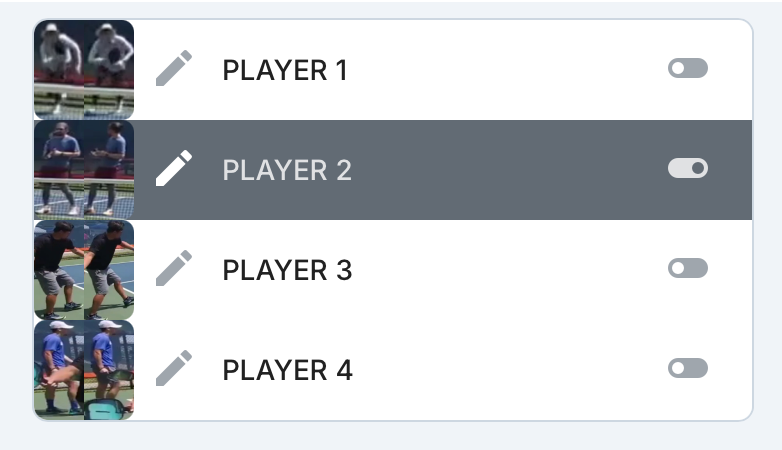
Player
The Who filters let you isolate shots by player and stroke type. Use these options to evaluate individual tendencies, compare players, and identify strengths or weaknesses by forehand, backhand, groundstroke, or volley.
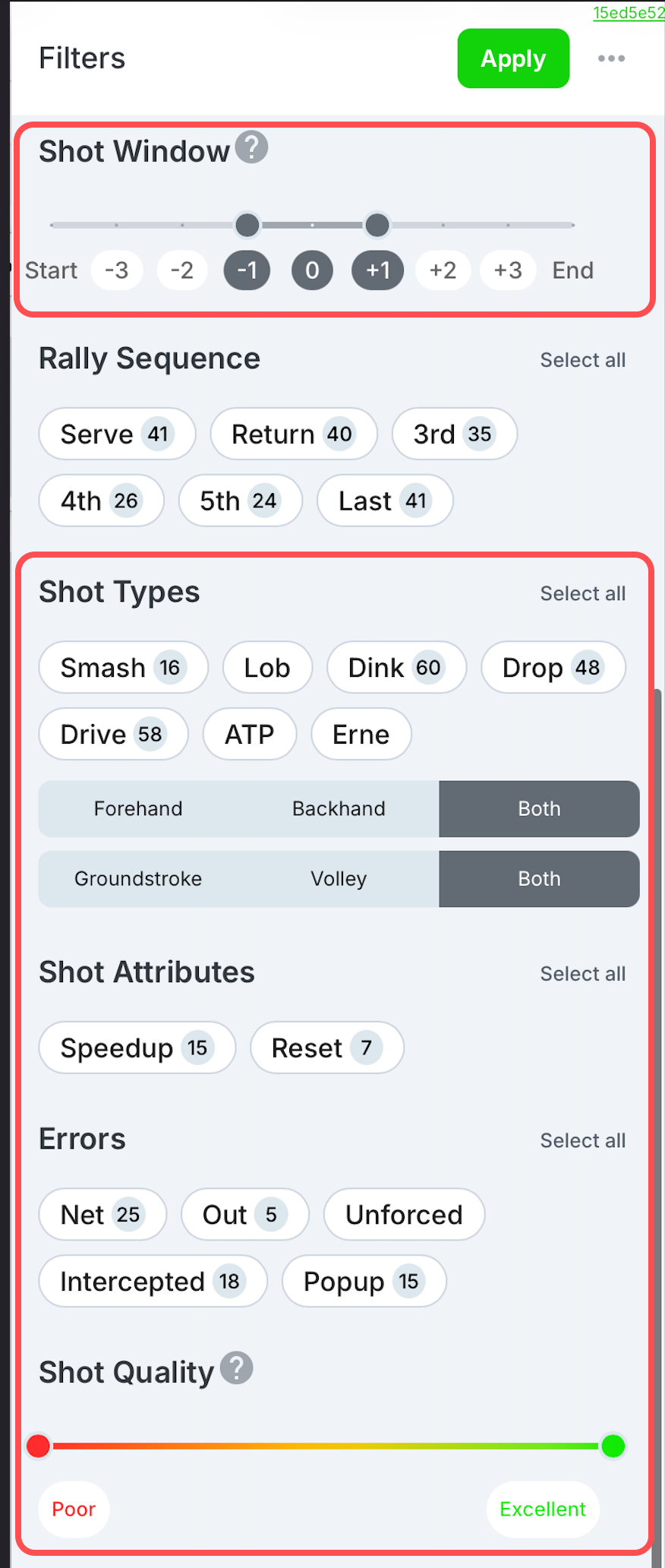
Shot
The Shot Type filters let you isolate shots by the type of shot hit. Use these options to evaluate shot selection patterns and analyze how often specific shots like drives, drops, dinks, or smashes are used.
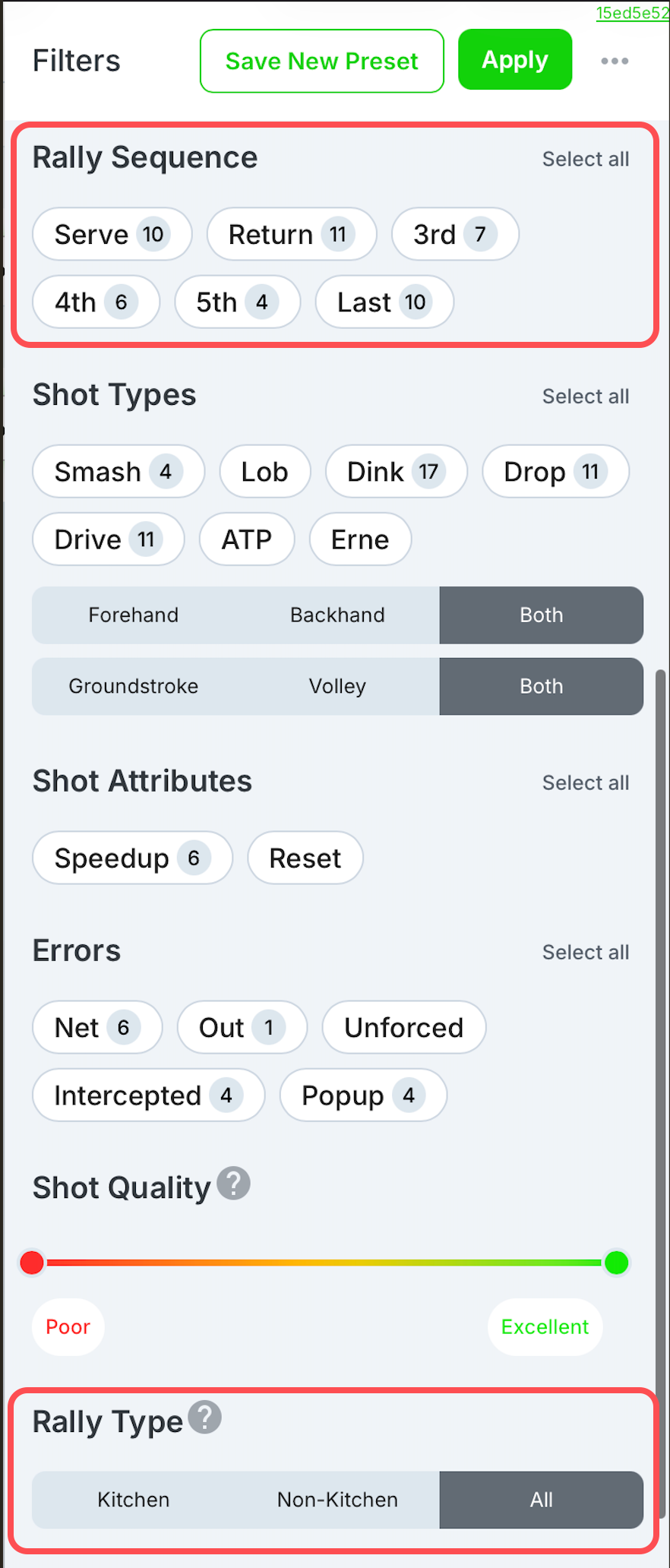
Rally Context
The Rally Context filters let you isolate shots based on when they occurred within a rally. Use these options to analyze specific sequences, time ranges, and situational patterns during play.
Standard Filters
To see rally outcome filters, select at least one player within a team
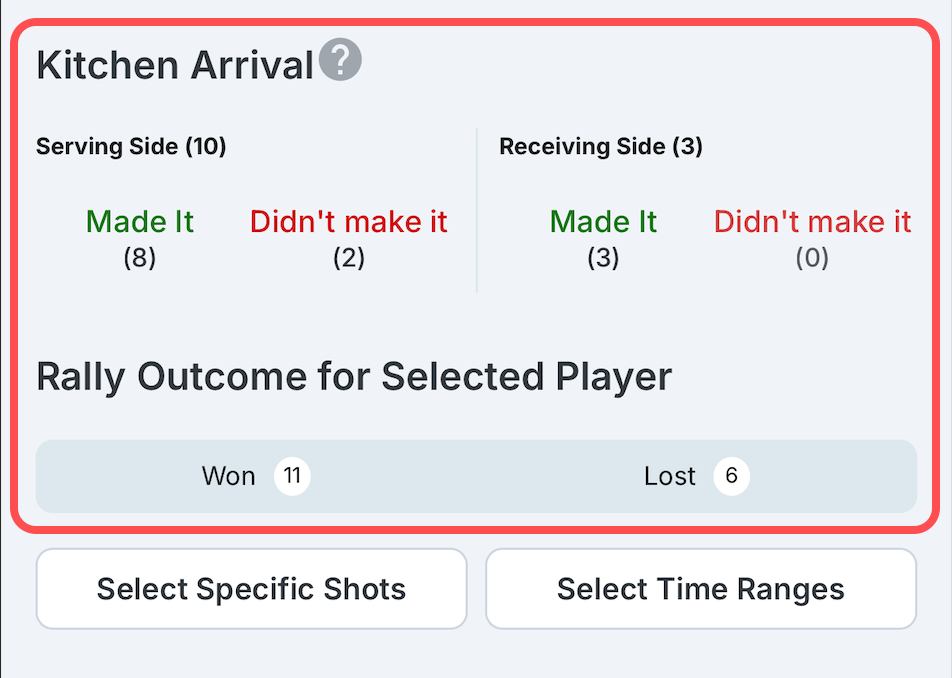
Advanced Filters
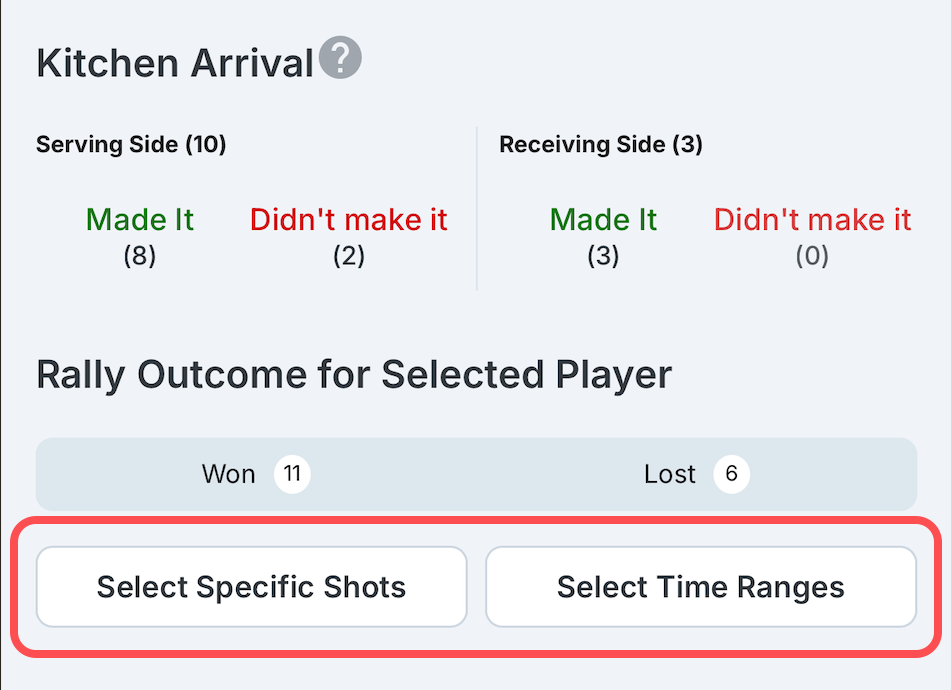
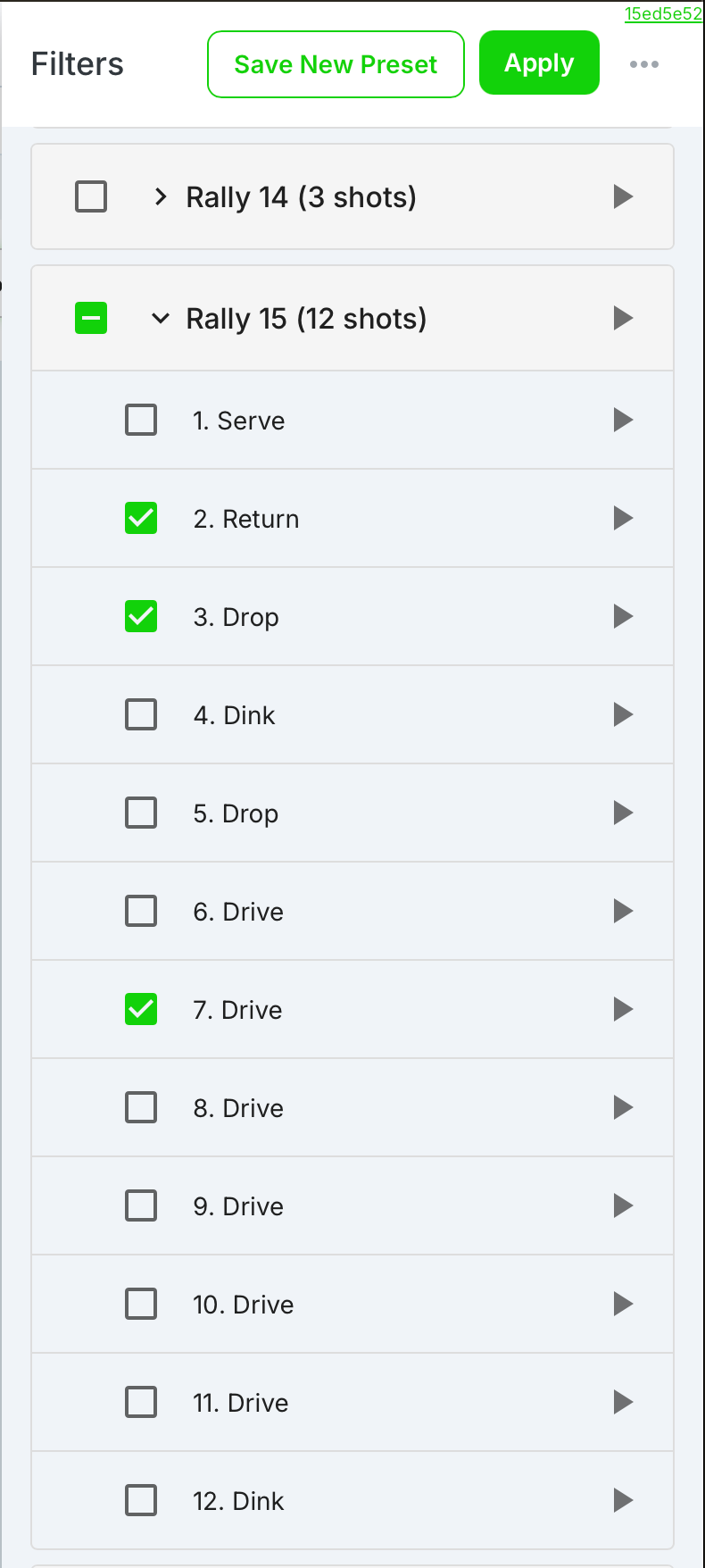
Select Specific Shots
Selecting specific shots lets you isolate and review a moment(s) in detail. Use this option to find specific shots within specific rallies.
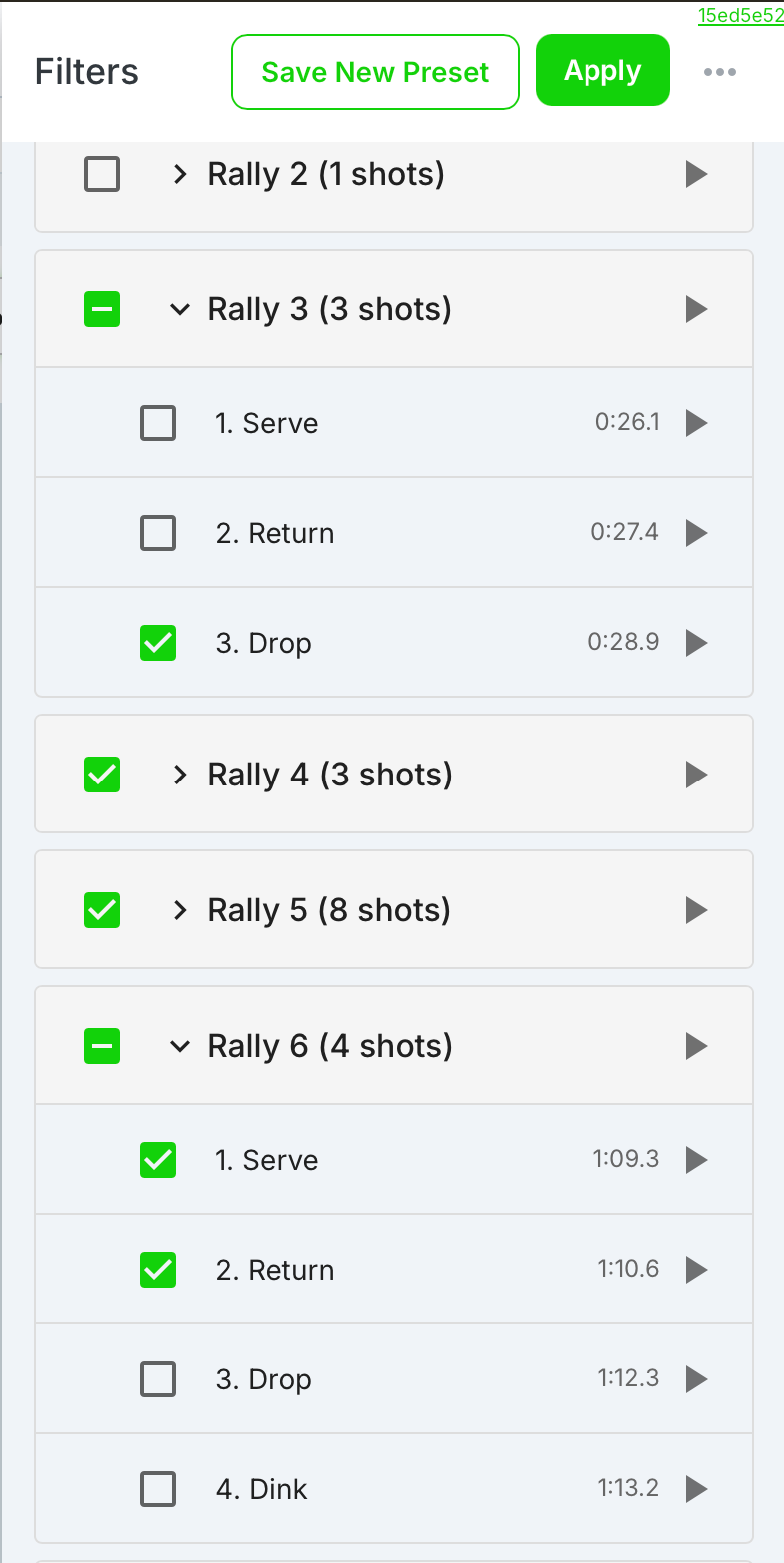
Select Time Range
Select Time Range lets you filter shots across a custom rally and shot range. Use this option to analyze how sequences unfold between specific moments in the match.
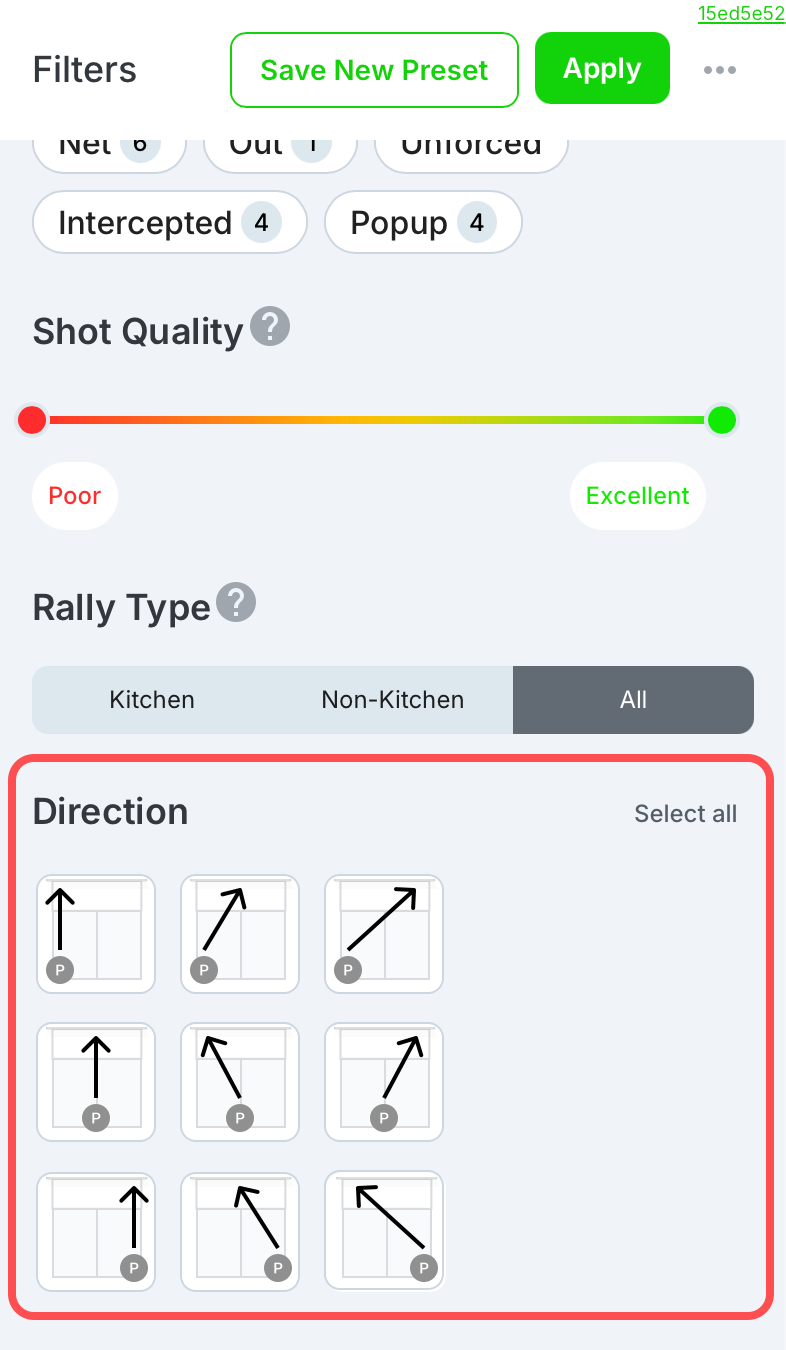
Court Position & Direction
The Court Position & Direction filters let you isolate shots based on where they were hit and where they landed. Use these options to evaluate placement tendencies, targeting strategy, and court positioning.
💾 Presets
Presets allow you to save a custom set of filters for quick reuse with. Use presets to apply the same filters across one or multiple videos, manage existing filter presets, and share them with friends.
Creating Presets
Creating a Preset saves your current filters so you can reuse them later without reapplying each setting.
Select the Filters icon
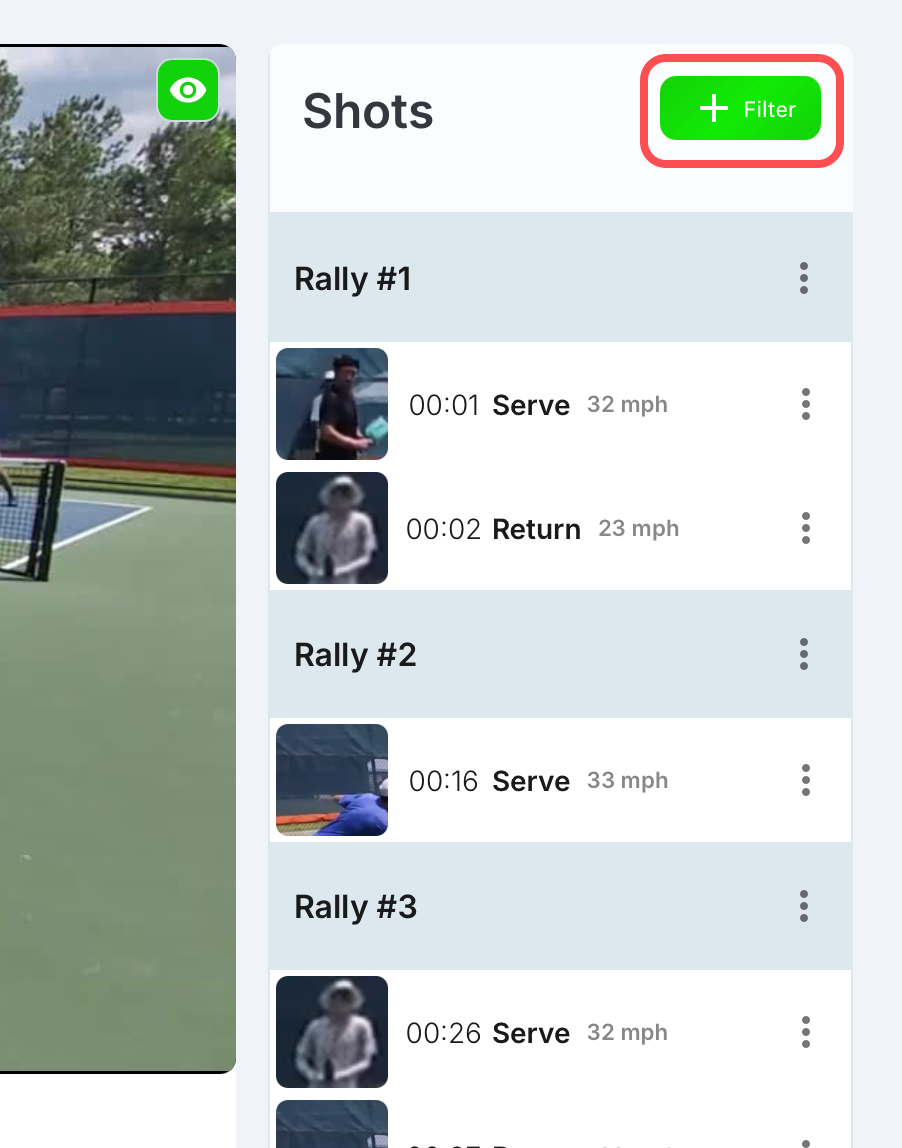
Select the filters that you would like included in your preset
In this example, I selected Player 4’s serves
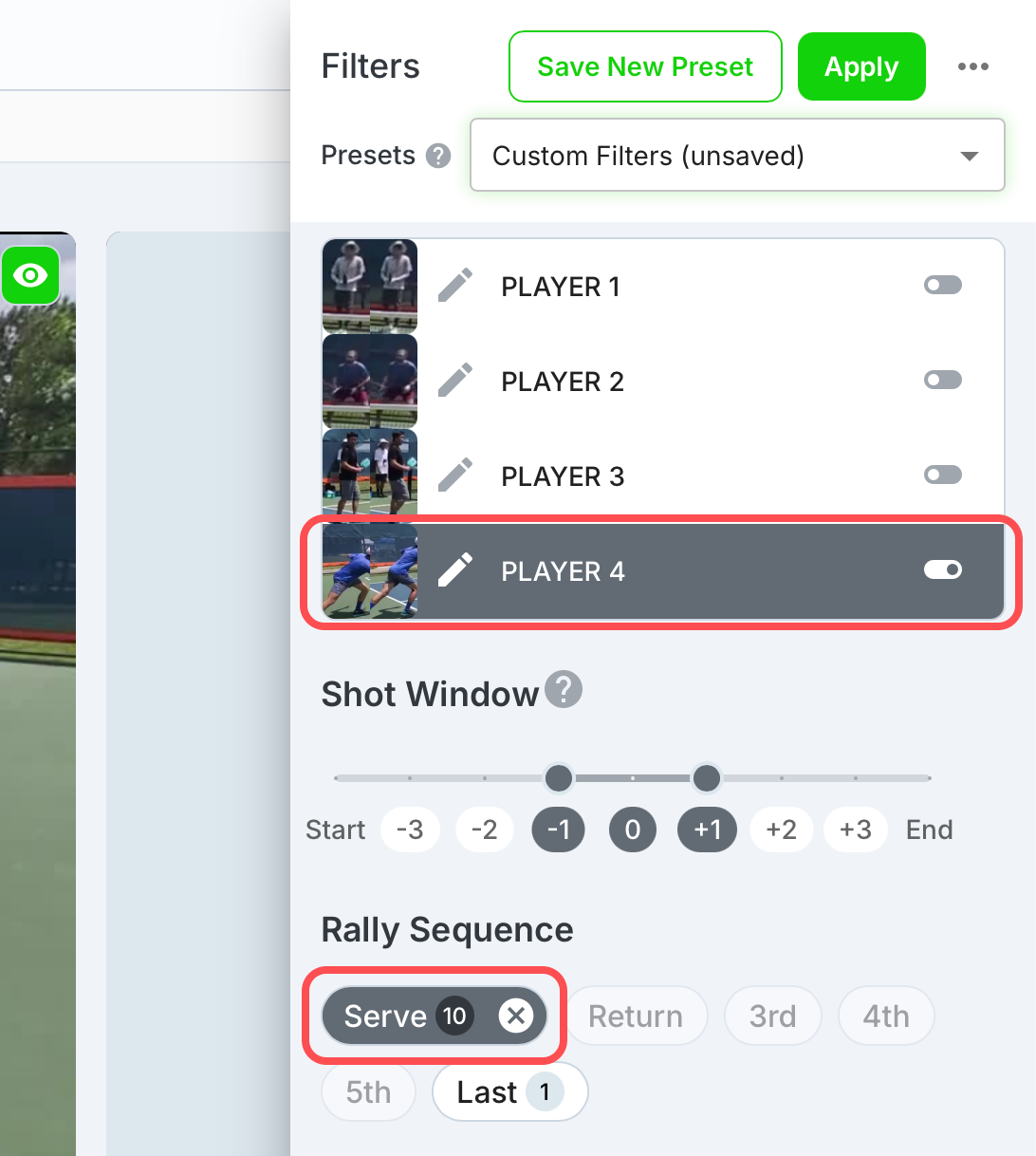
Once you have all filters set, select Save New Preset
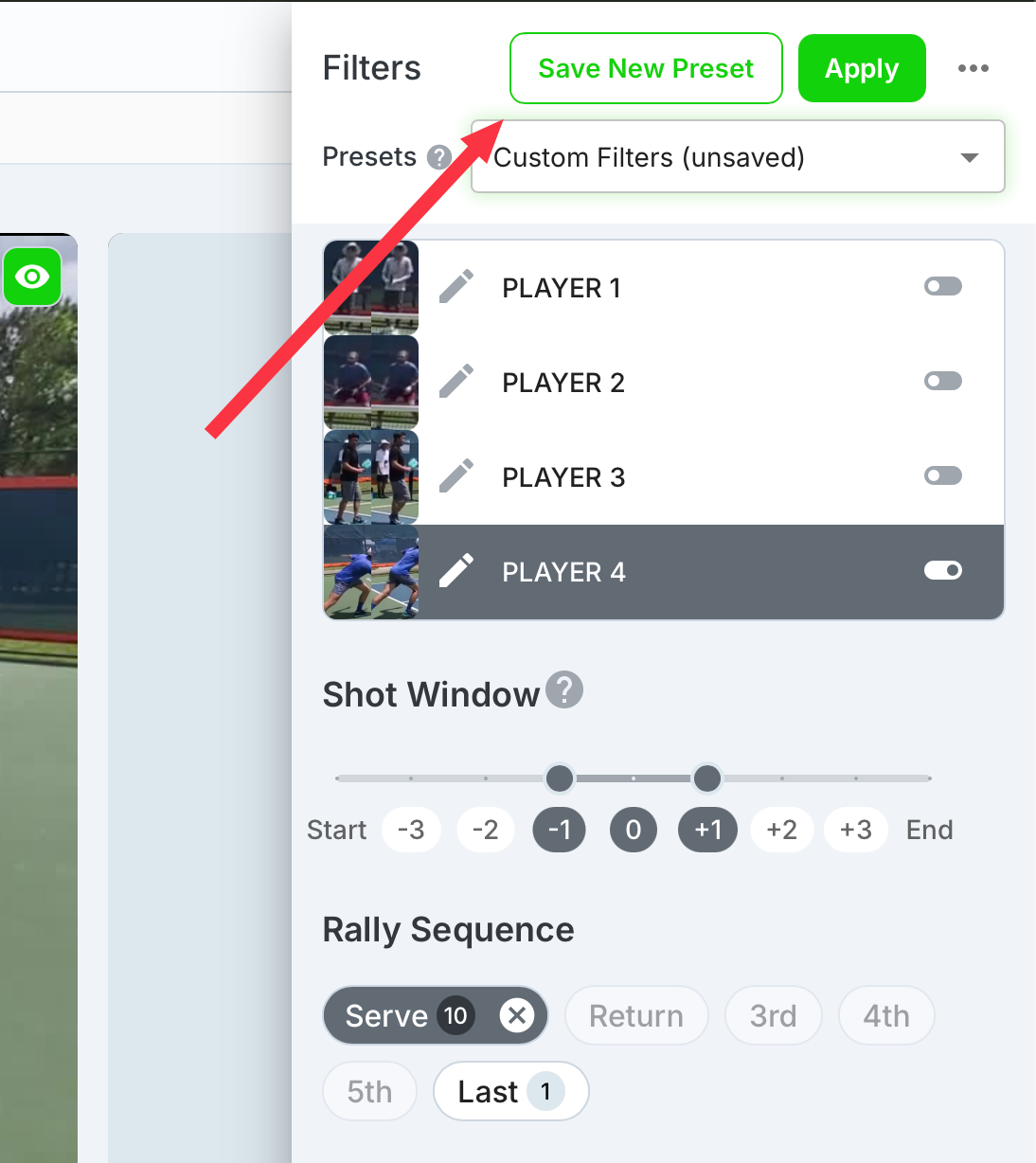
The new preset dialog will appear
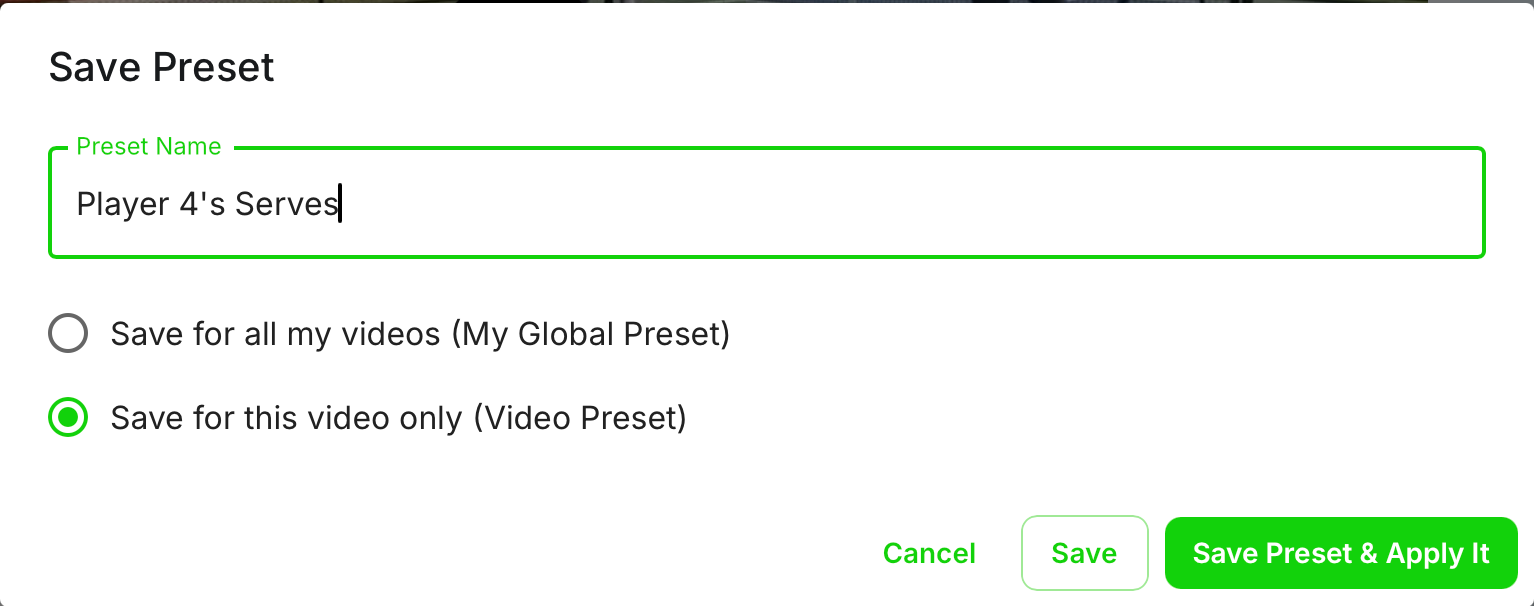
Enter your preferred preset name
Set your preset preferences
Save for all my videos (My Global Preset)
Global presets allow you to use this filter on any video within your library
Save this for this video only (Video Preset)
Video presets allow you to set presets specific to this video
Now you can Save the preset or Save Preset and Apply It
Editing Presets
Editing presets allows you to make changes to your existing presets for Video or Global Presets.
Select the Filters icon
Select the Presets drop down
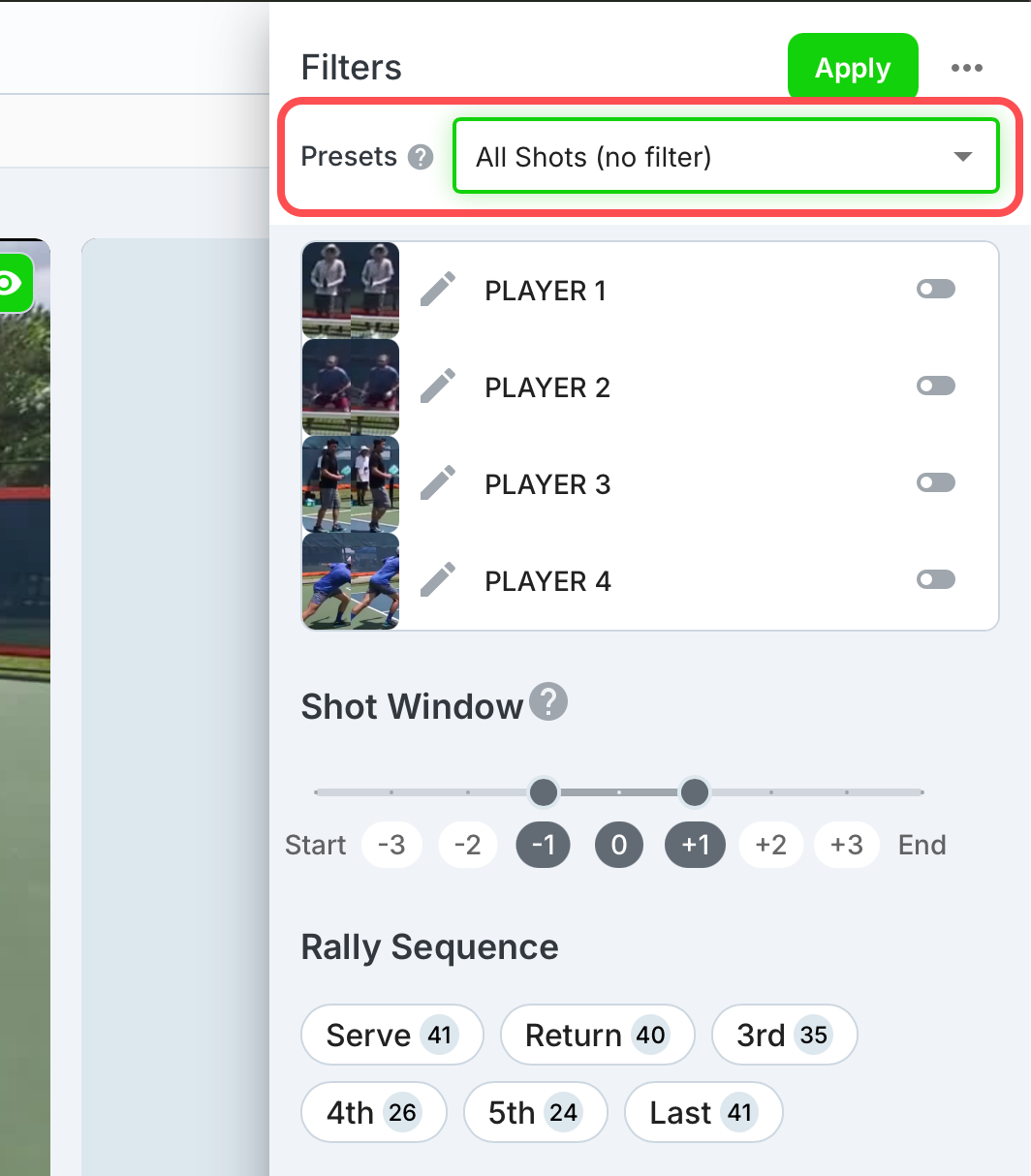
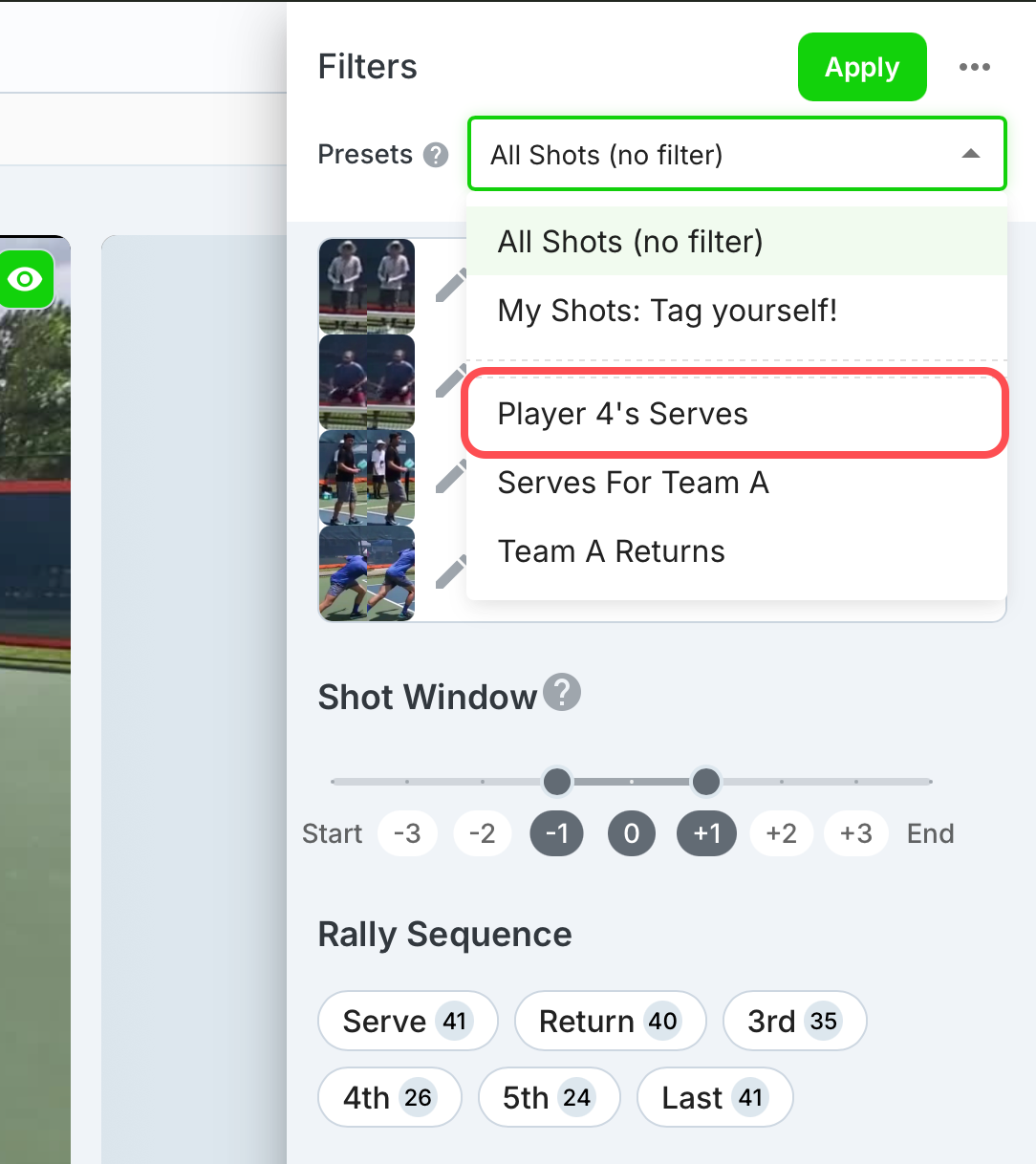
Select the preset you would like edit
In this example, selected the one made in the previous step Player 4’s Serves
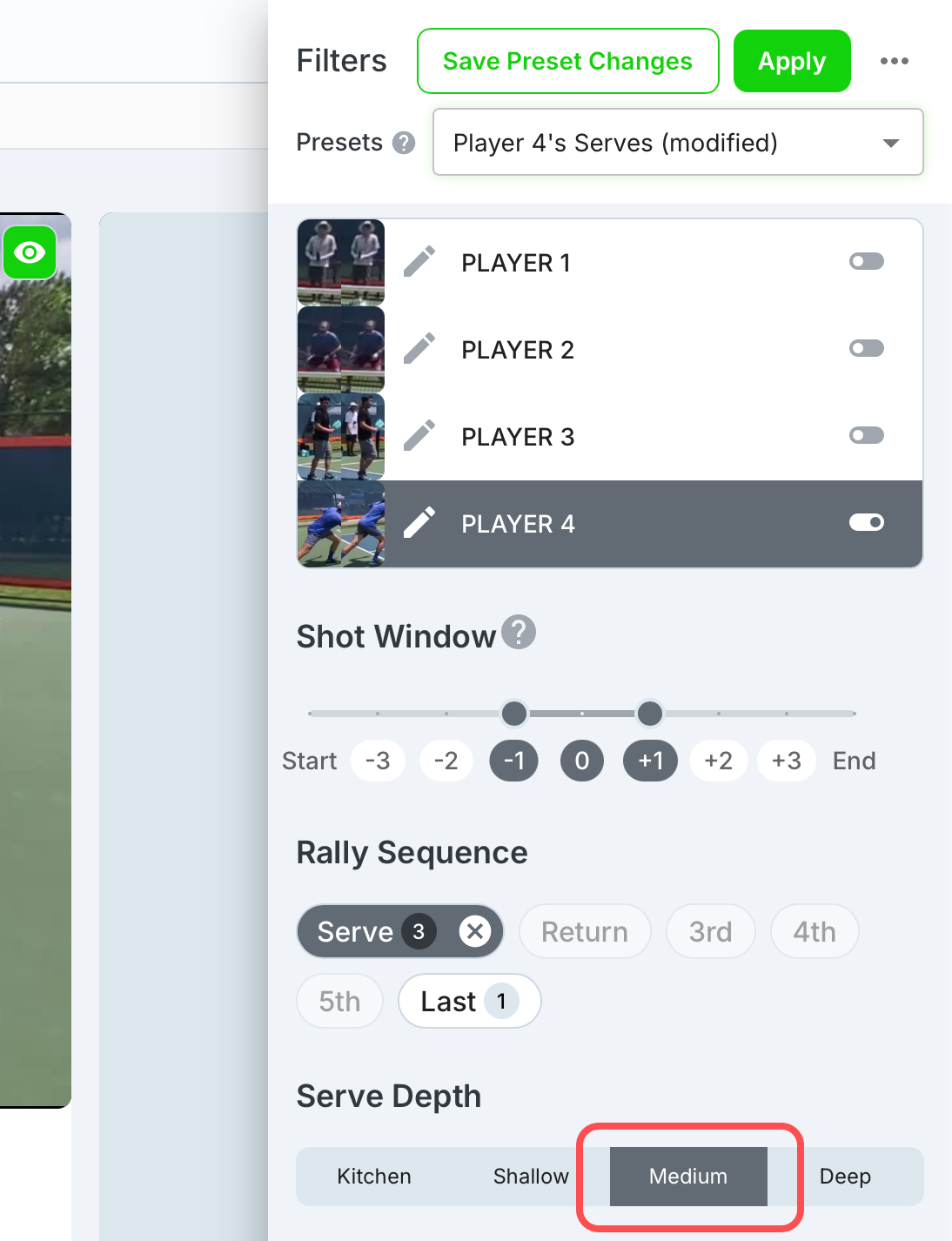
Select additional filters you would like to add/remove
In this example, I added the Medium serve depth filter
If you want to confirm you made changes to the preset, you will see the preset name now shows Modified
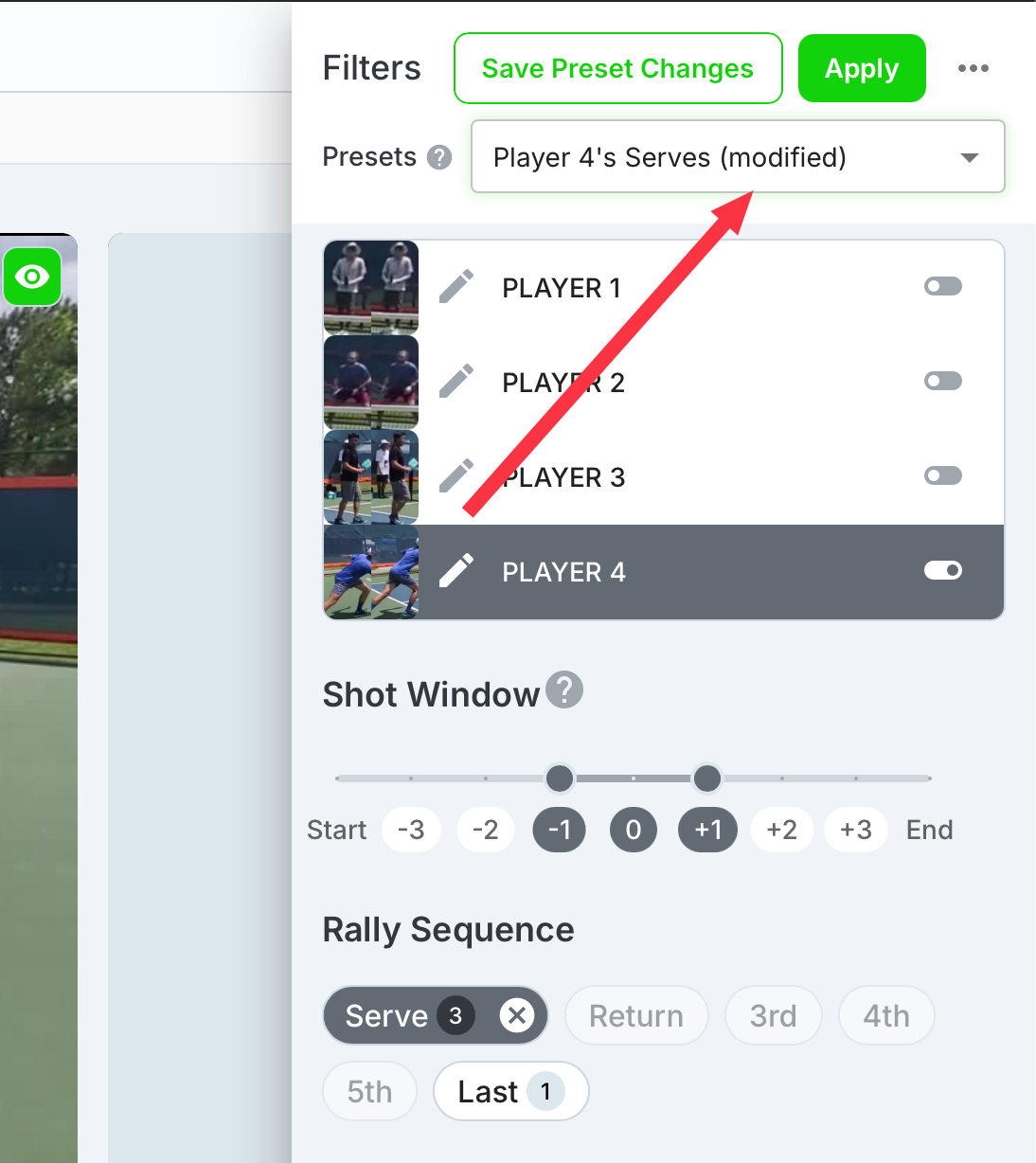
You can now select Save Preset Changes
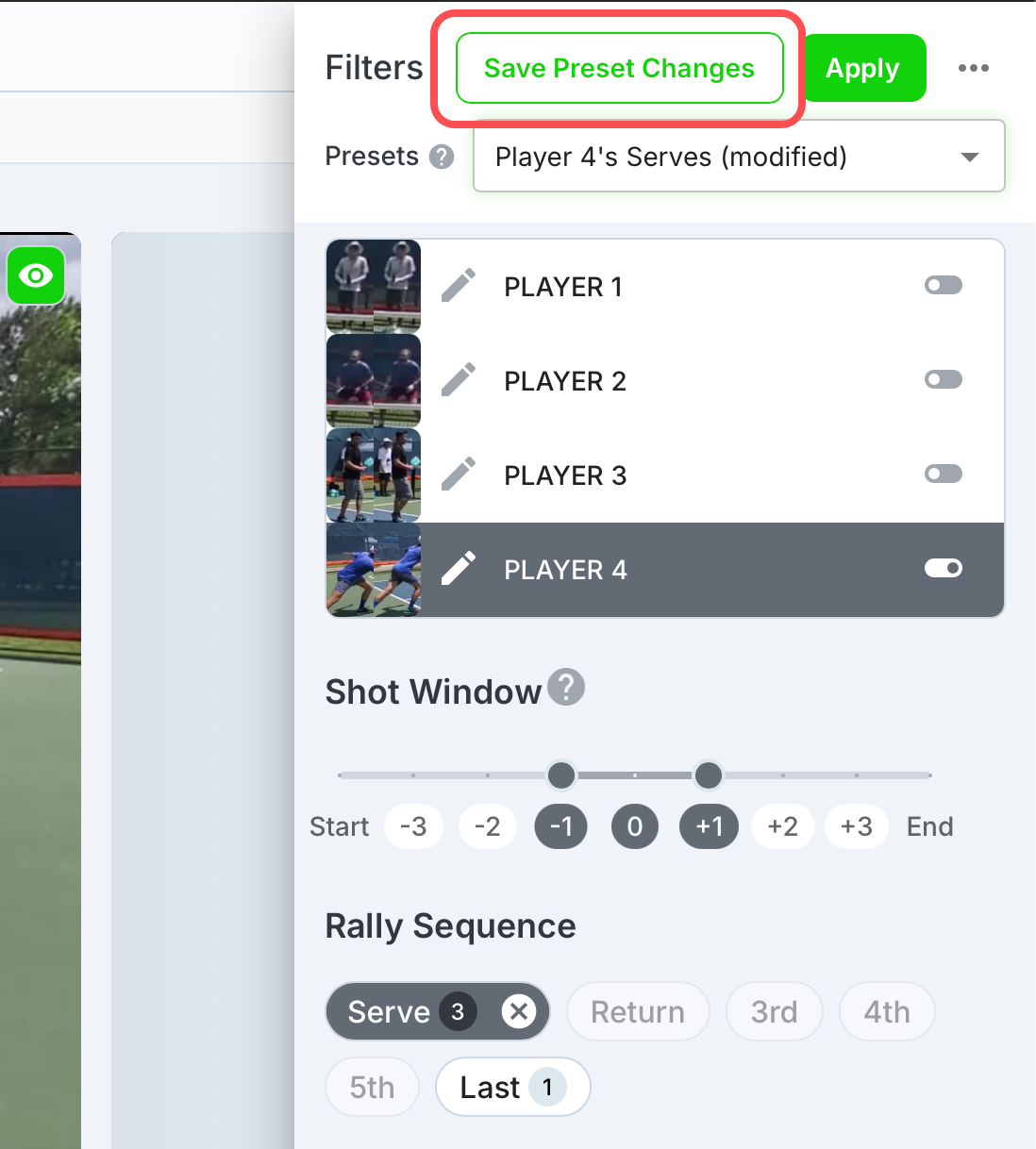
If you didn’t mean to make changes to a preset, you can cancel the changes by selecting the bubble dot menu
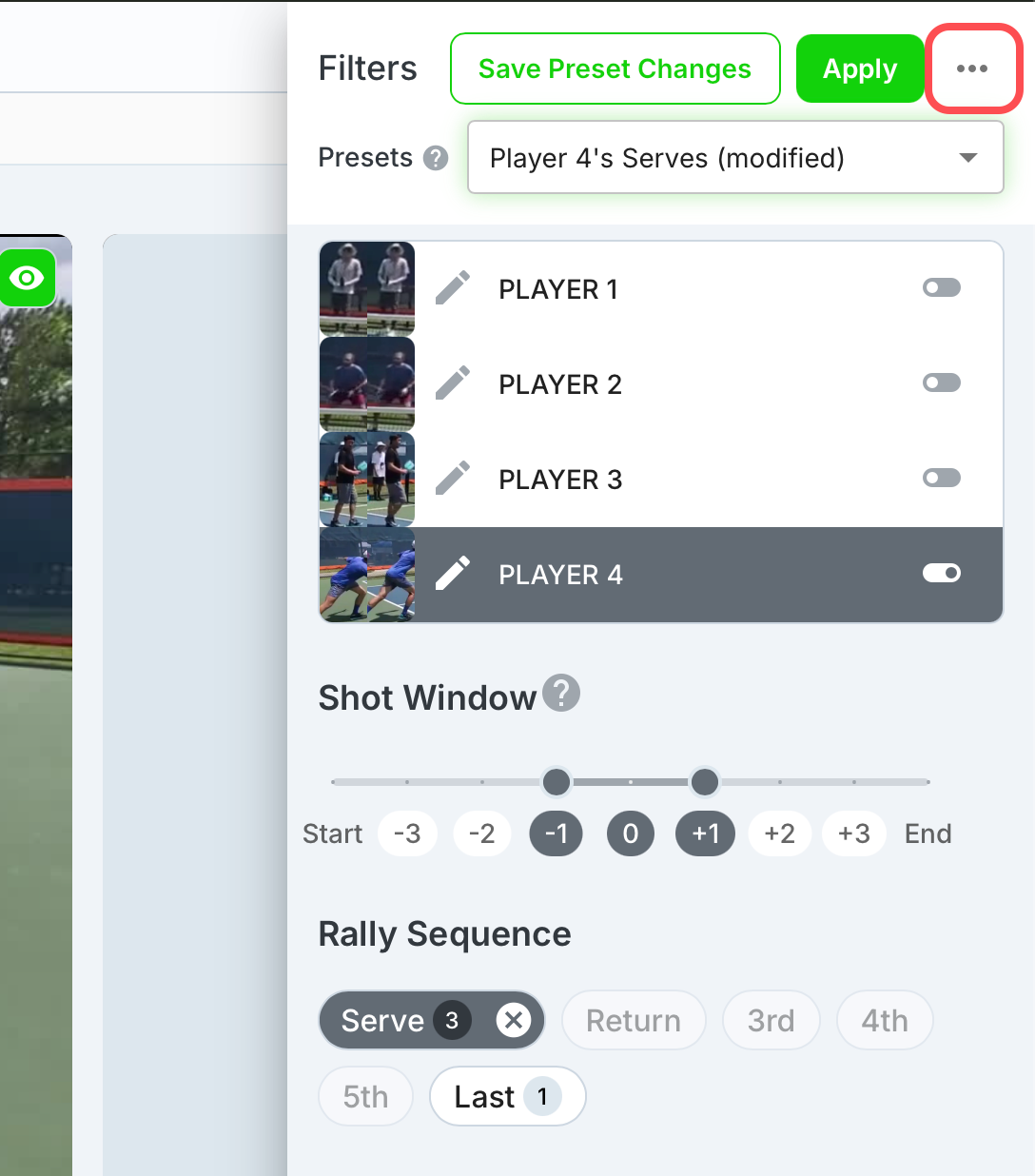
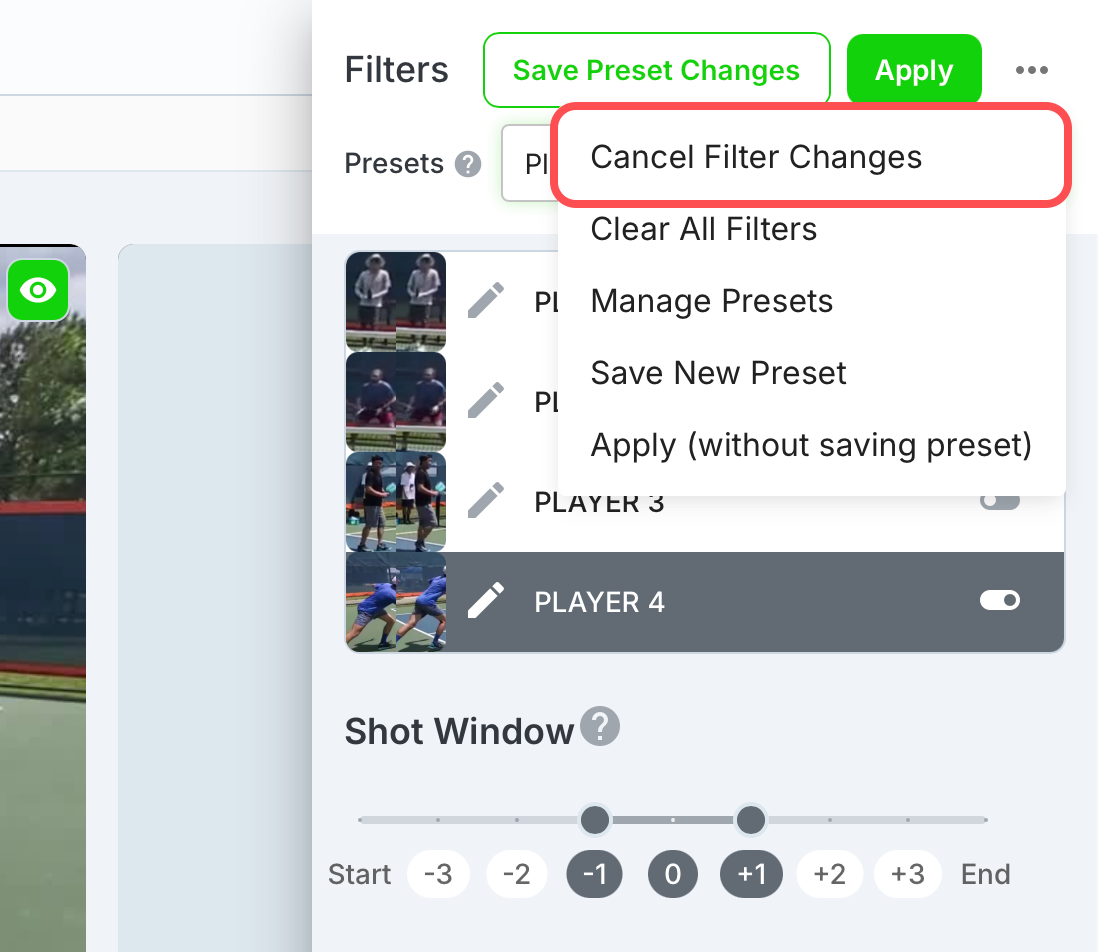
Then selecting Cancel Filter Changes
Managing Presets
Managing Presets allows you to organize and update your saved filters. Use this area to rename, edit, or delete presets as needed.
Select the Filters icon
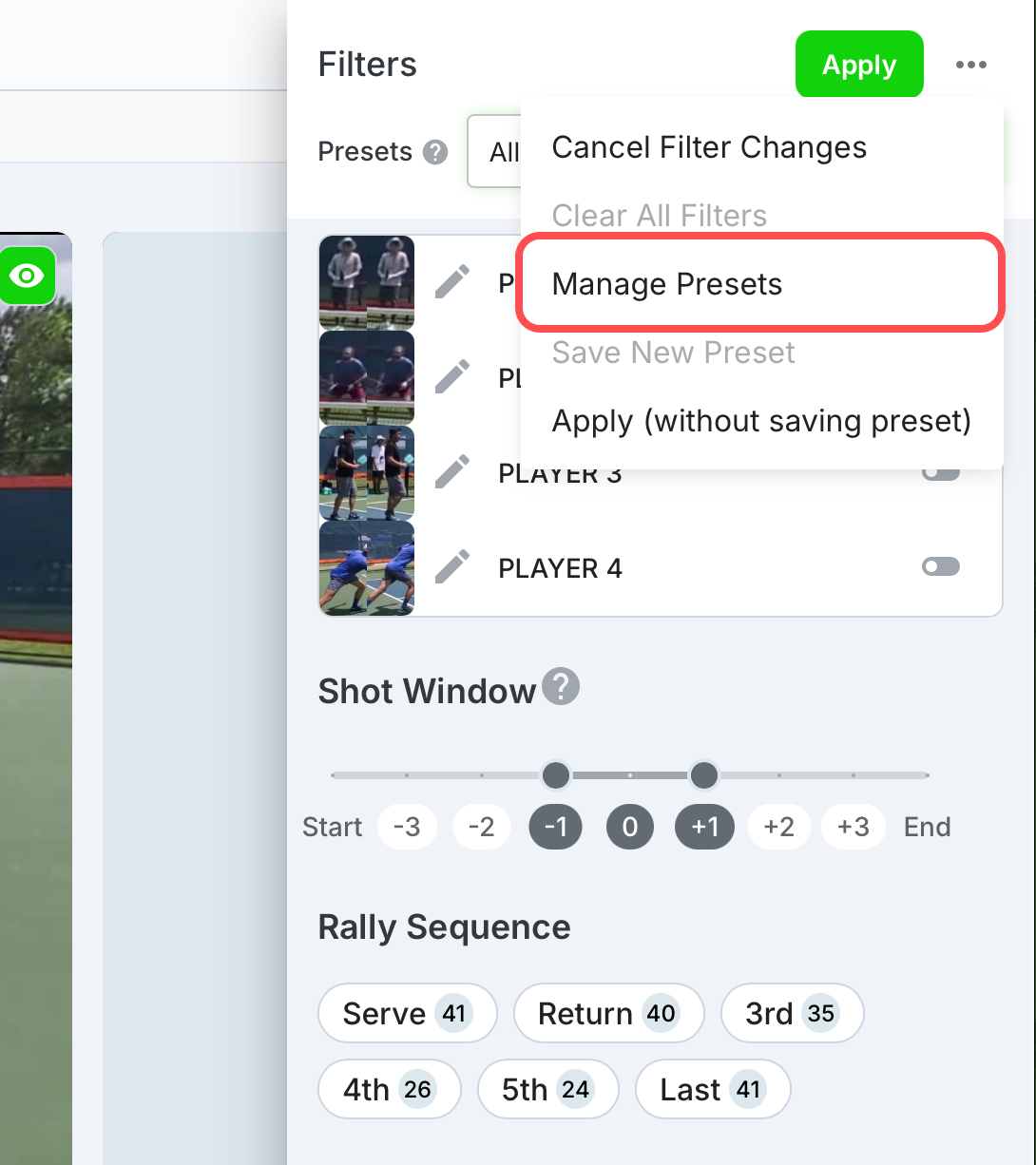
Select the bubble dot menu
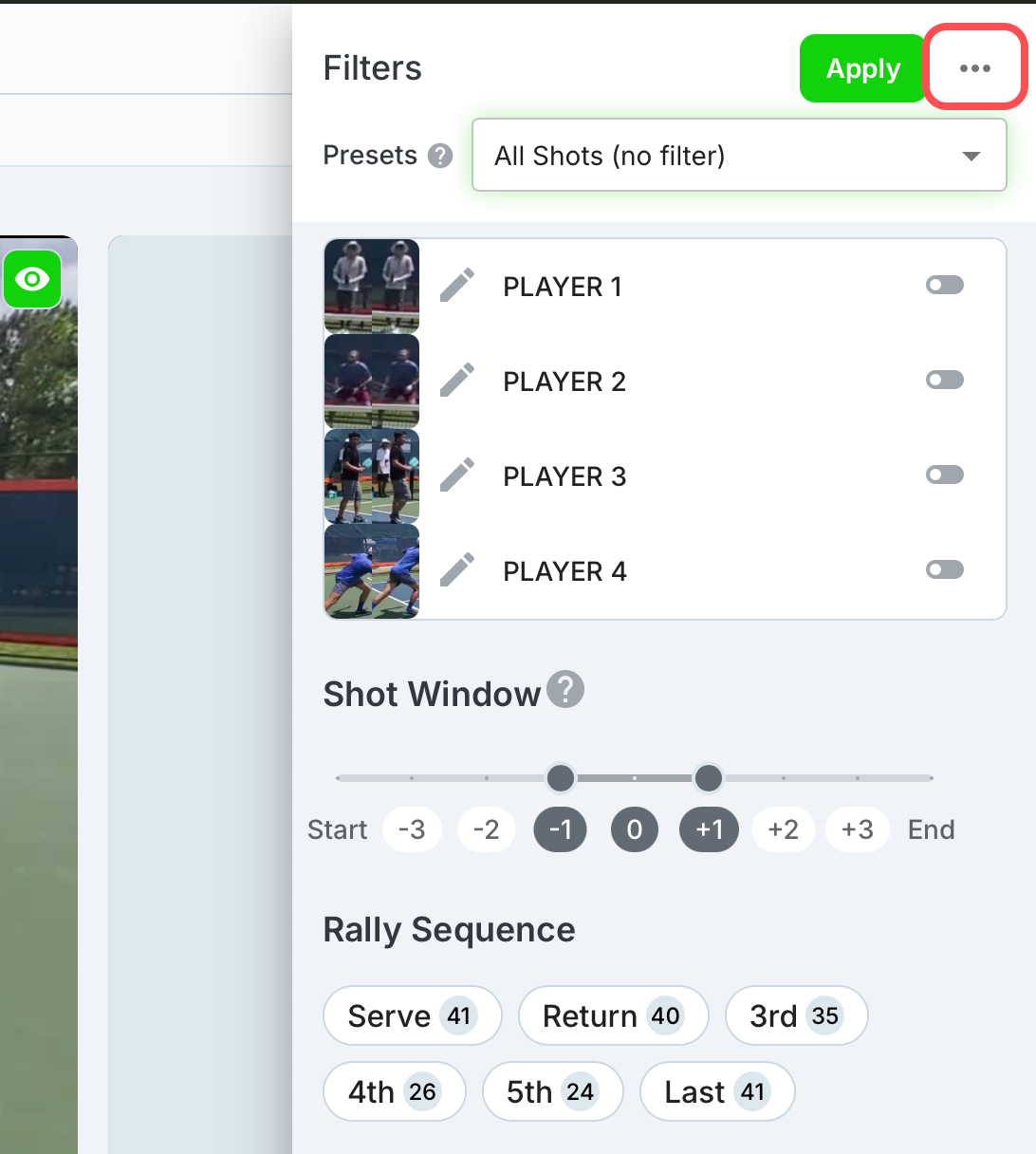
Select Manage Presets
Editing The Filter Names
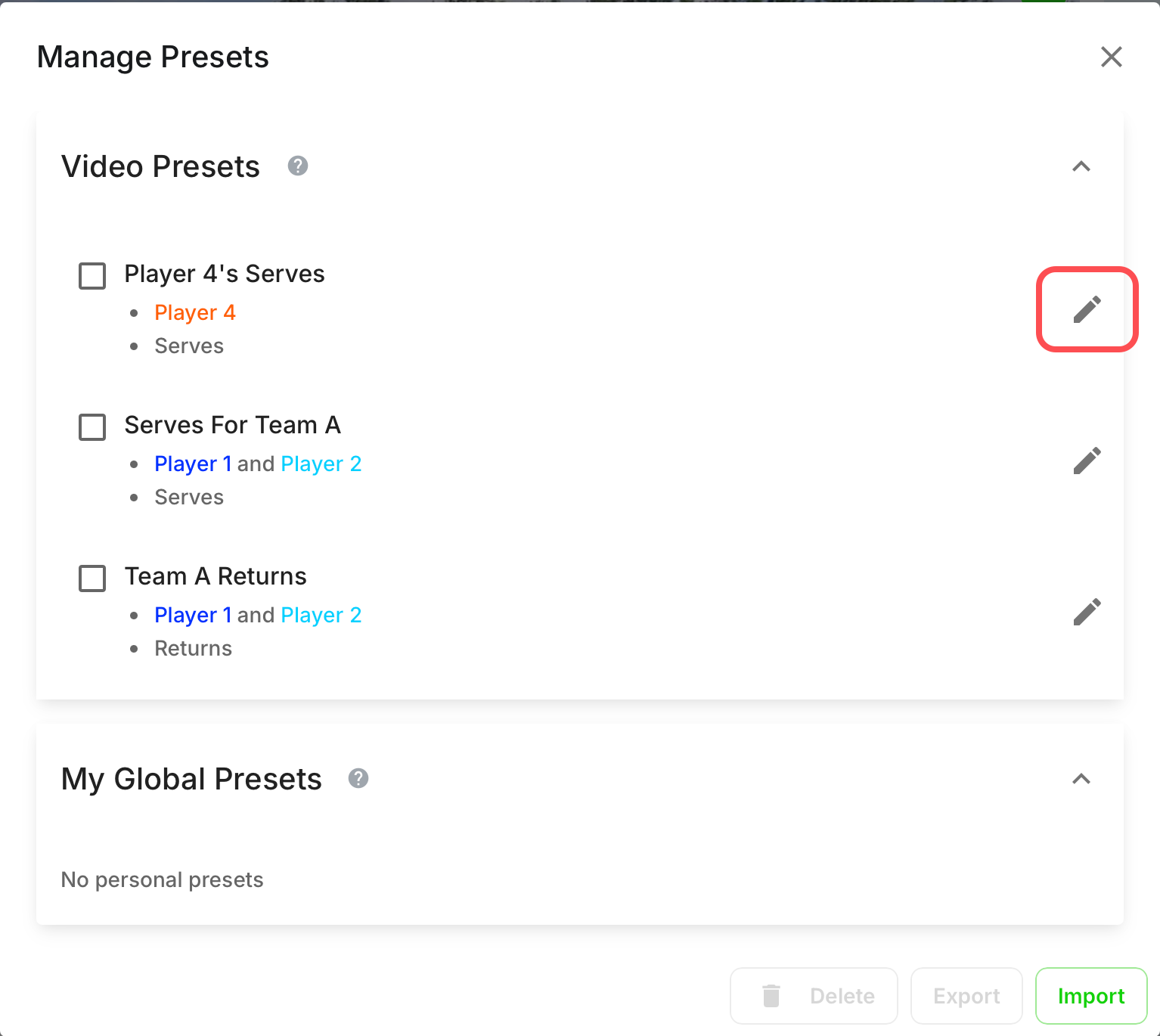
Select the Pencil icon
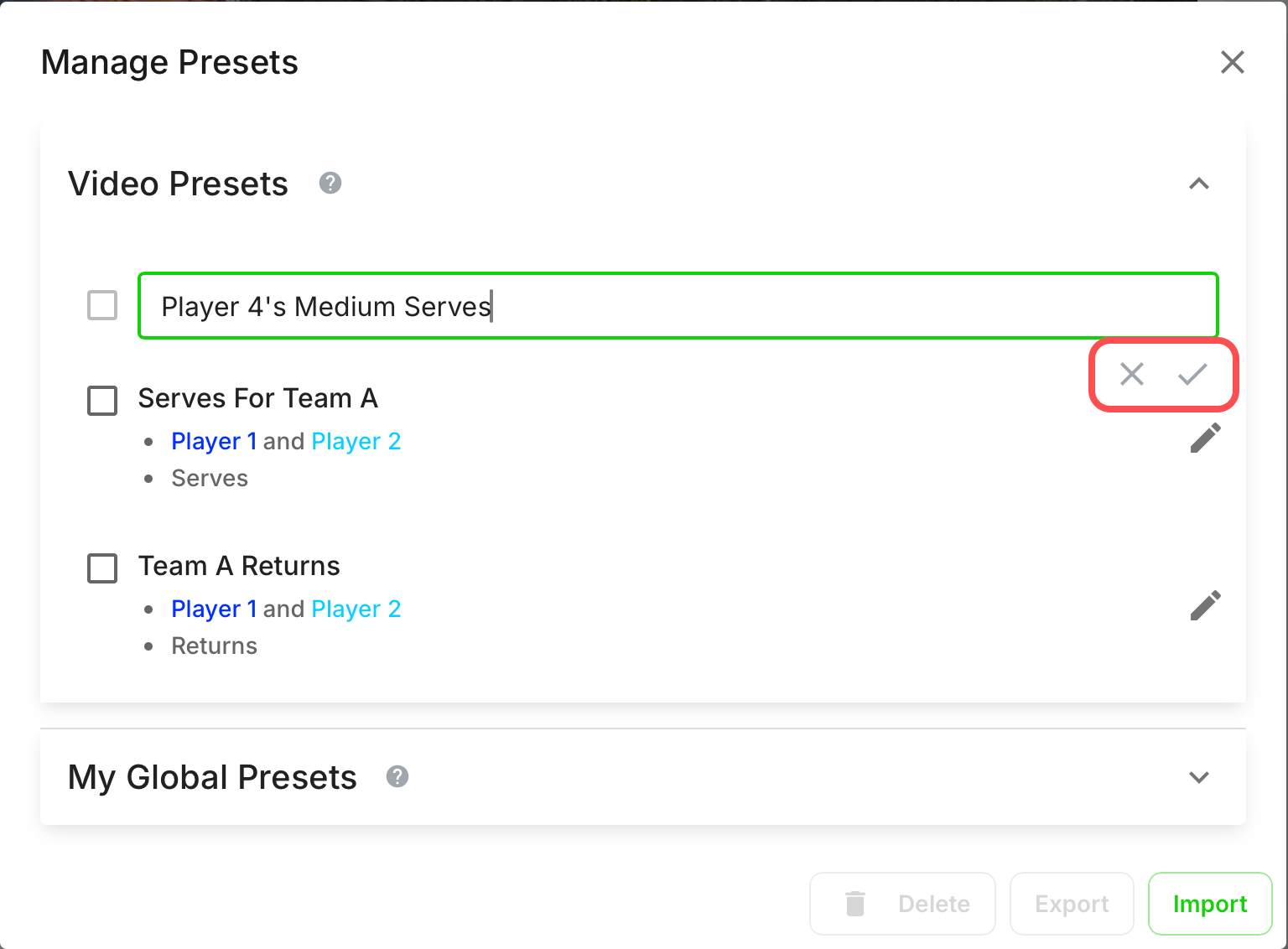
Edit the name and select the Check to save it or the X to cancel the changes
Deleting Presets
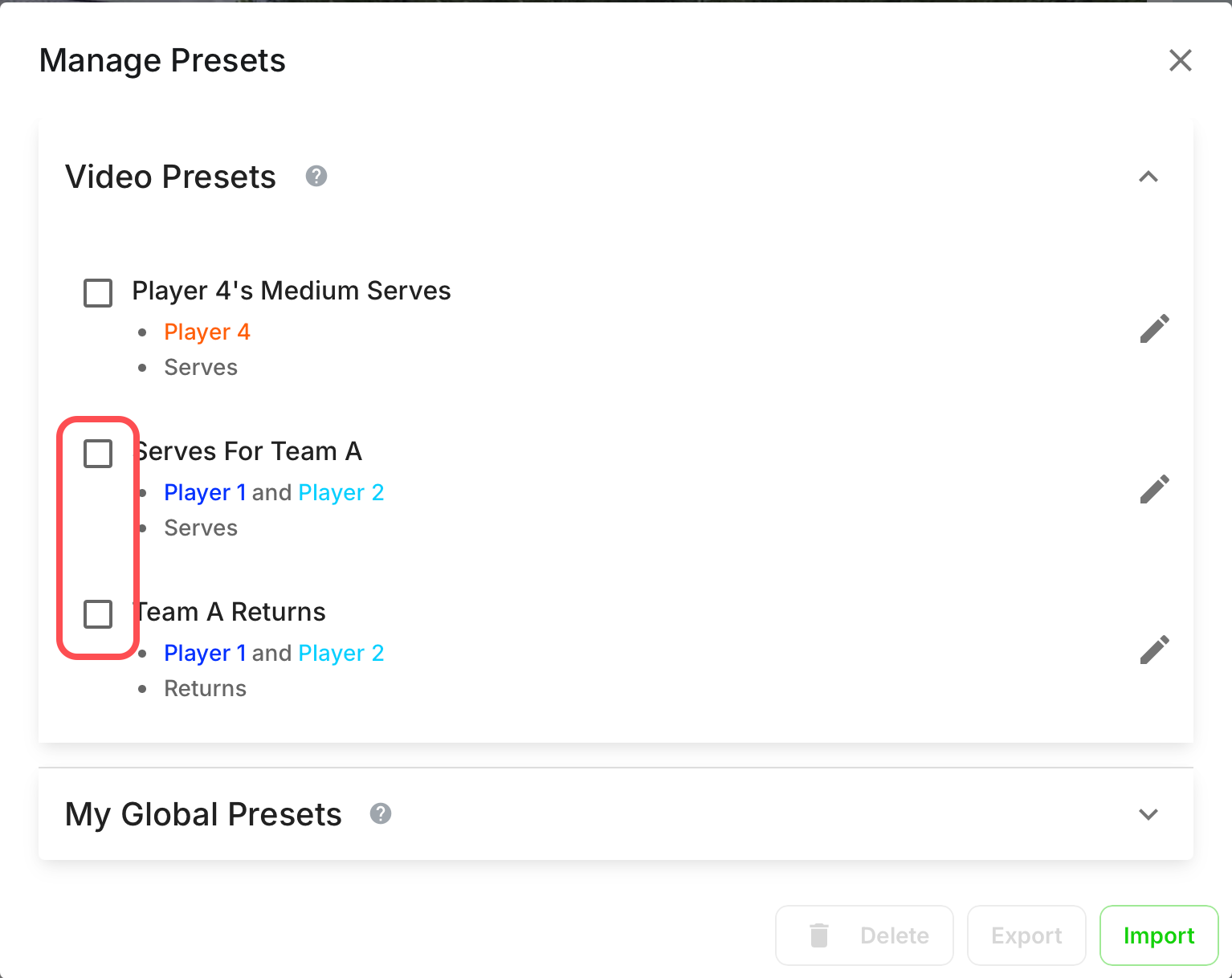
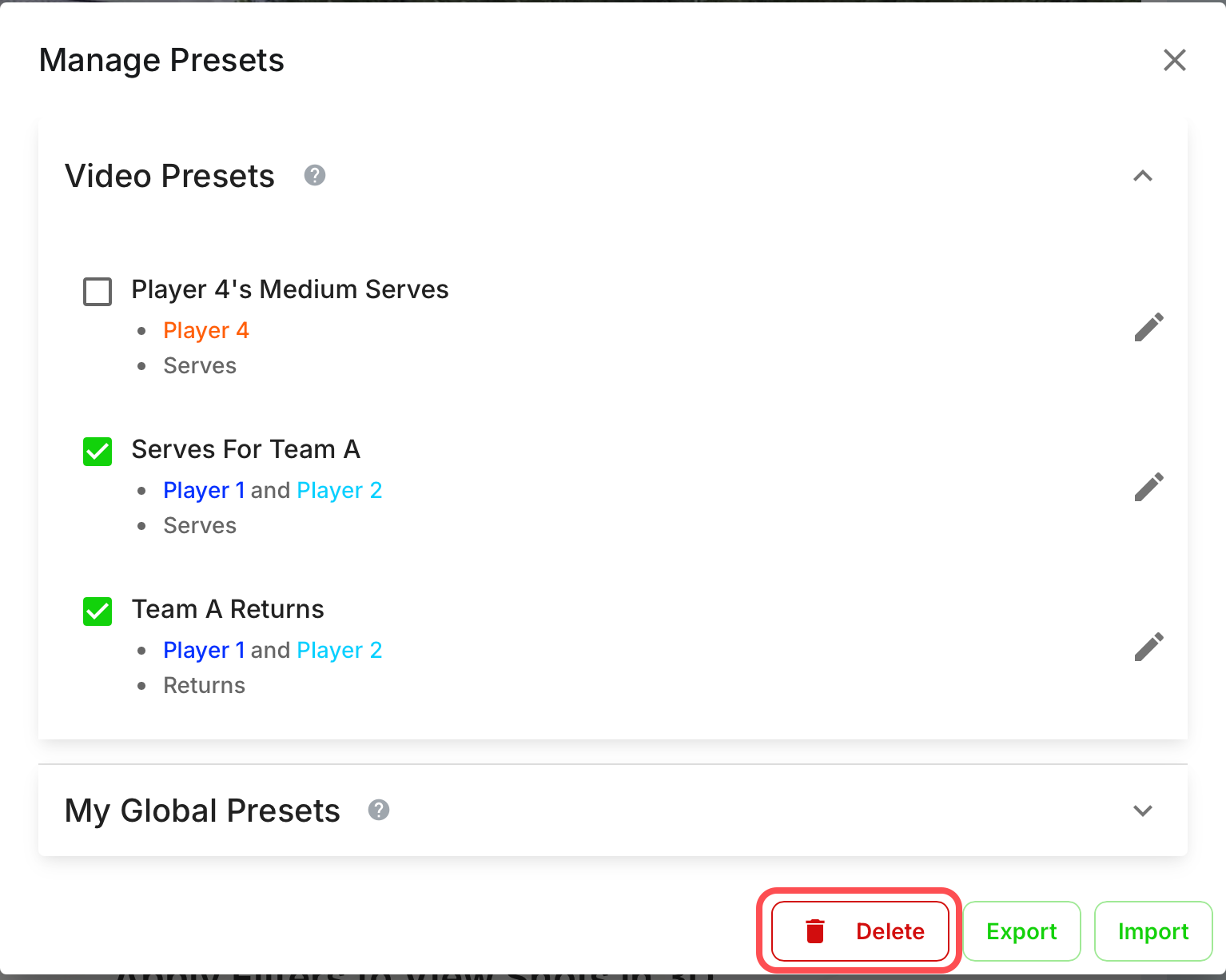
Select the checkbox(s) for the preset(s) you would would like to delete
In this example, I am selecting the last two presets in my list
Select Delete
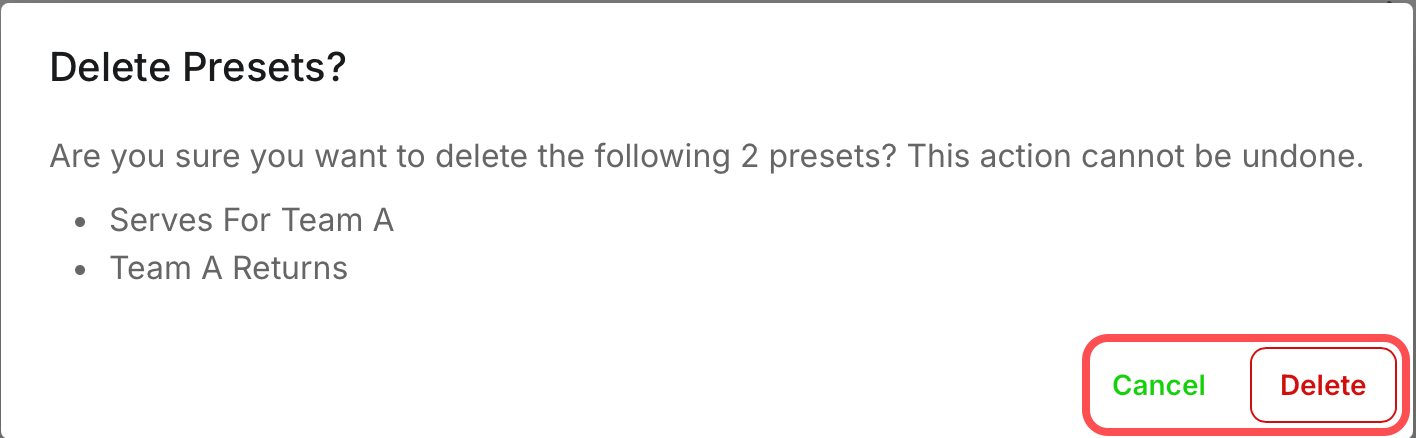
A confirmation window will appear to have you confirm you would like to delete the selected preset(s)
Sharing Presets
Sharing Presets is where you can import and export presets to easily share filter setups with teammates or coaches.
Exporting Presets
Select the Filters icon
Select the bubble dot menu
Select Manage Presets
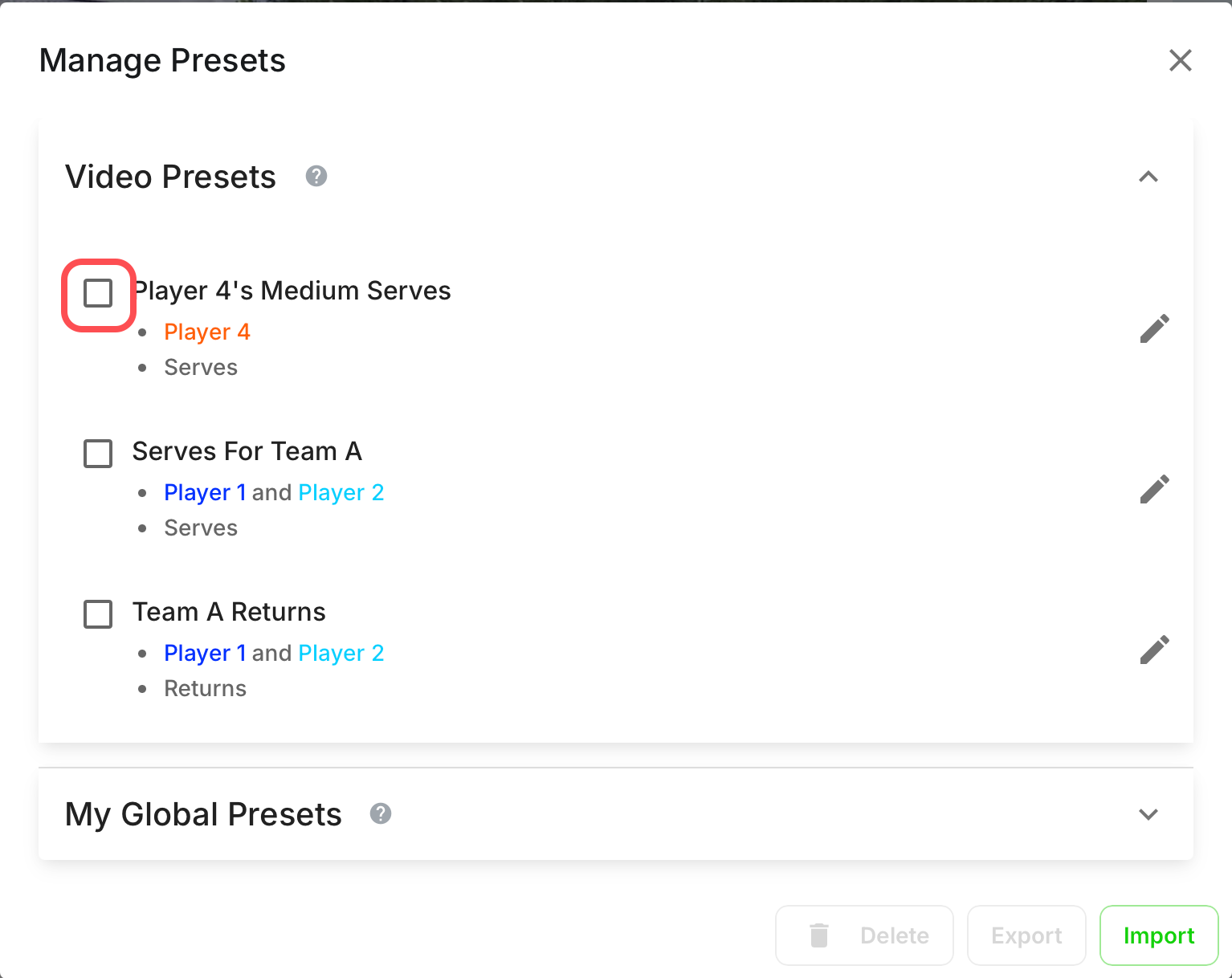
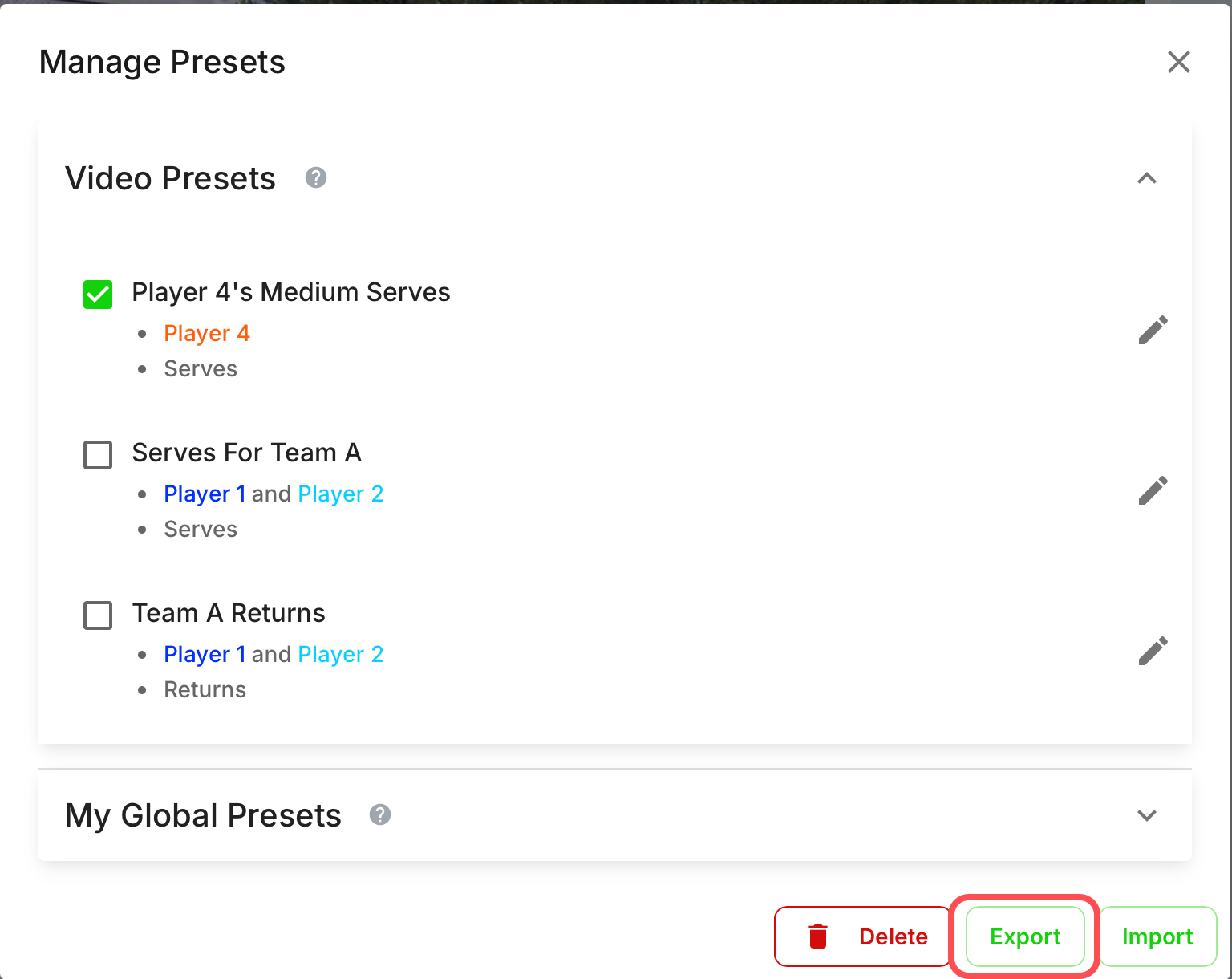
Select the checkbox(s) of the preset(s) you would like to share
Select Export
A share dialog will appear asking you how you would like to share the preset export
Import Presets
Select the Filters icon
Select the bubble dot menu
Select Manage Presets
Select Import
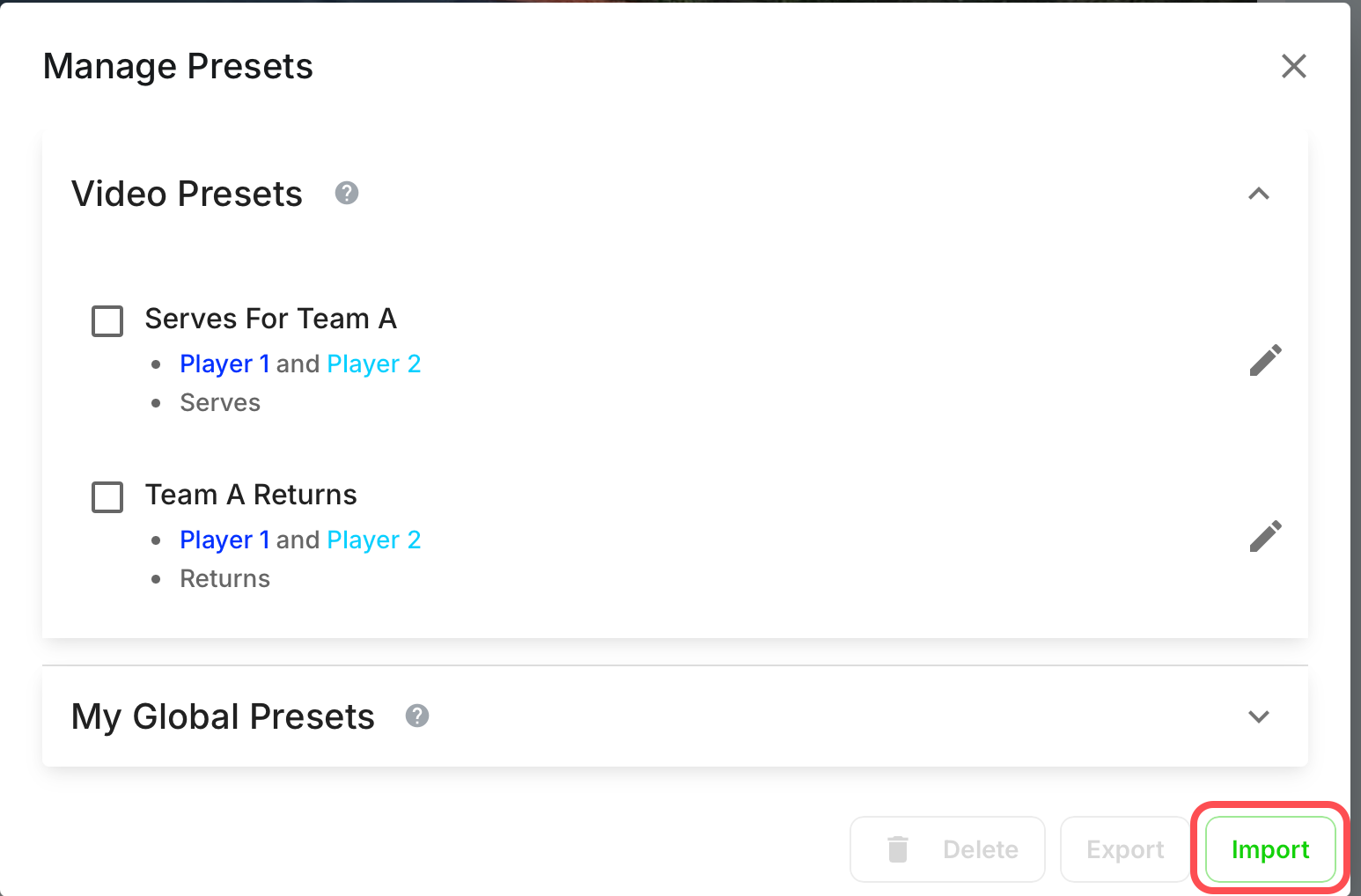
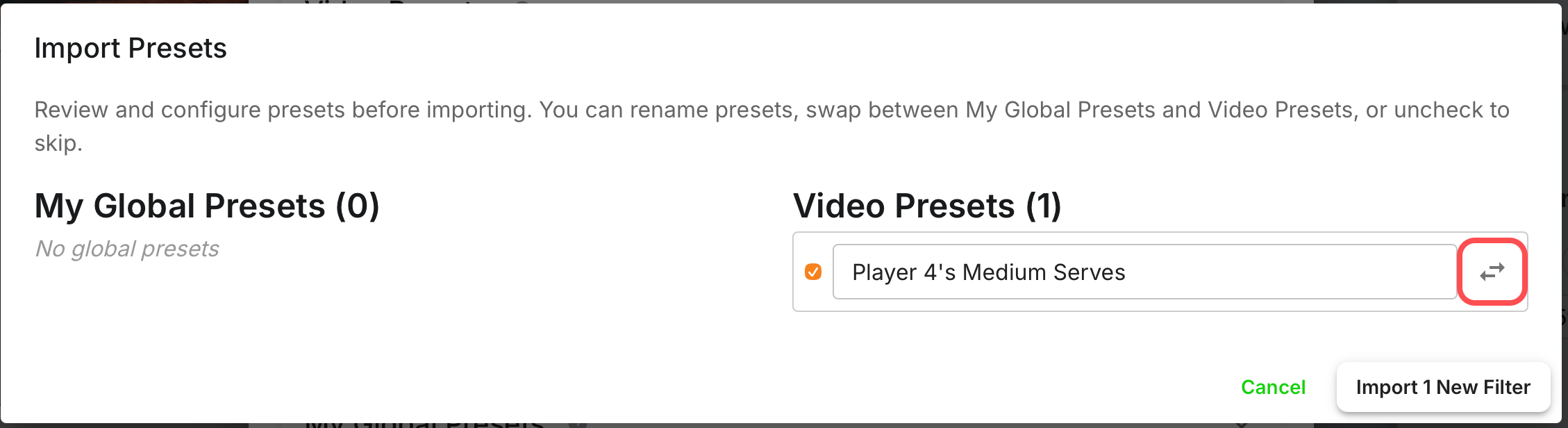
At the Import Presets screen, it will default to the preset it was exported as
If you would like to change it from a Video Preset, select the arrows to move it to a Global Preset or vice versa
You can also change the name if you prefer prior to import
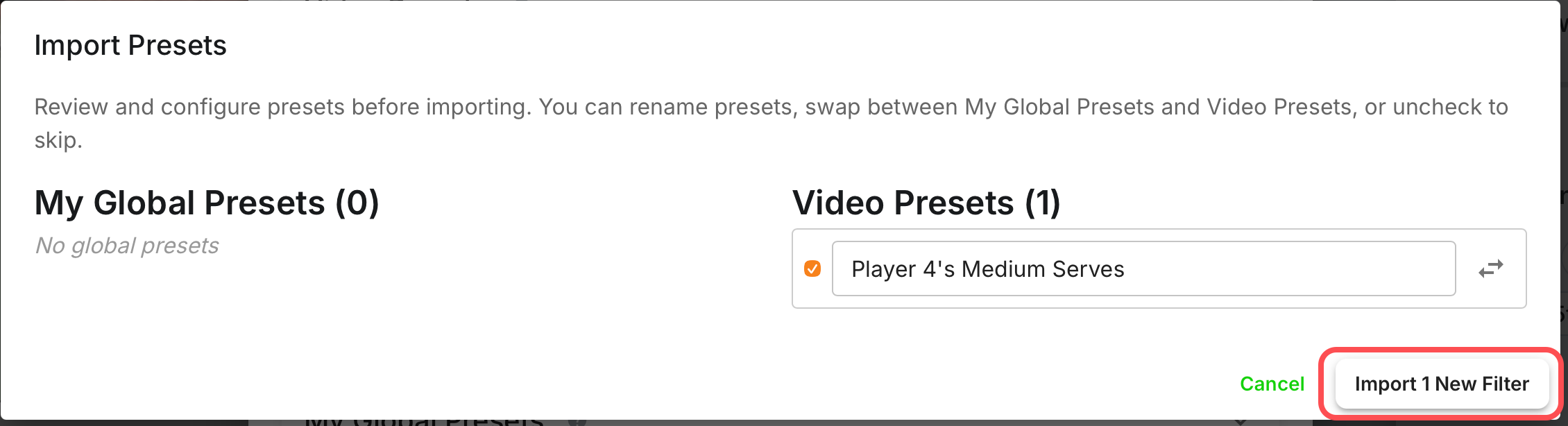
Once any adjustments have been made, select Import () New Filter
🔁 Looping & Sharing
Watch Shot On Repeat
Watch Shot on Repeat lets you replay a single shot continuously to better evaluate execution, timing, and consistency.
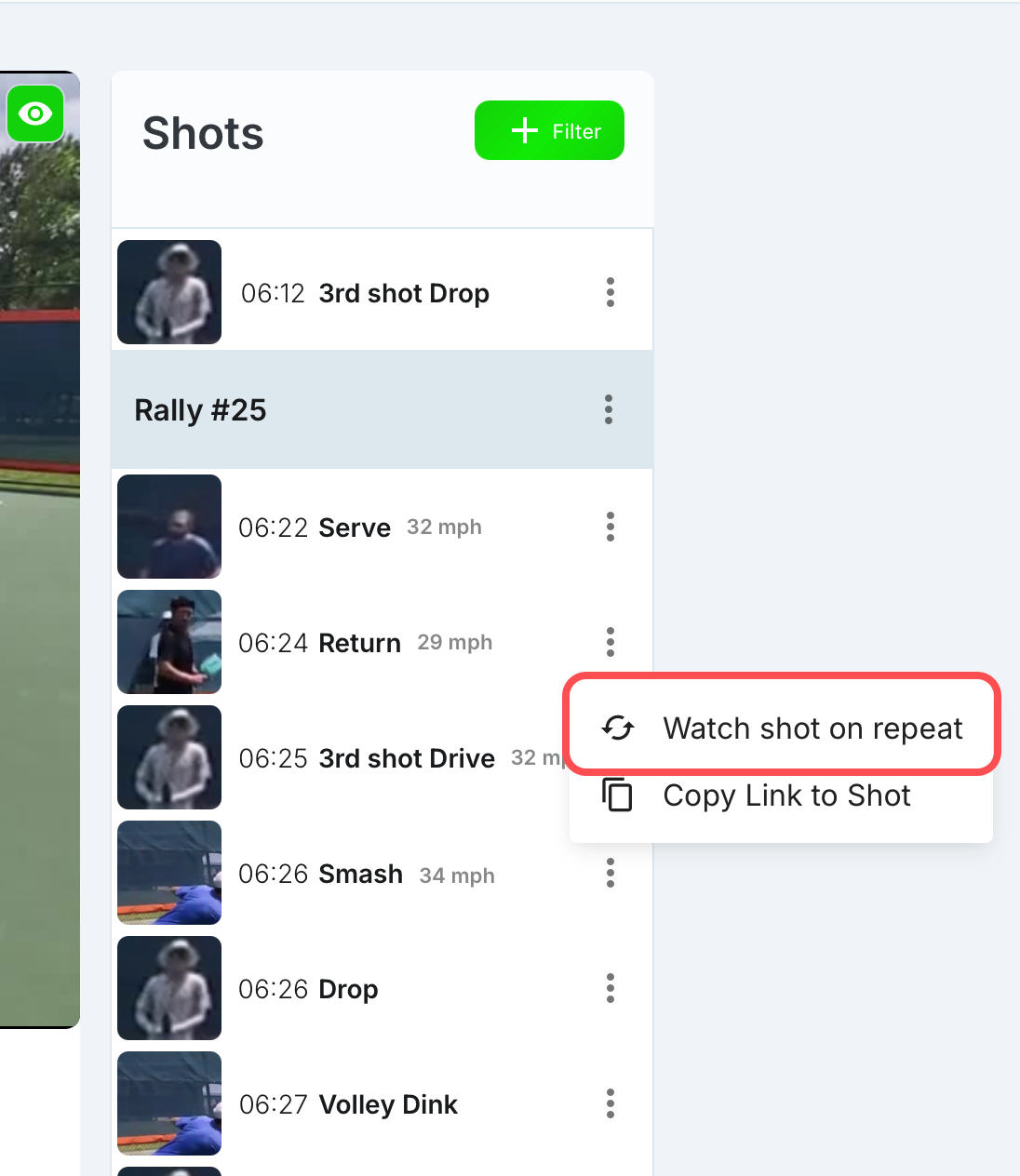
Select the bubble dot menu beside the shot you would like to view on repeat
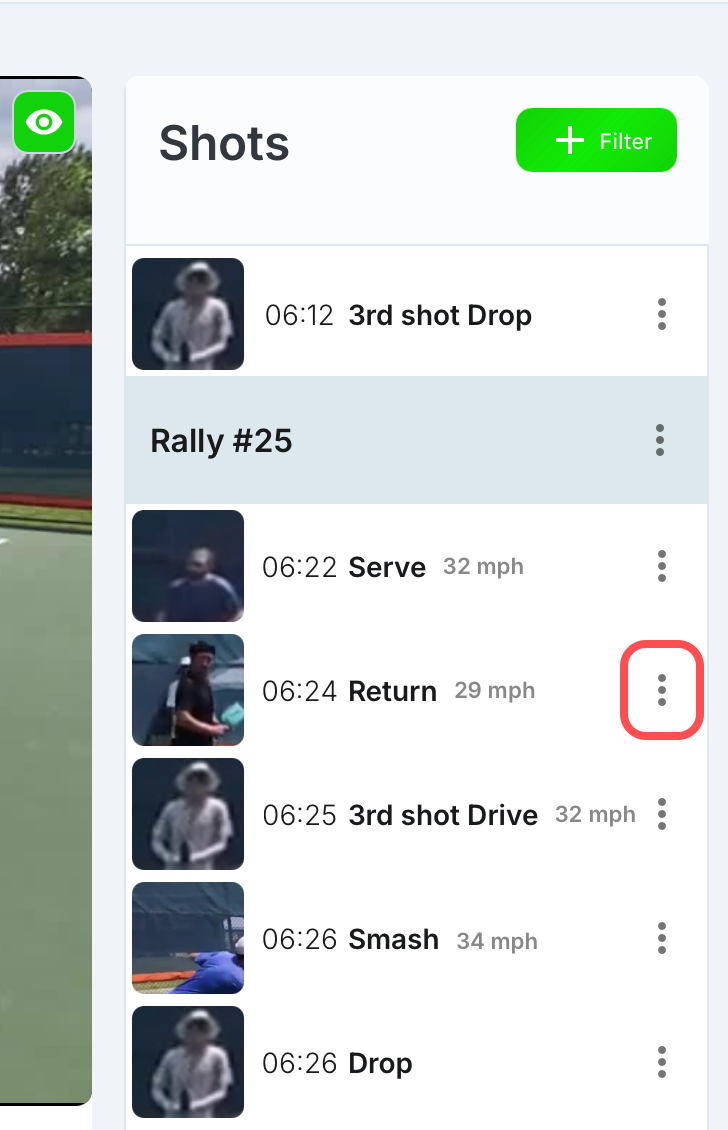
Select Watch shot on repeat
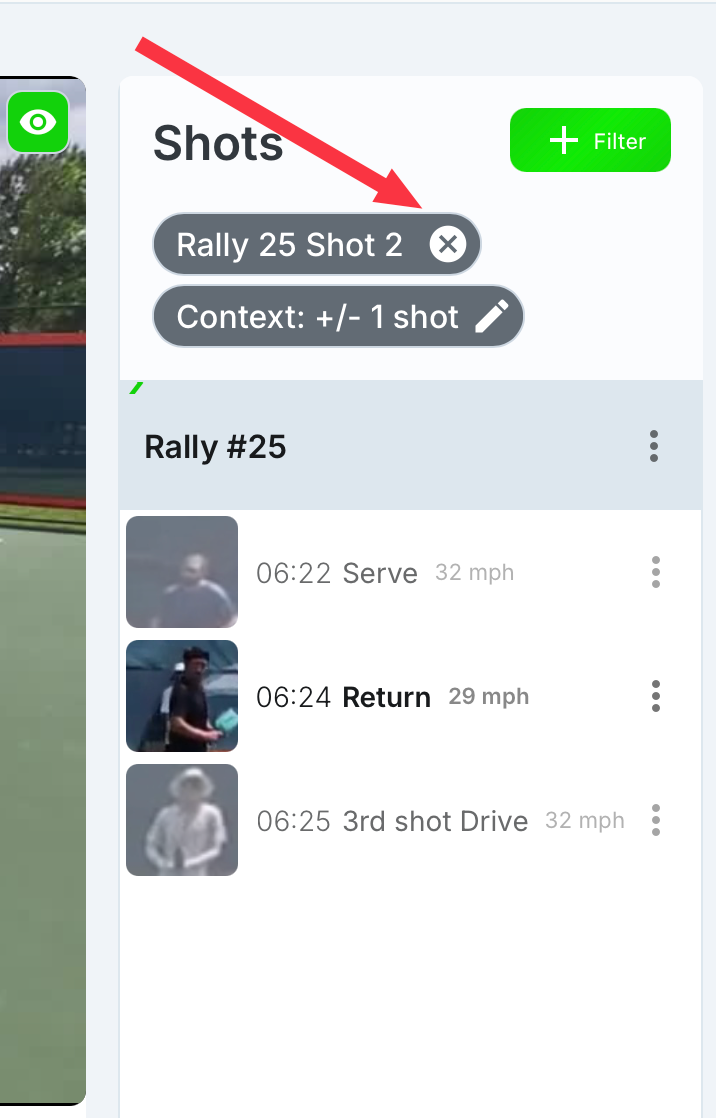
Should you want to stop watching the shot on repeat, select the X icon on the filter to clear the filter and stop the loop
Watch Rally On Repeat
Watch Rally on Repeat lets you replay a rally continuously to better understand shot sequences, positioning, and how the point develops.
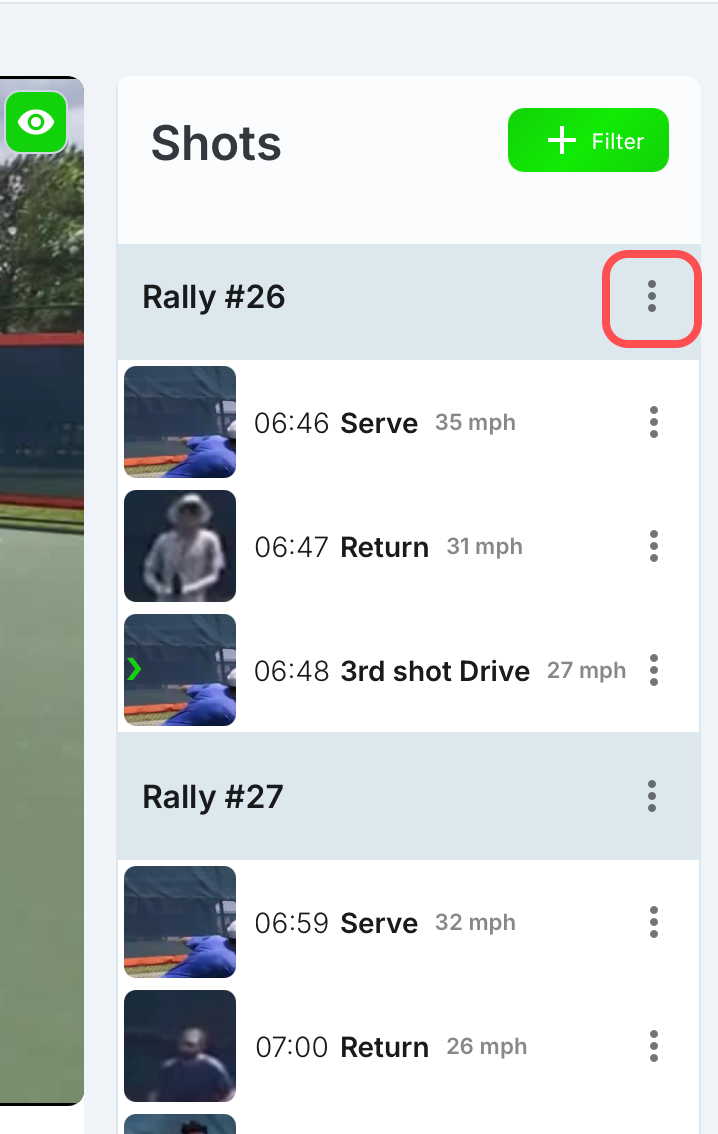
Select the bubble dot menu beside the rally you would like to watch on repeat
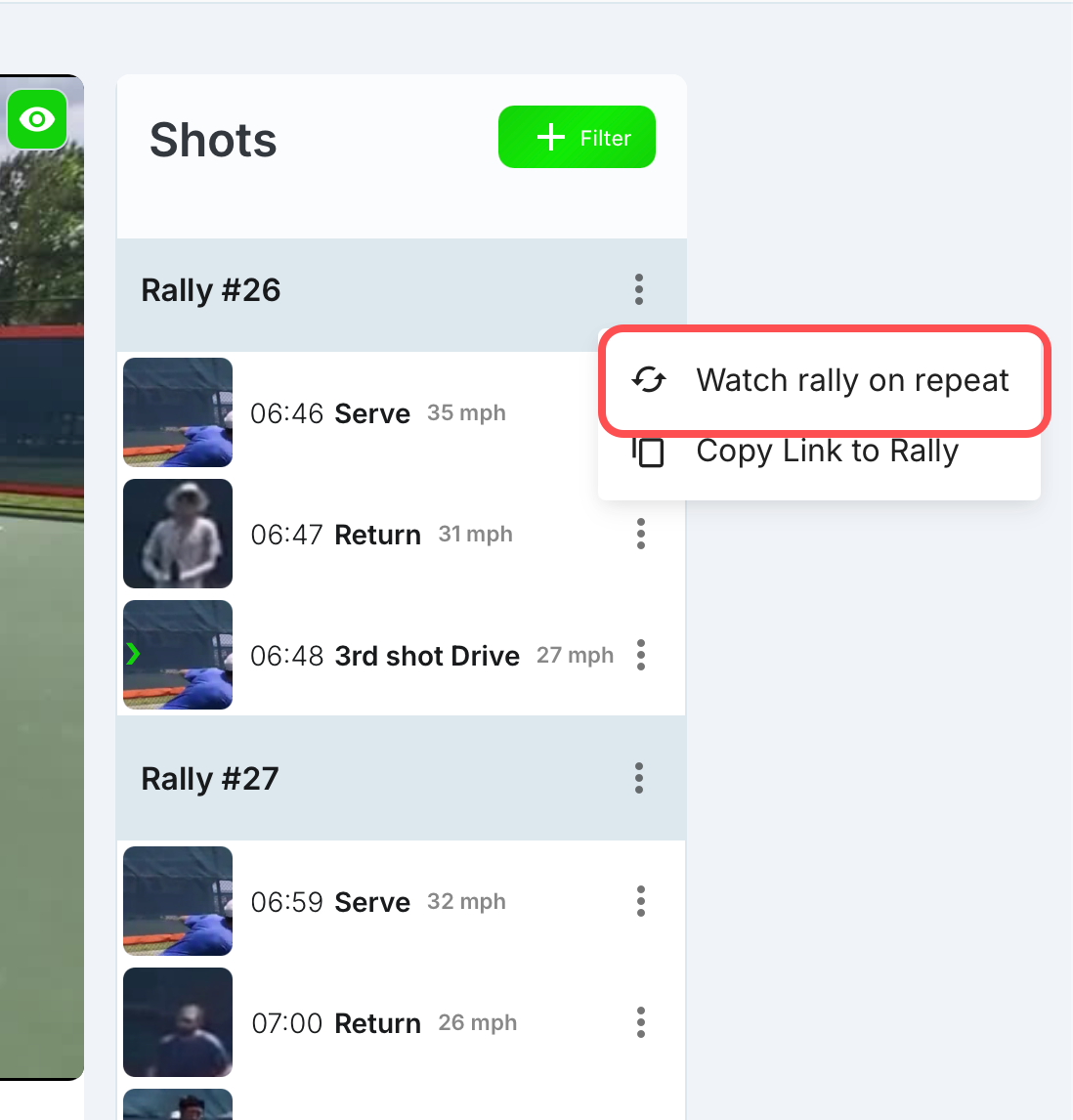
Select Watch rally on repeat
Should you want to stop watching the rally on repeat, select the X icon on the filter to clear the filter and stop the loop
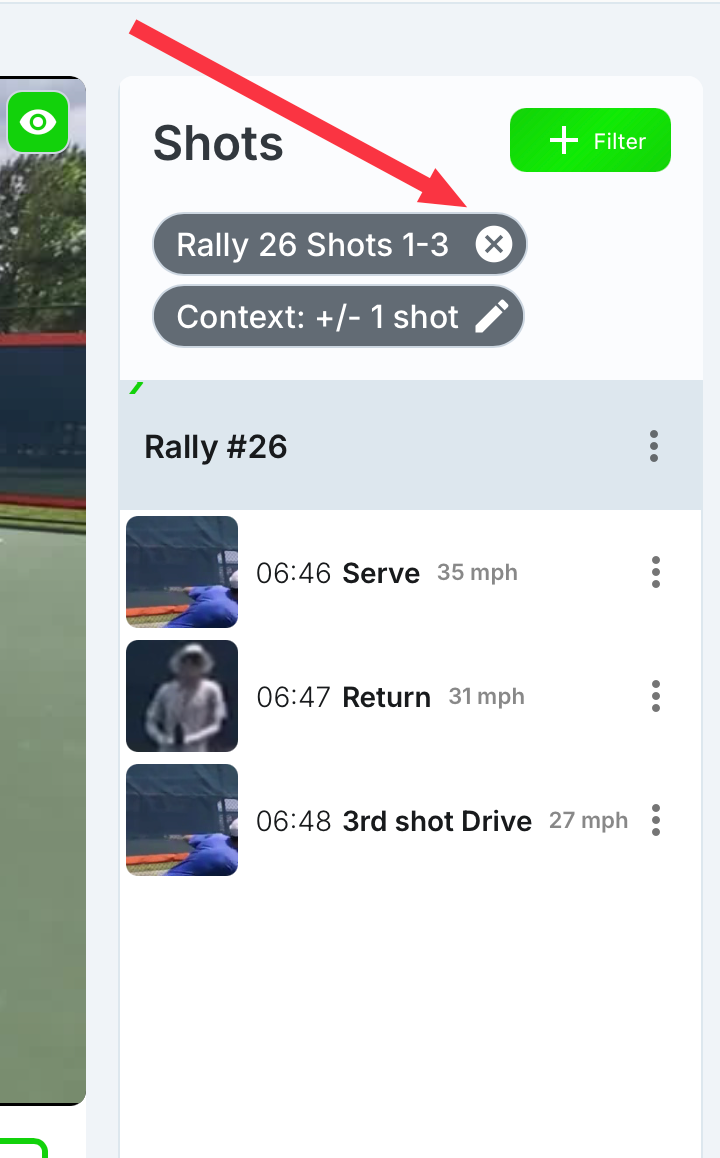
Sharing Shots/Rally/Filters
Sharing Filters allows you to send your current filter view so others can see and analyze the same set of shots without importing/exporting presets.
Shots
Select the bubble dot menu beside the shot you would like to share
Select Copy Link to Shot
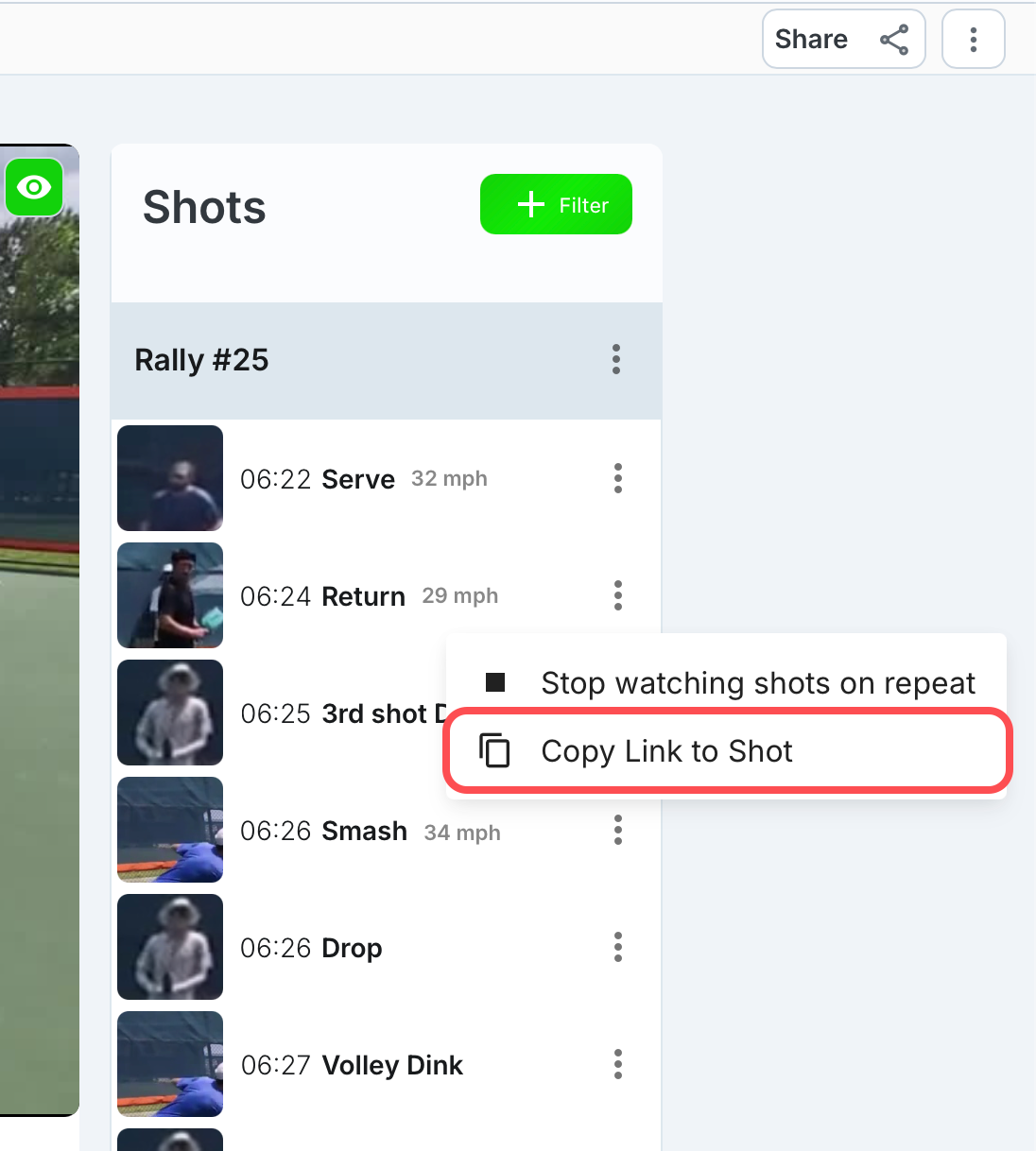
Now you can share the link with your friends which includes your personal referral code
Rally
Select the bubble dot menu beside the shot you would like to share
Select Copy Link to Rally
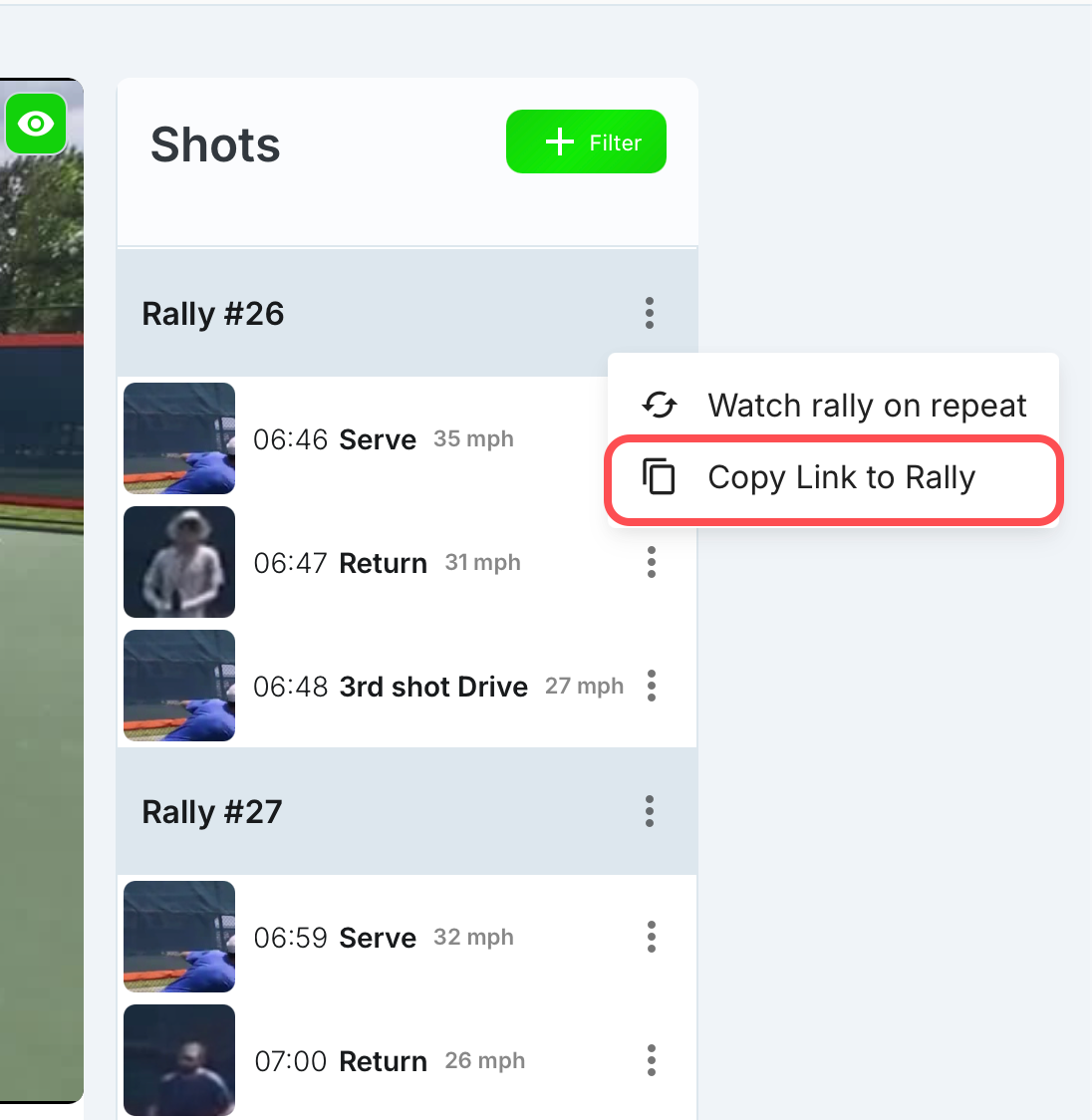
Now you can share the link with your friends which includes your personal referral code
Filters
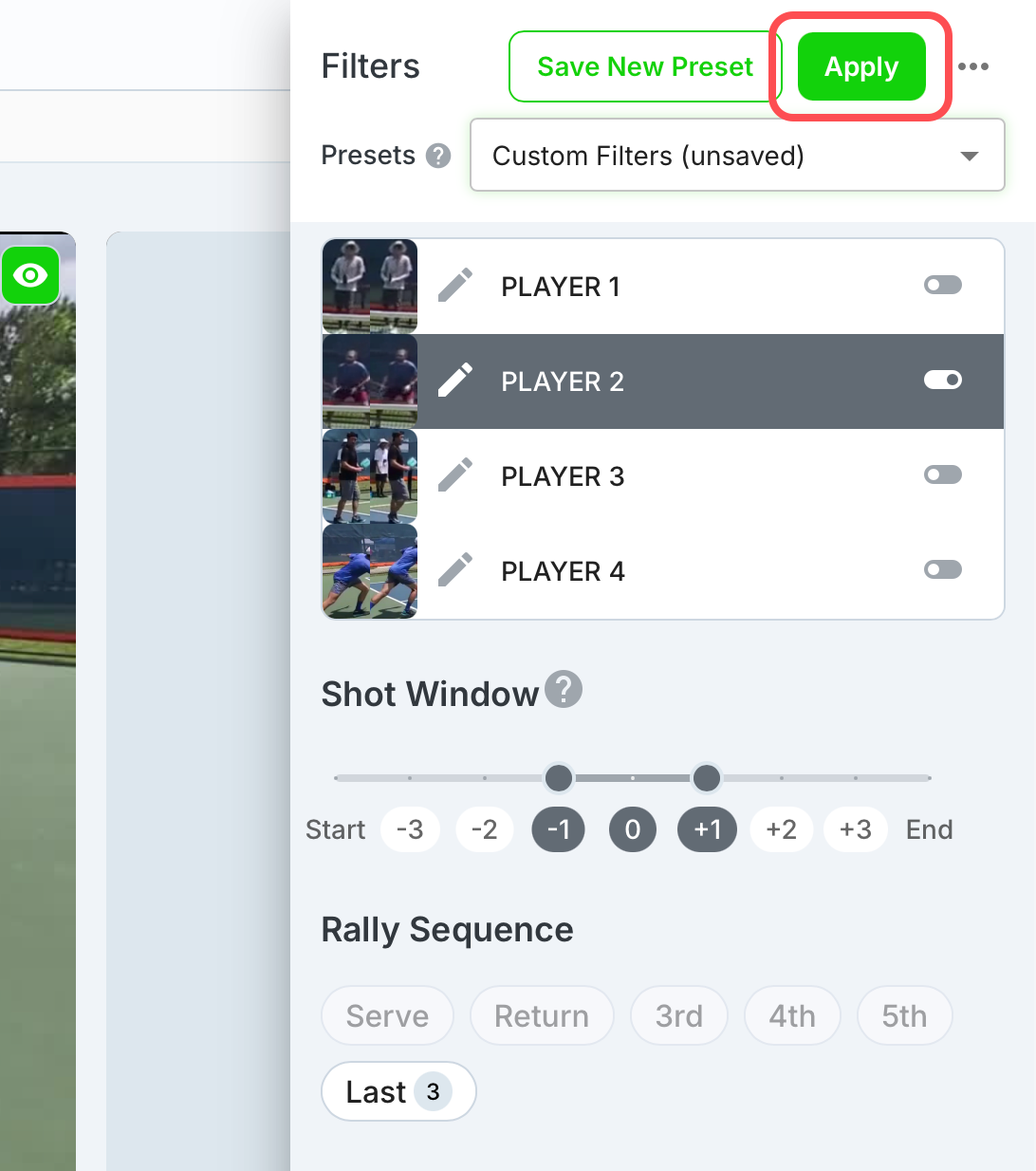
Select the Filters icon
Select the filter(s) you would like to share
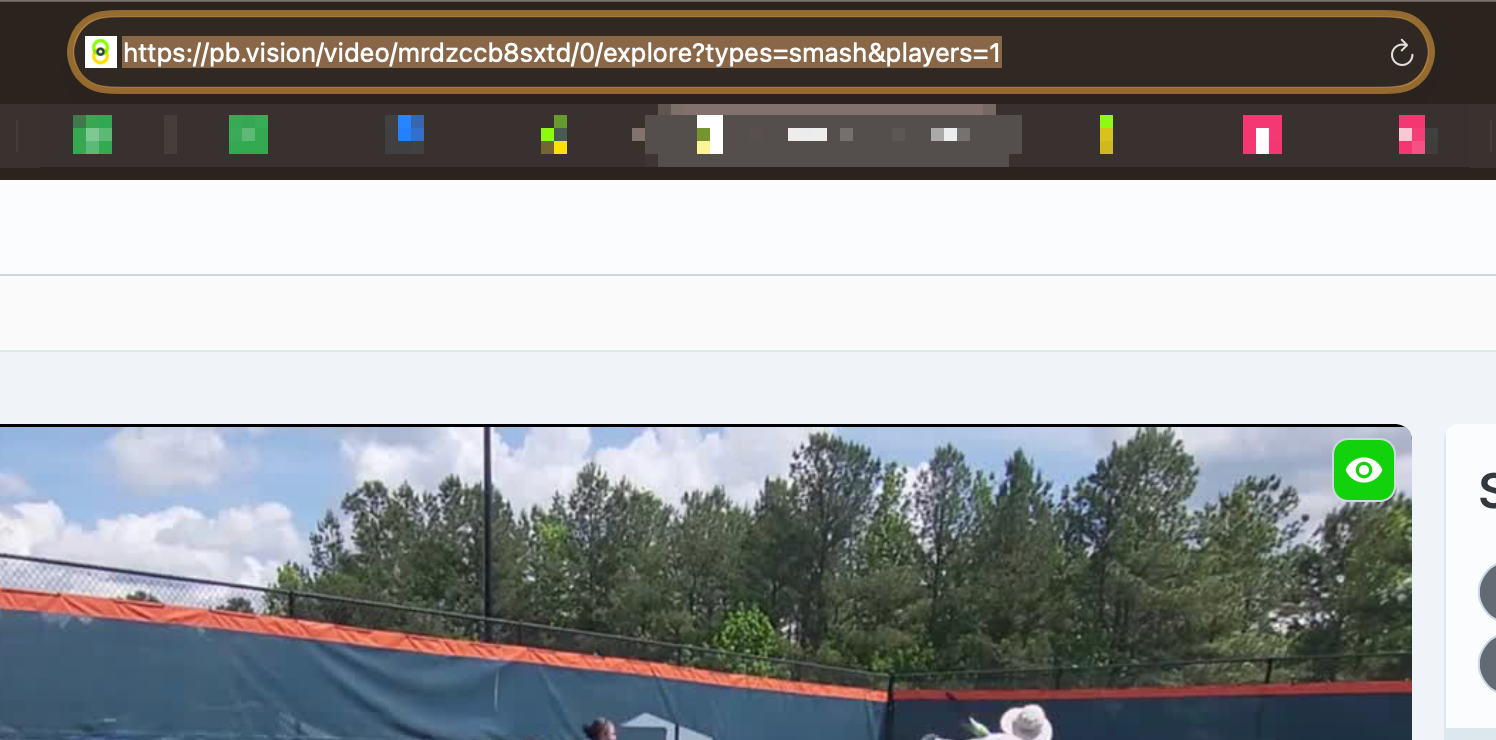
In this example, I selected Player 2’s Smashes
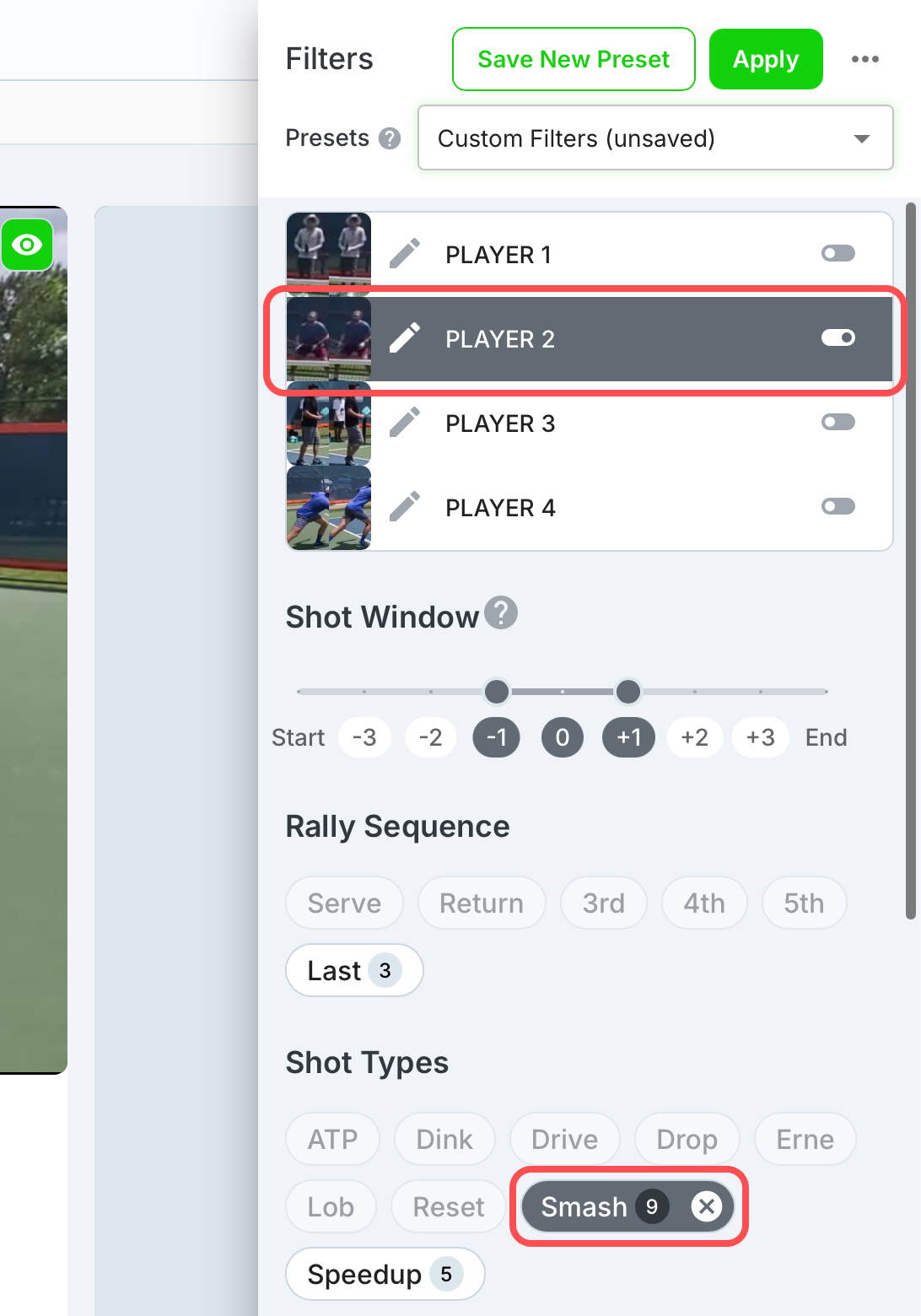
Apply the filter
Copy the URL to share the exact filters with your friends
⁉️ Looking For More?
If you still have questions or run into issues, check out our Contact Us guide for the best way contact us for more information!