Managing Your Subscription
Learn how to view, update, or cancel your PB Vision subscription at any time. This guide walks you through checking your current plan, changing between monthly and annual billing, and updating payment details. Whether you’re exploring new plan options, upgrading for more upload minutes, or simply reviewing your renewal date, this article covers everything you need to confidently manage your subscription directly from your account settings.
⚠️ Apple Private Relay / Hide My Email Users
If your PB Vision account uses an Apple Private Relay email address (also known as Hide My Email), you may not receive billing portal emails when managing your subscription. If this happens, please Contact Us for assistance.
👀 Checking Your Current Subscription Method
You can check your current subscription type by navigating to your account settings through the web or through our mobile apps.
Web App
If you are using the web app to access PB Vision
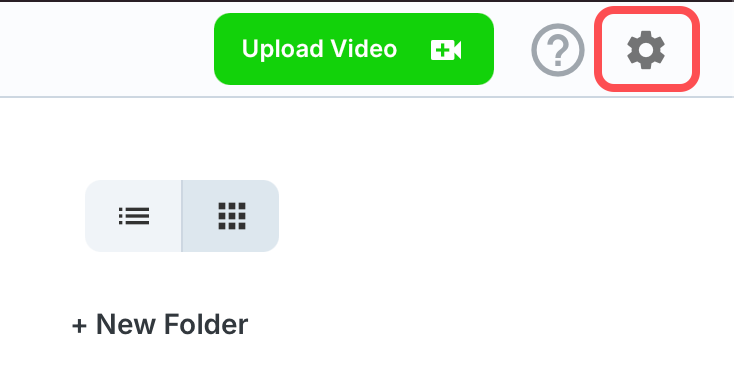
Navigate to Settings
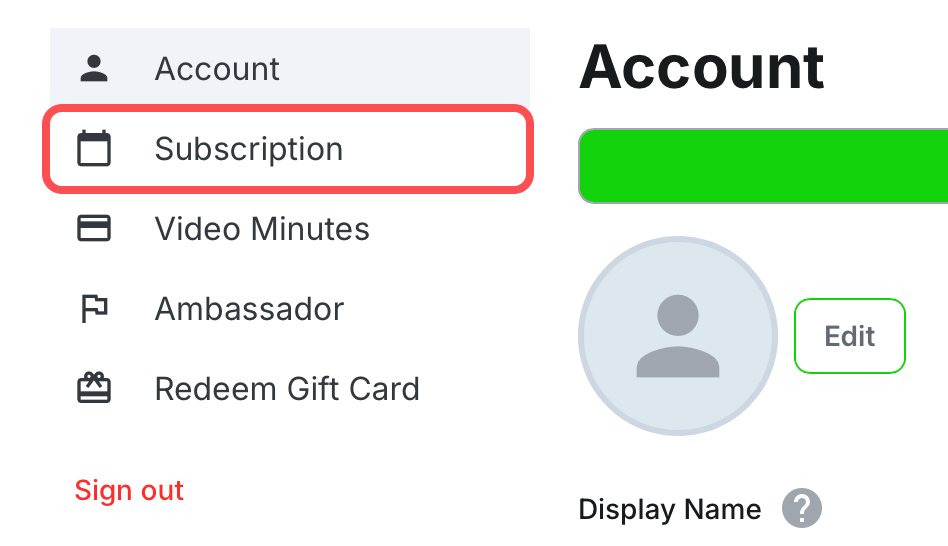
Select Subscription from the side menu
Below your subscription plan, you can see which method you subscribed
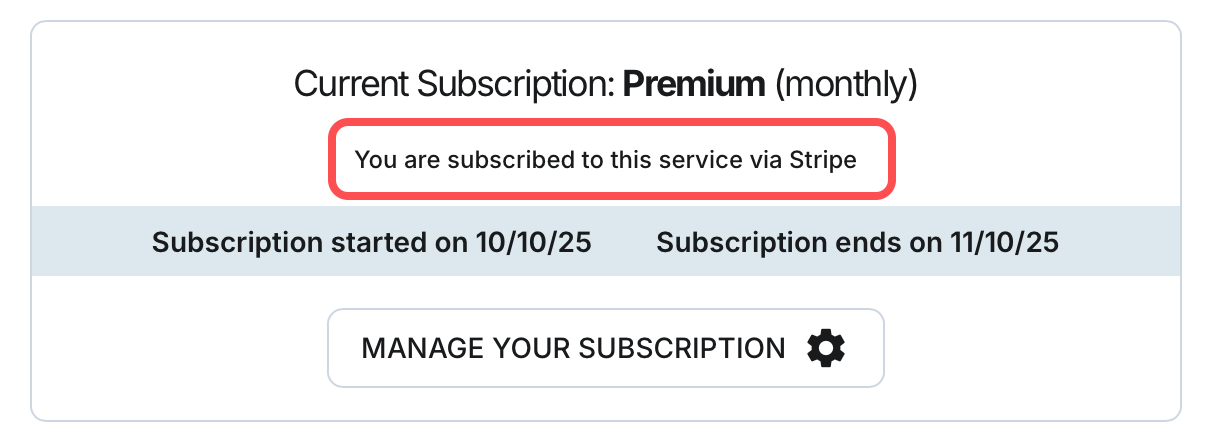
Apple App Store
Your subscription was purchased through PB Vision app on iPhone
Google Play Store
Your subscription was purchased through PB Vision app on Android
Stripe
You subscription was purchased directly through our website
Mobile Apps
If you are using the mobile app to access PB Vision
Select Me from the navigation bar
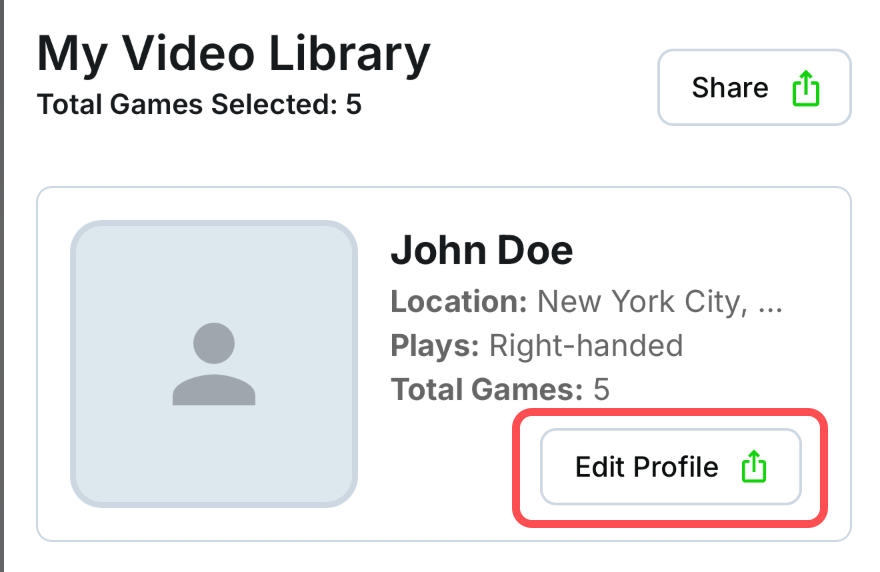
Select Edit Profile
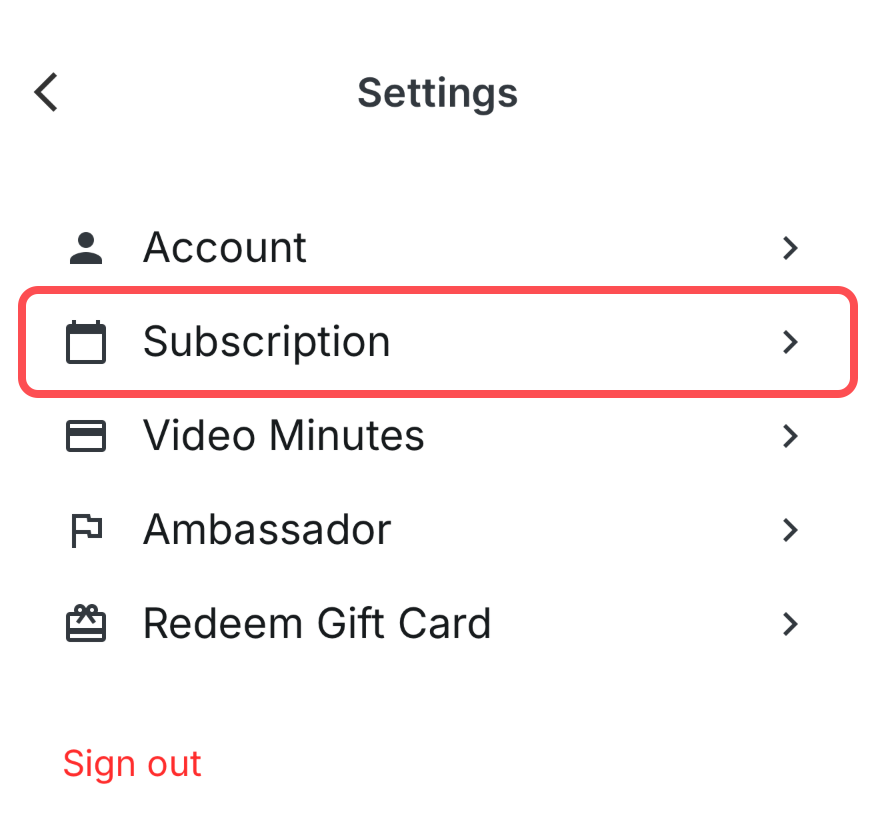
Select Subscription
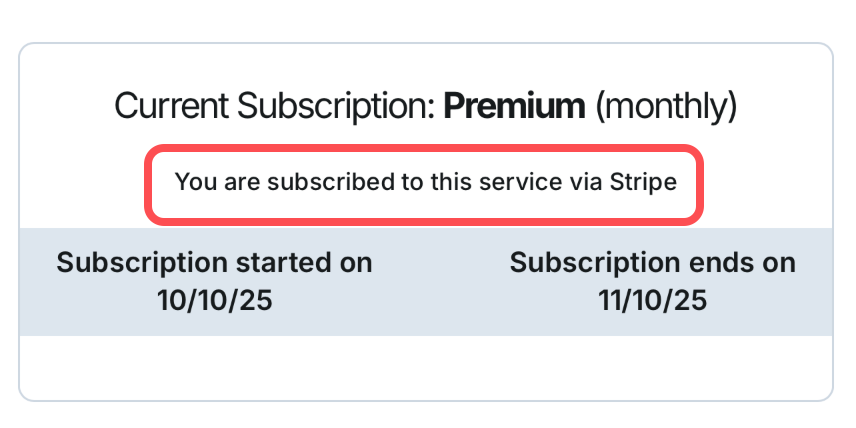
Below your subscription plan, you can see which method you subscribed
Apple App Store
Your subscription was purchased through PB Vision app on iPhone
Google Play Store
Your subscription was purchased through PB Vision app on Android
Stripe
You subscription was purchased directly through our website
⬆️ Upgrading Your Current Subscription
If you’d like to unlock additional features or more upload minutes, you can upgrade your plan anytime. Your new plan will take effect immediately, and any remaining time on your previous plan will be automatically adjusted.
Web App
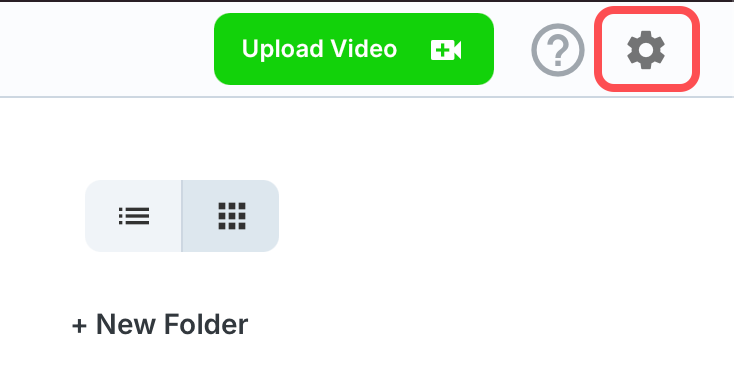
Navigate to settings
Select Subscription
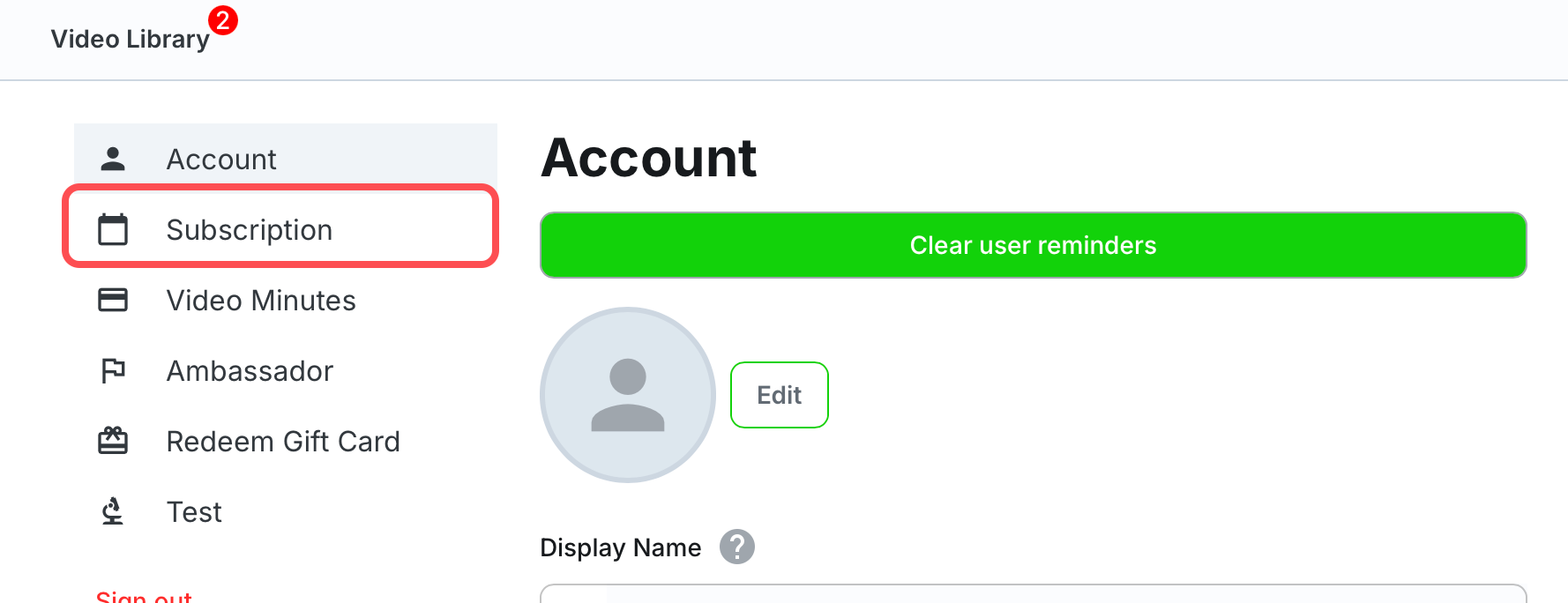
Click Manage Your Subscription
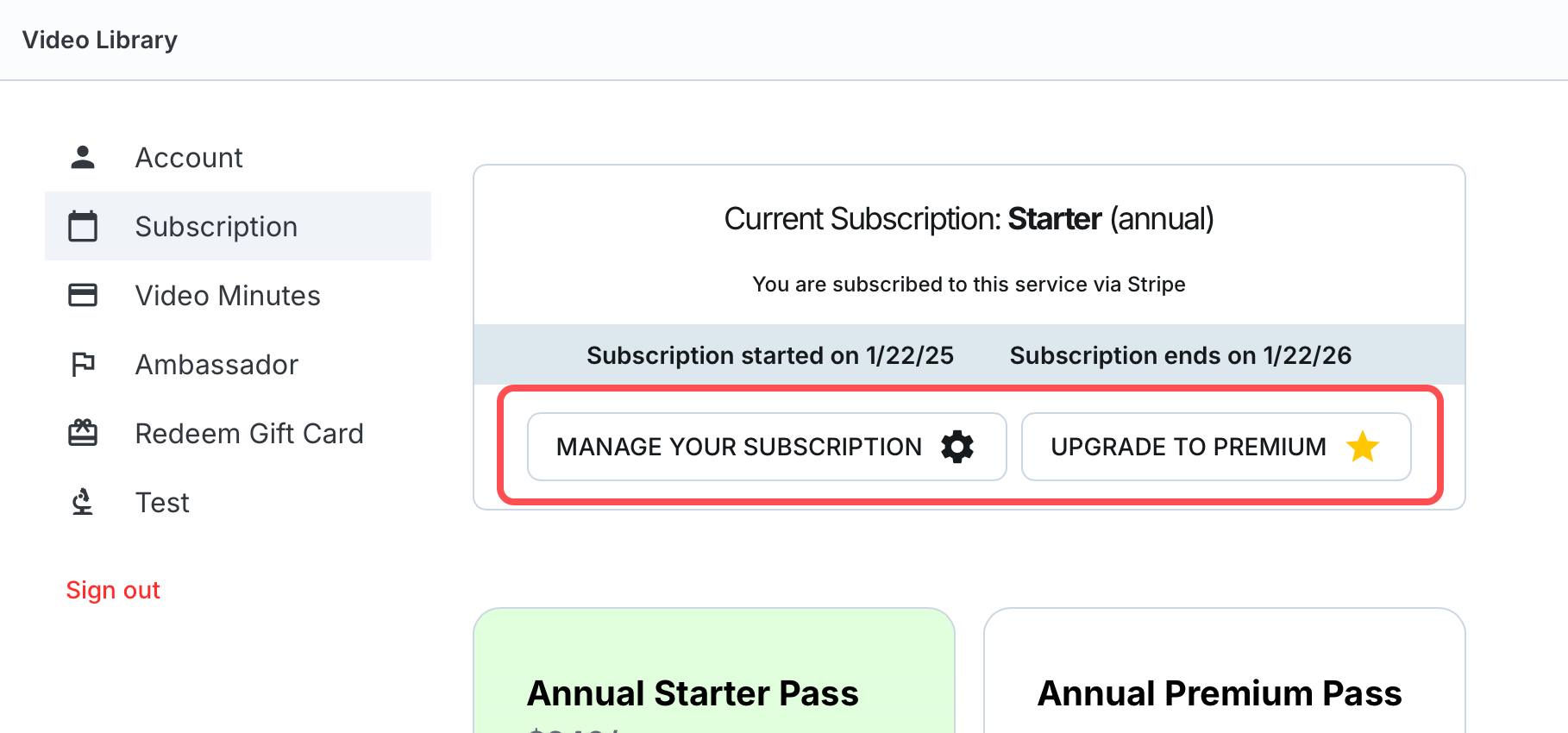
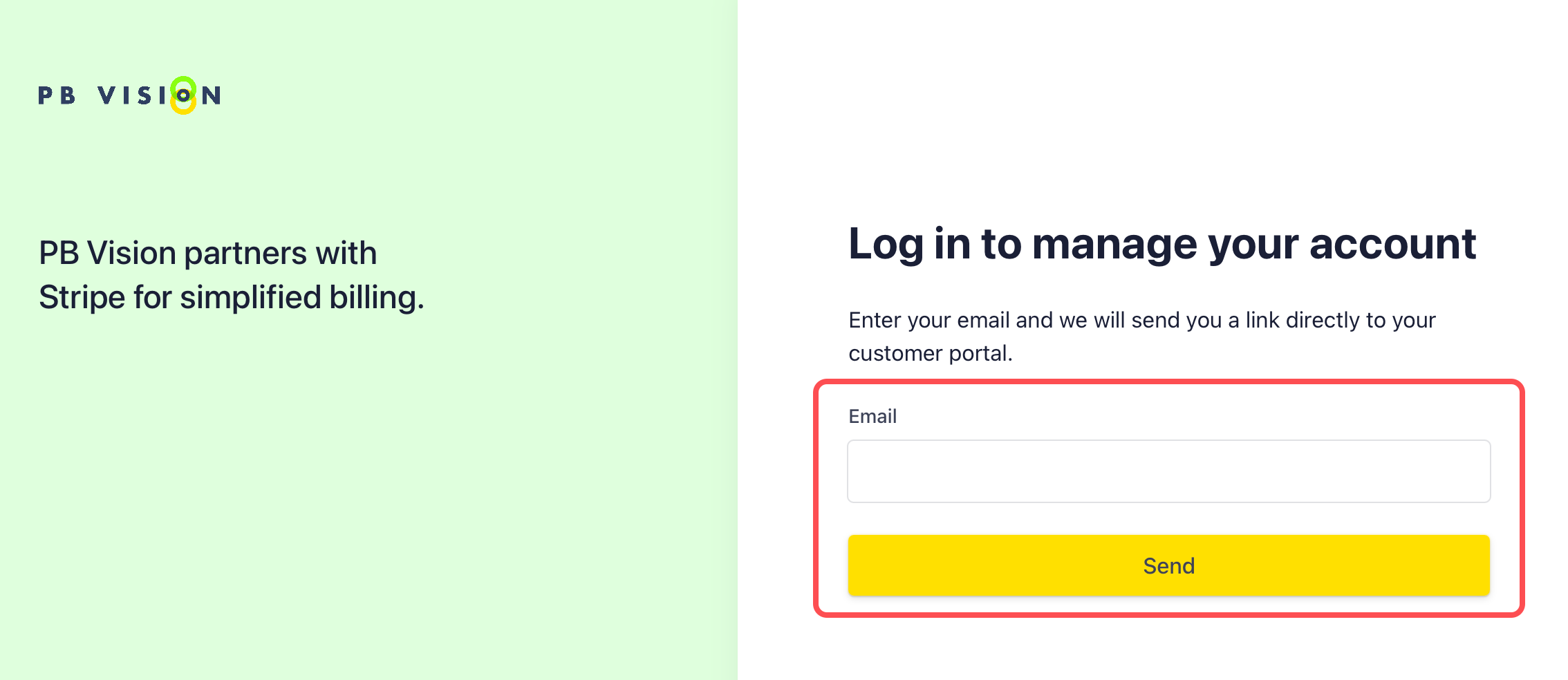
Enter your email that you used to sign up for your account and click Send
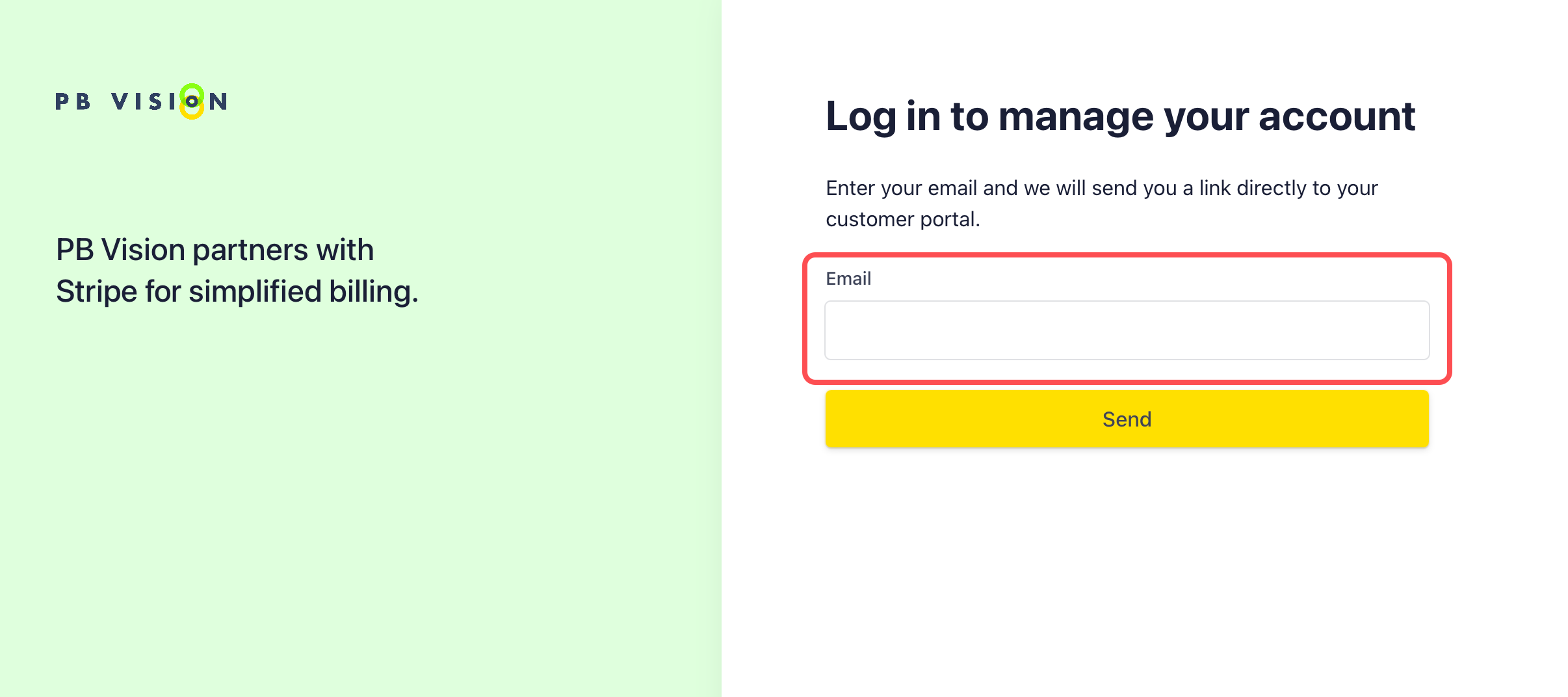
⚠️ NOTE
If your account uses an Apple Private Relay email address (also known as Hide My Email), you may not receive the billing panel email. Please Contact Us for further support options.
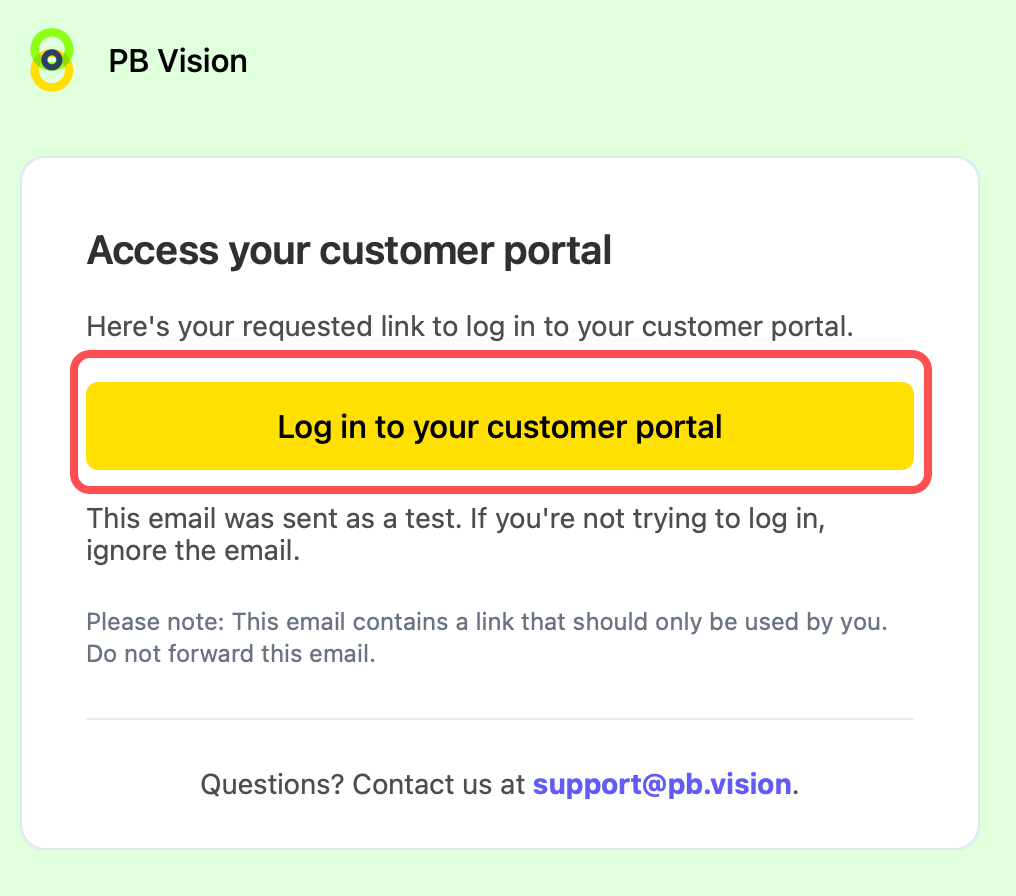
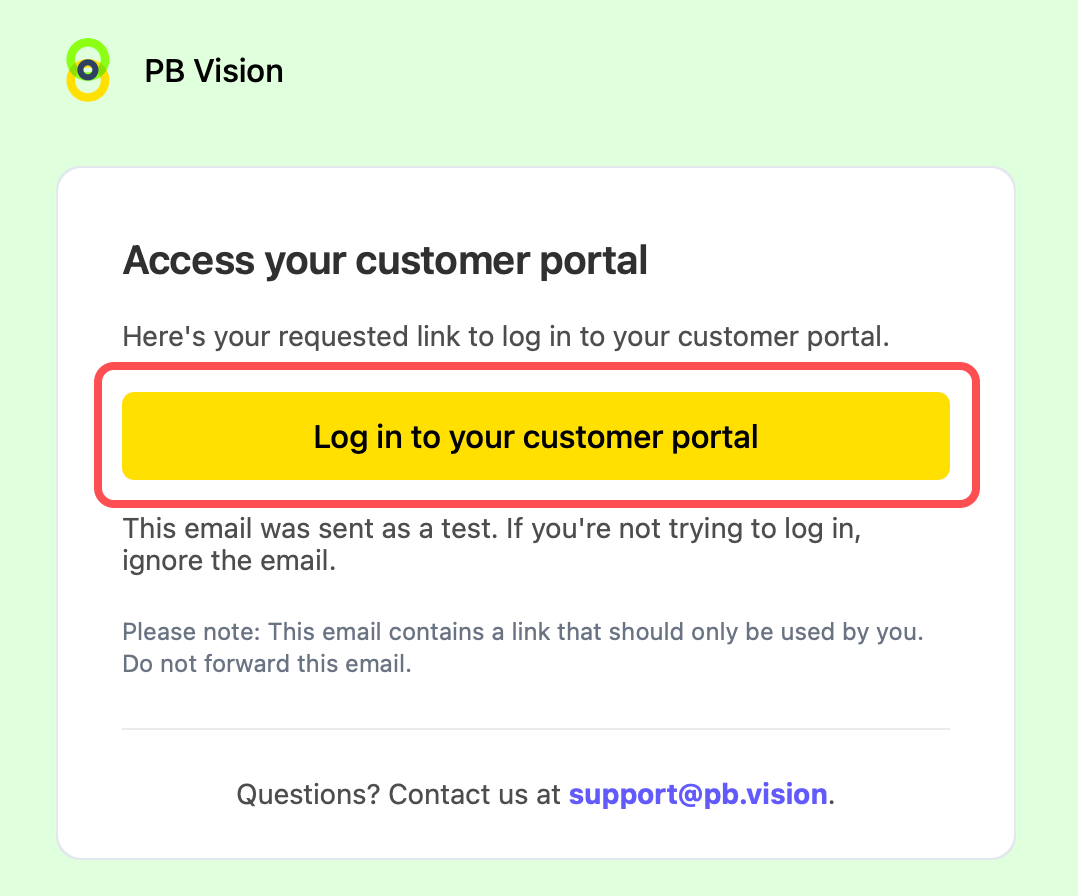
You will receive an email with the subject Your customer portal login link
Tap the Log in to your customer portal
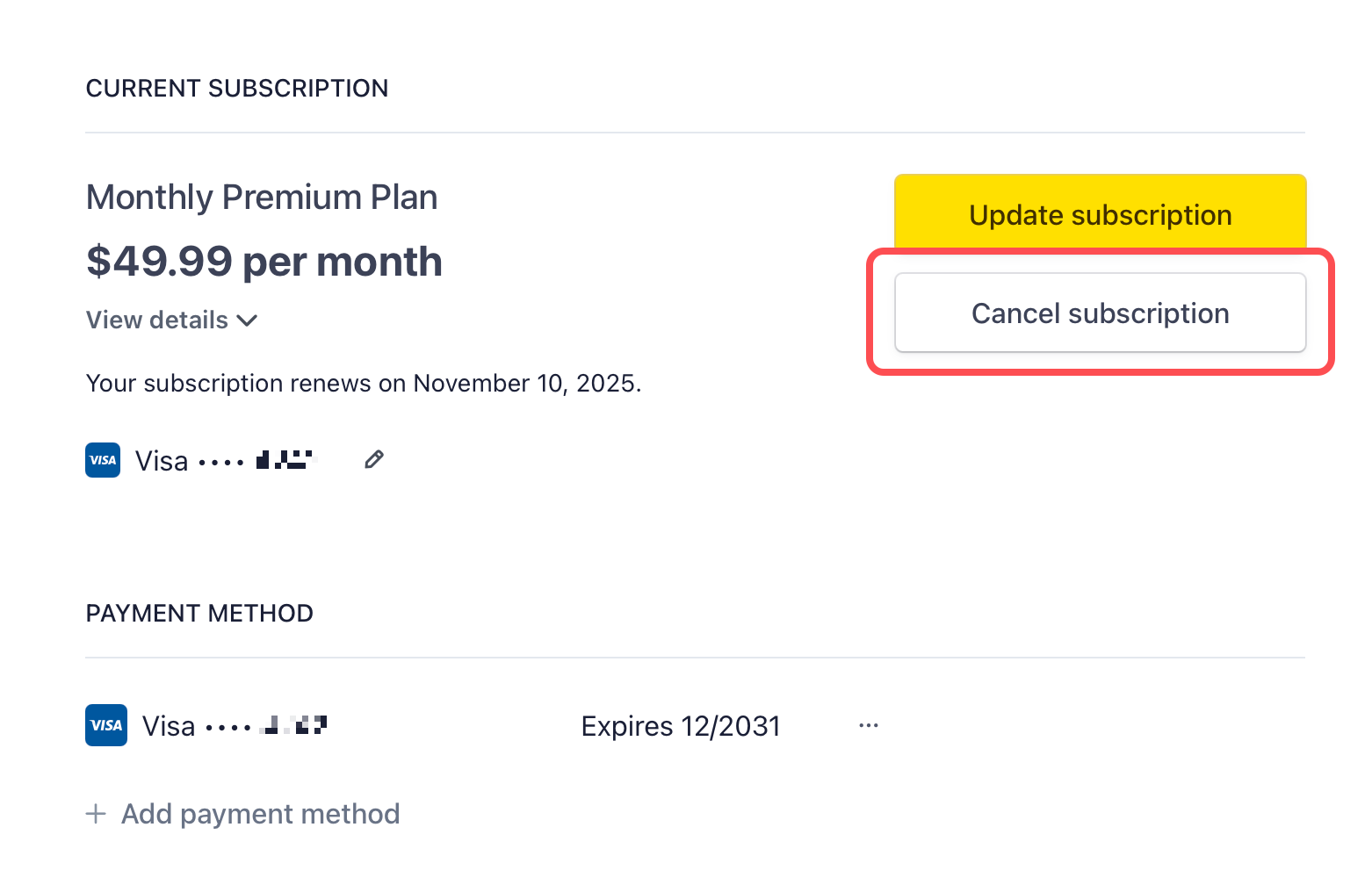
Tap Update Subscription
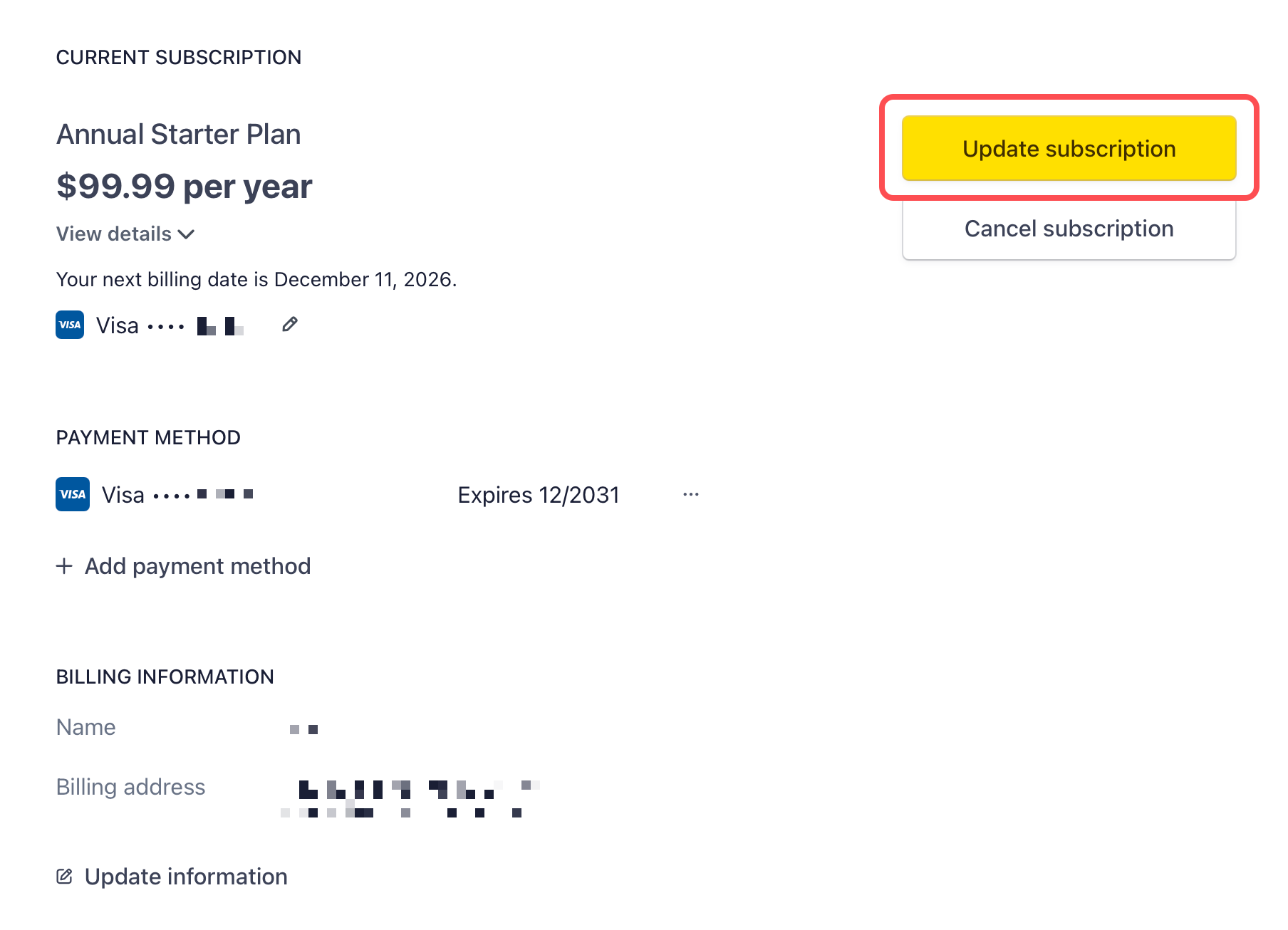
Select the subscription you would like to upgrade to and click Continue
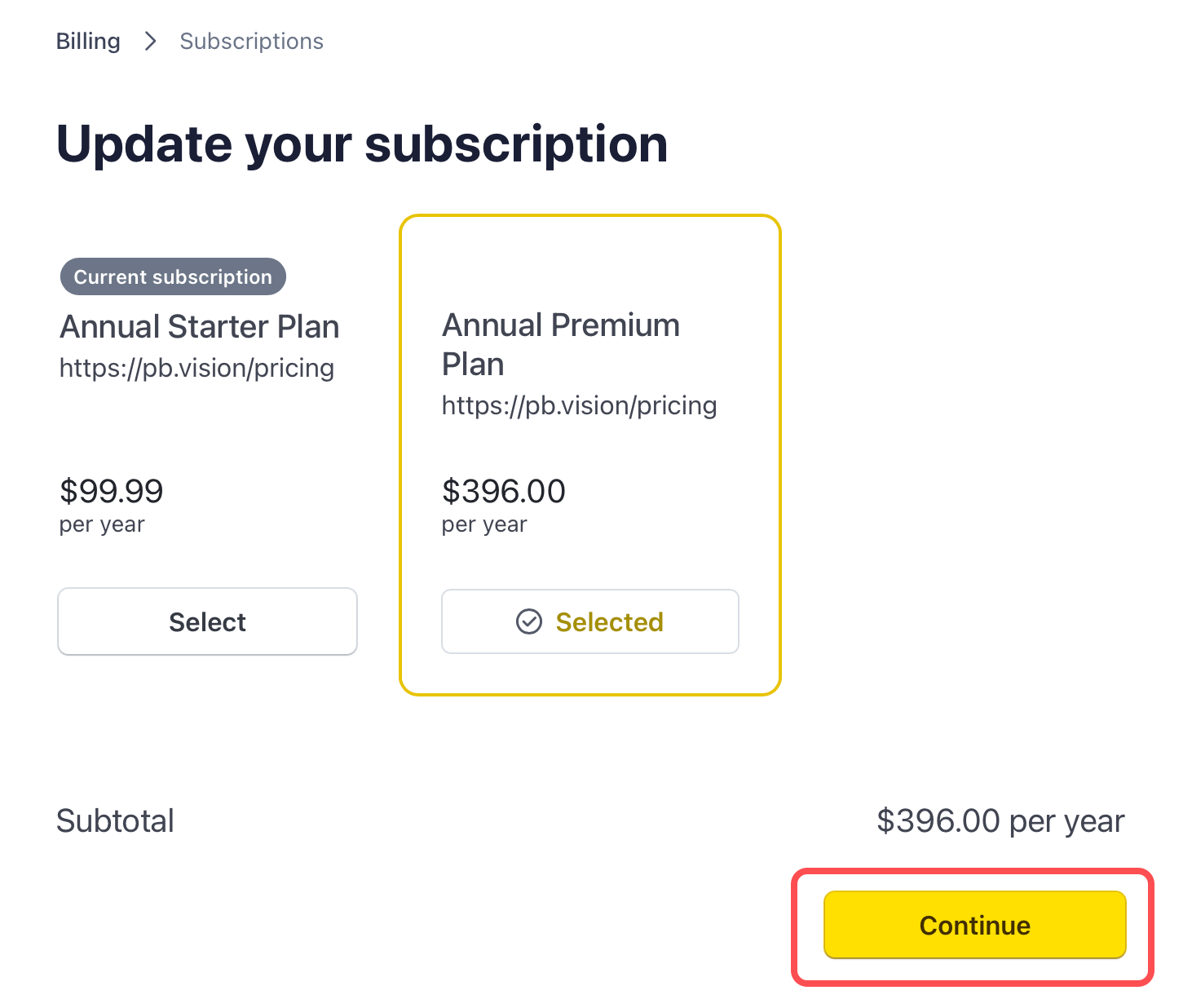
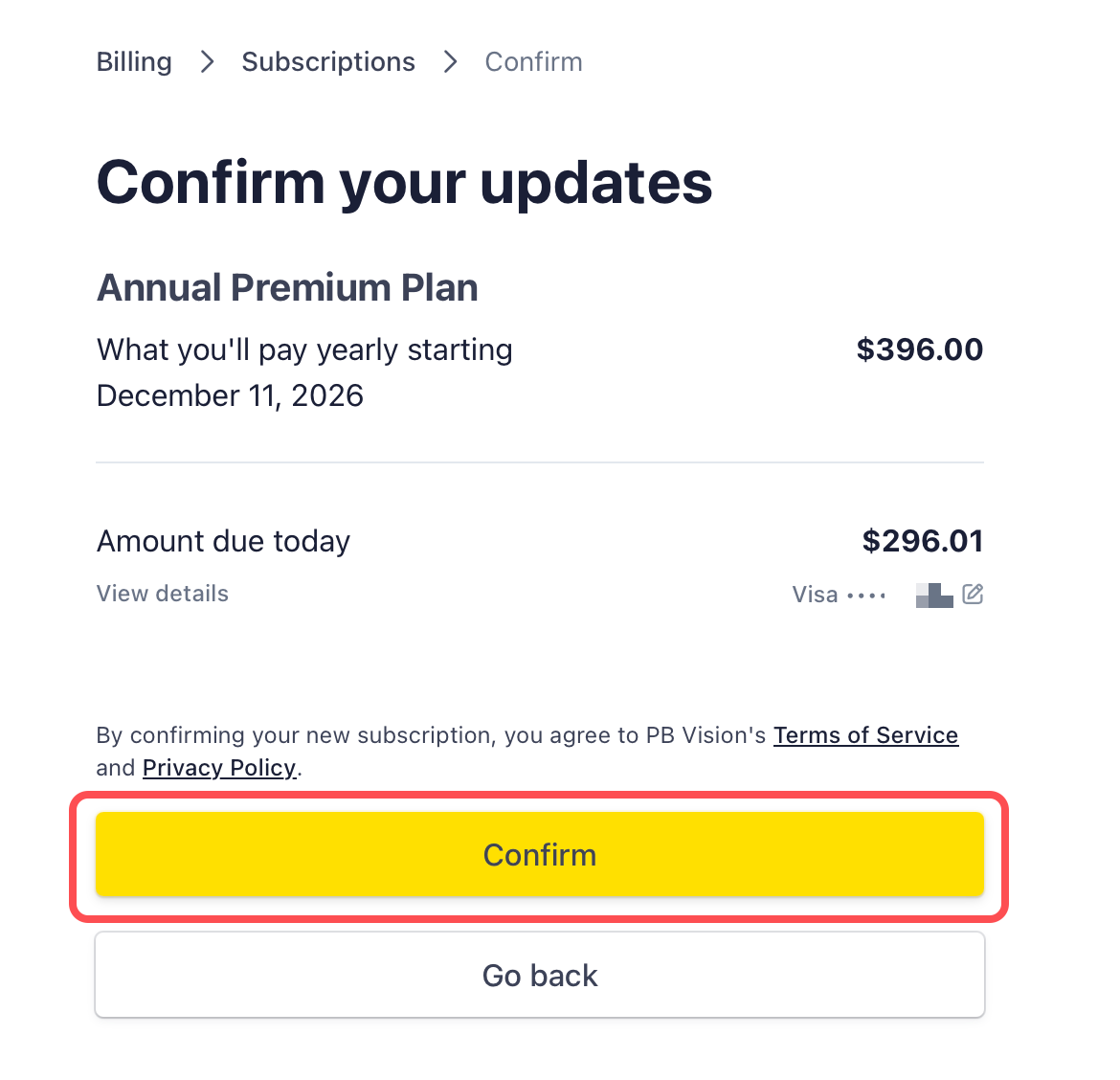
The billing panel will prorate your upgrade cost based on the remaining time left in your subscription. Once you are ready to proceed, select Confirm
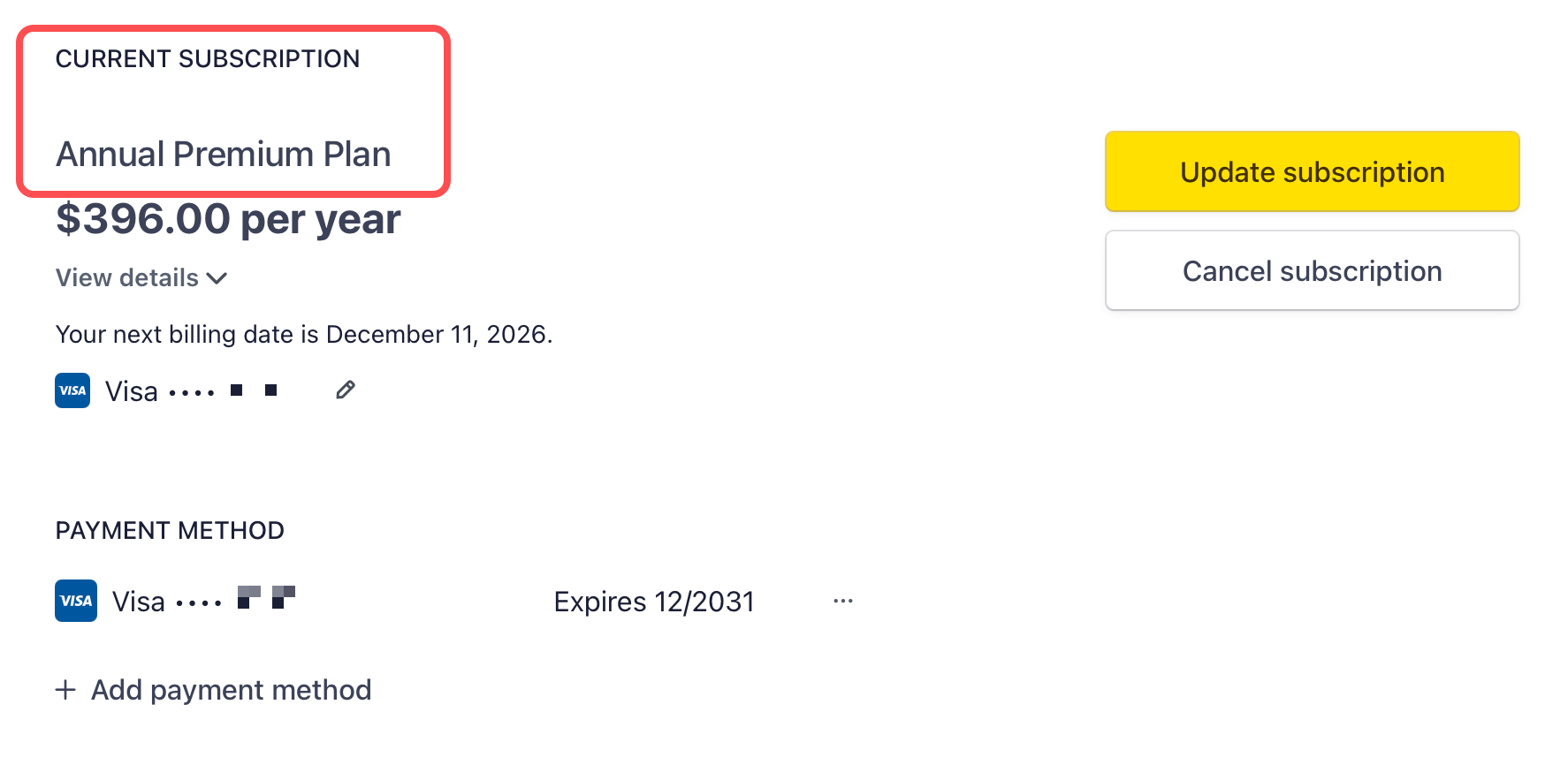
Your current subscription will update to reflect your new subscription tier immediately
Mobile Apps
Apple App Store (iPhone)
Open the Settings app on your iPhone
Tap your name at the top, then tap Subscriptions
Find and select PB Vision
Choose the plan you'd like to upgrade to and confirm
Google Play Store (Android)
Open the Google Play Store app
Tap your profile icon, then tap Payments & subscriptions → Subscriptions
Find and select PB Vision
Choose the plan you'd like to upgrade to and confirm
Subscribed through Stripe (web)? You can upgrade directly from the web app by following the Web App steps above, even on your phone's browser.
⬇️ Downgrading Your Current Subscription
If you’d like to move to a lower plan, you can make that change anytime. Your current plan will remain active until the end of your billing period, and the new plan will take effect at renewal.
Web App
Navigate to Settings
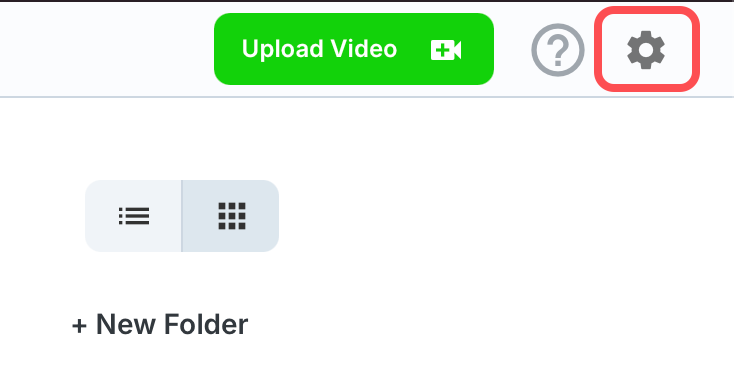
Select Subscription
Click Manage Your Subscription
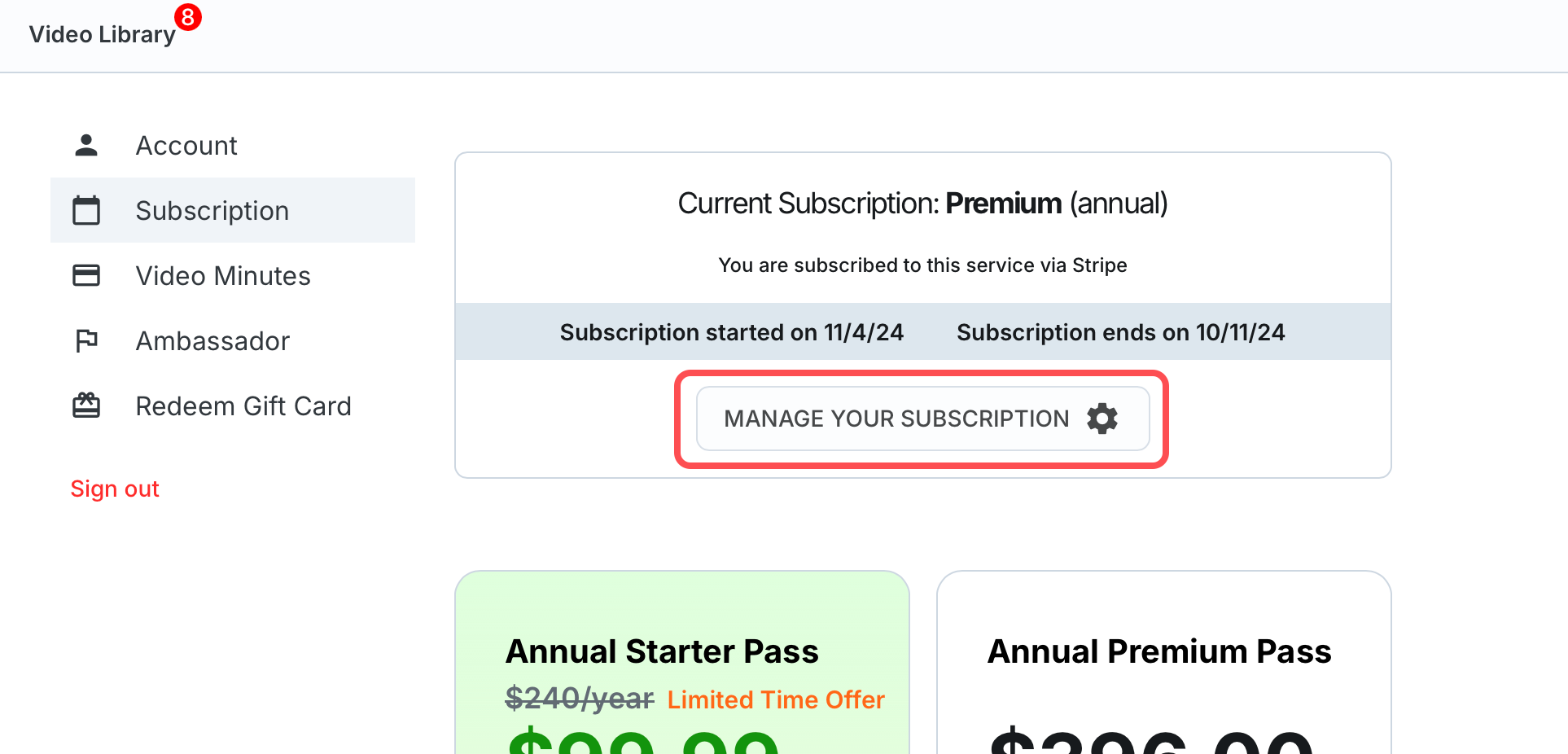
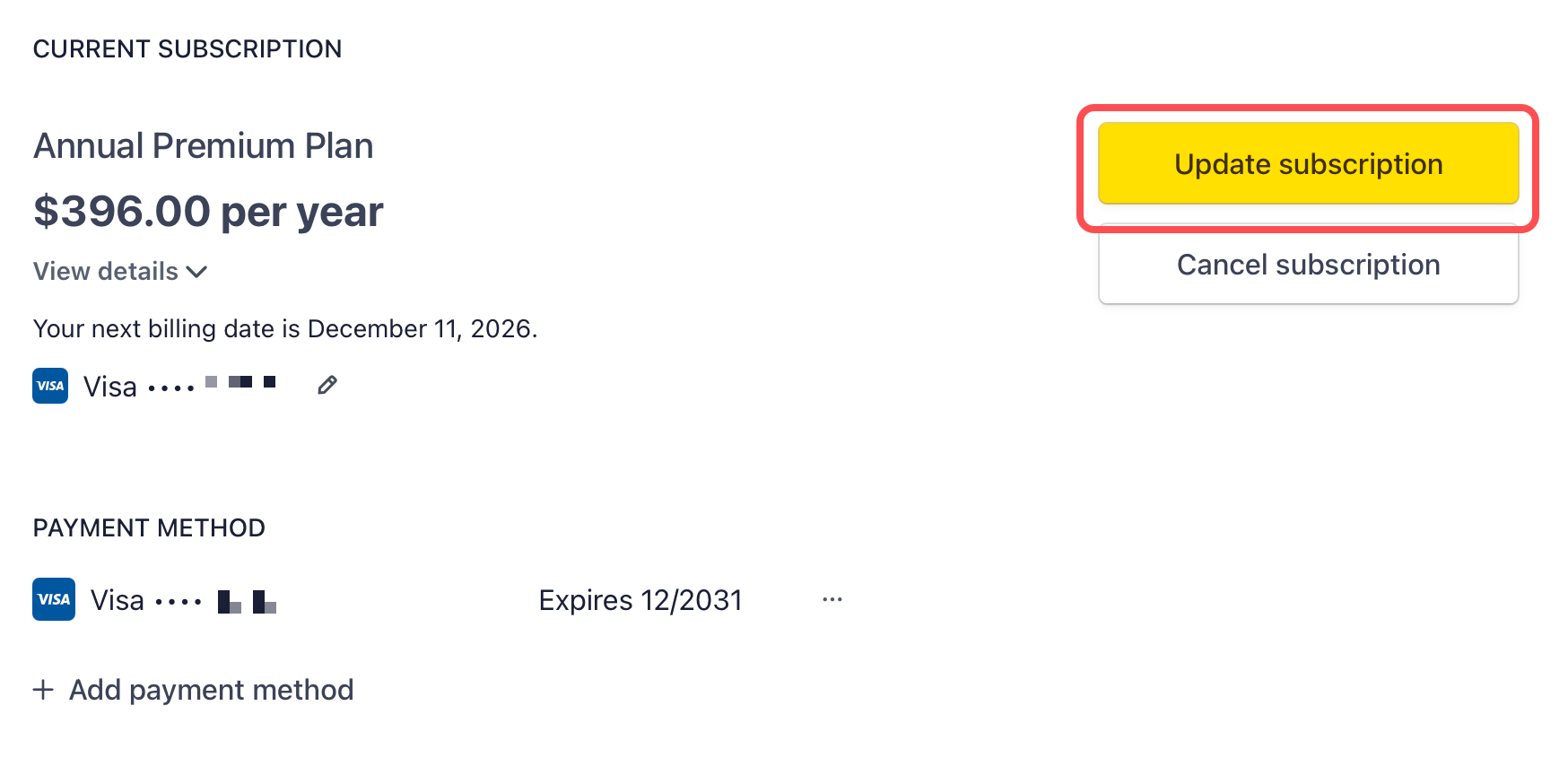
Select Update Subscription
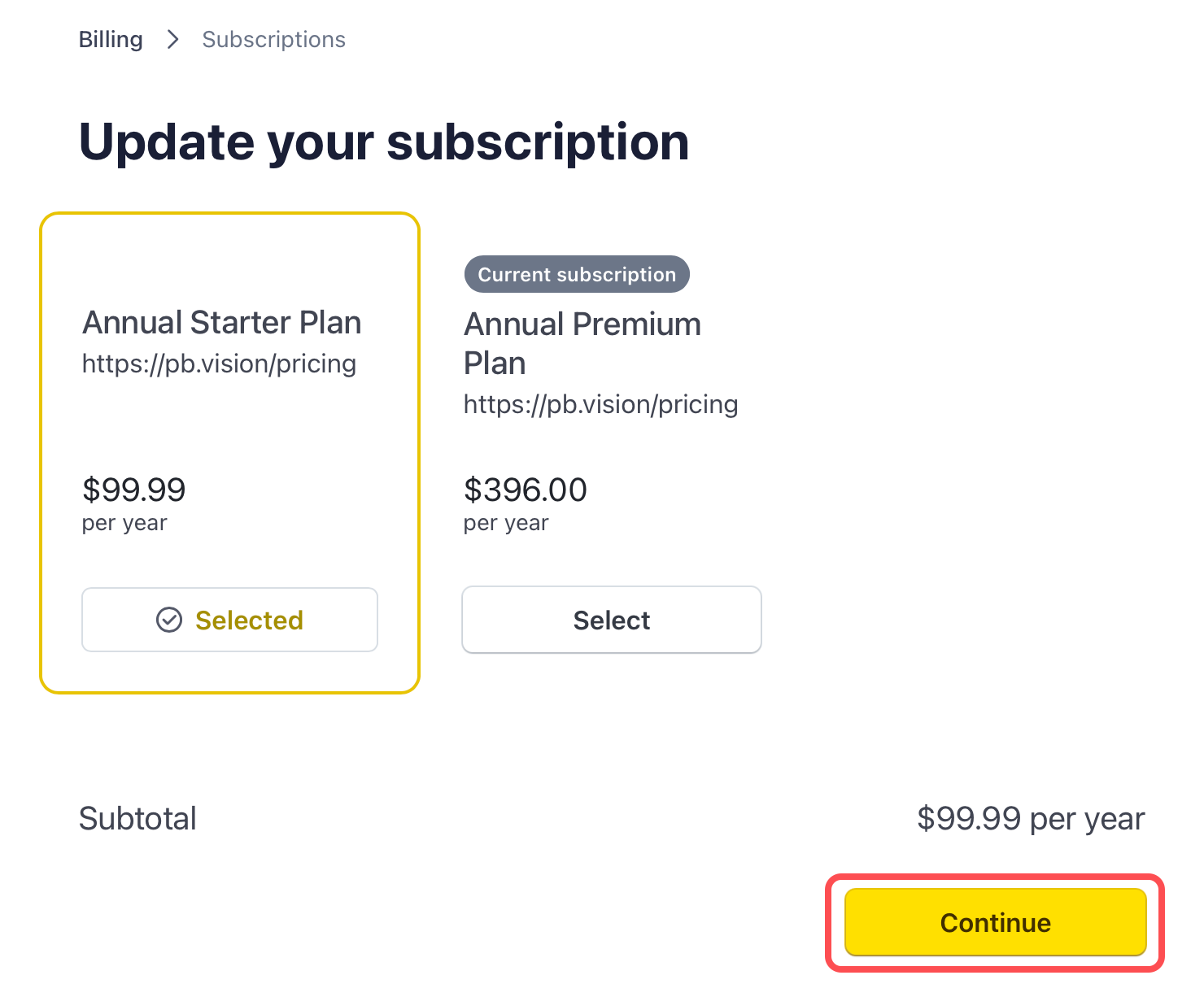
Select the subscription you would like to downgrade to and click Continue
⚠️ NOTES
You can’t downgrade to monthly subscription. If you would like to move to a monthly subscription, you must cancel your current subscription and subscribe to a monthly subscription when your annual subscription ends.
What happens to my minutes when I change plans? Your minutes always roll over. When upgrading or downgrading, you keep all existing minutes. Your new plan's minute allotment will apply starting at your next renewal.
Once you are ready to proceed, select Continue
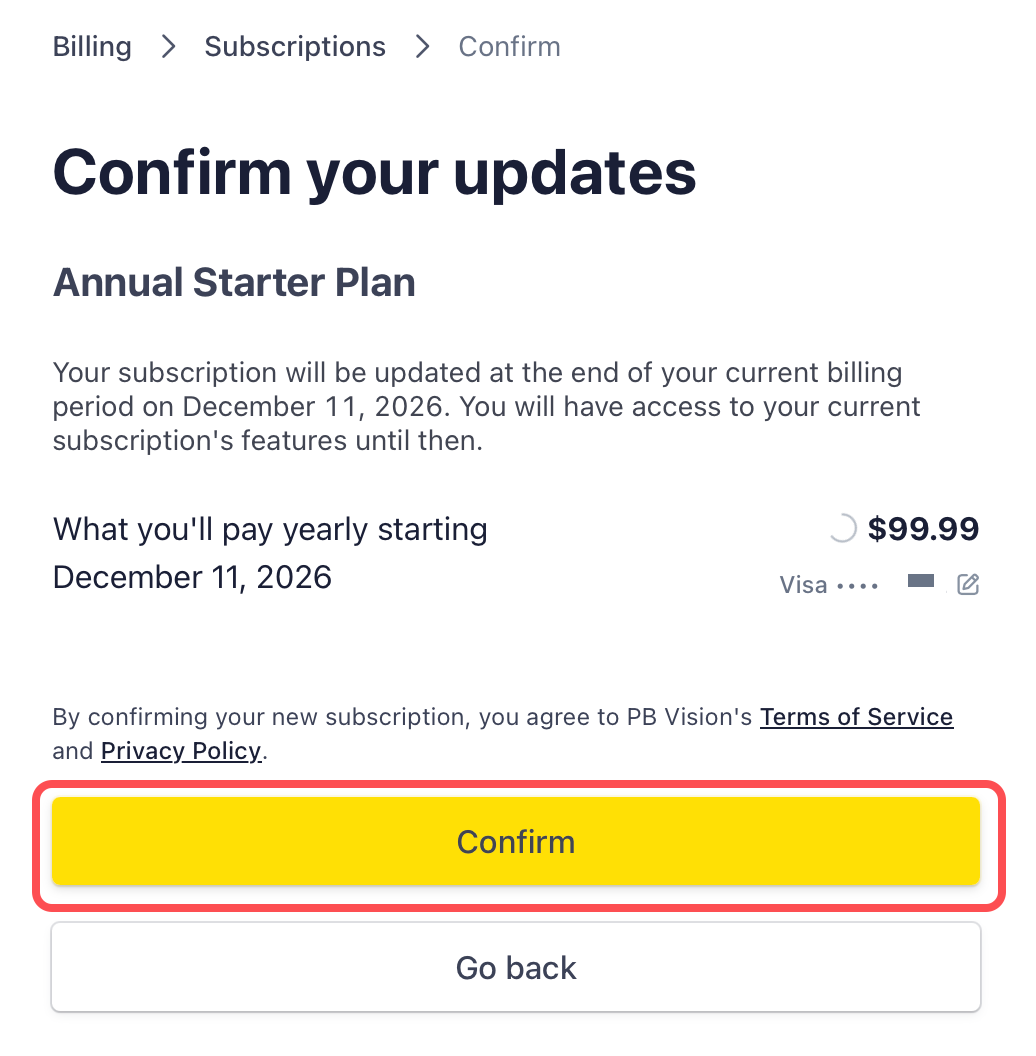
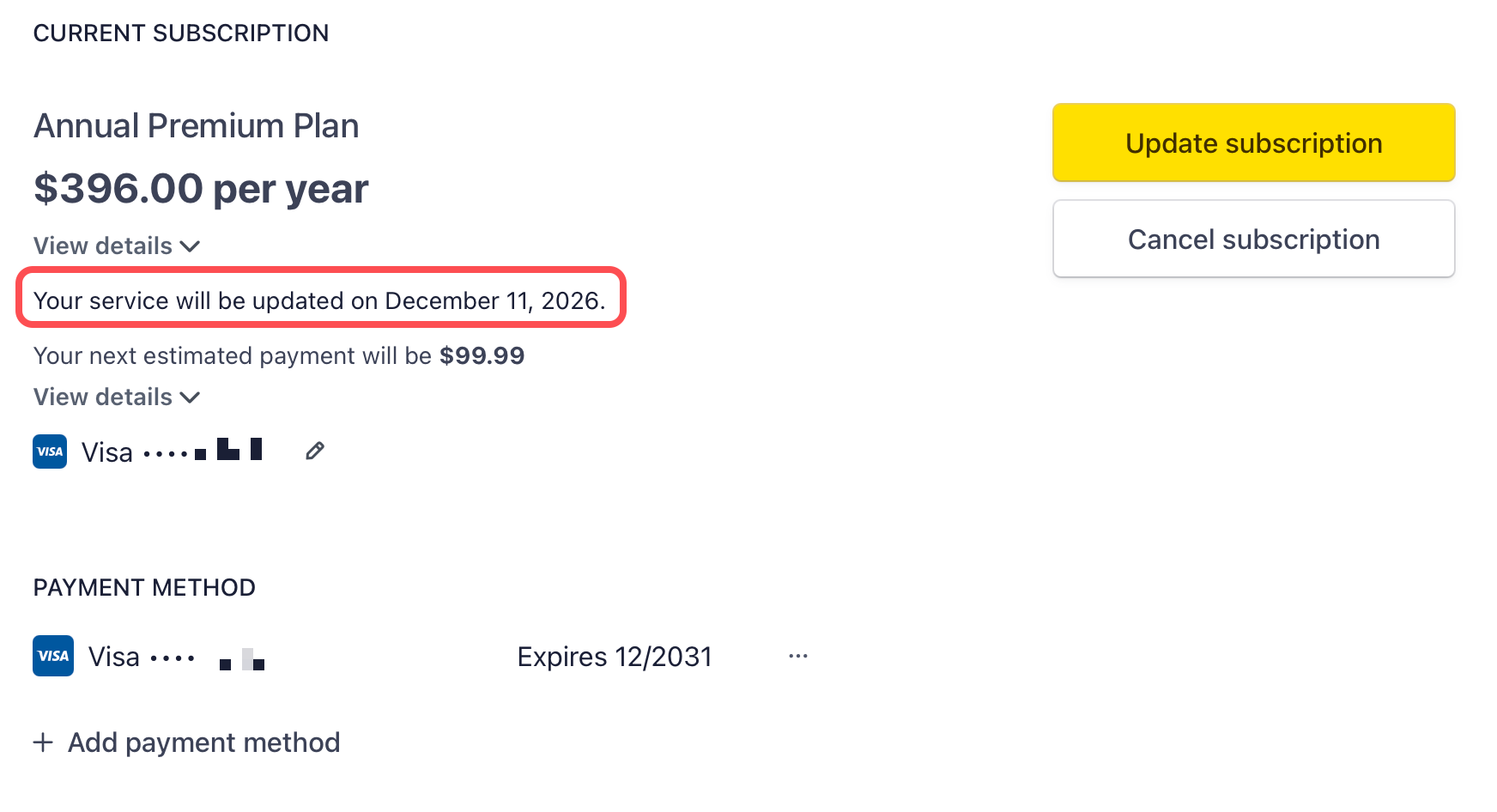
You’re all set! Once your current subscription tier ends, it will renew at the selected plan. You can find the date on the main billing area.
Mobile Apps
To downgrade your subscription purchased through the Apple App Store or Google Play Store, you'll need to manage it directly through the platform where you originally subscribed.
Apple App Store (iPhone)
Open the Settings app on your iPhone
Tap your name at the top, then tap Subscriptions
Find and select PB Vision
Choose the lower plan and confirm — the change takes effect at your next renewal
Google Play Store (Android)
Open the Google Play Store app
Tap your profile icon, then tap Payments & subscriptions → Subscriptions
Find and select PB Vision
Choose the lower plan and confirm — the change takes effect at your next renewal
⚠️ Note: You cannot downgrade from an annual plan to a monthly plan mid-cycle. To switch from annual to monthly, cancel your annual subscription and subscribe to a monthly plan once the annual term ends.
❌ Cancelling Your Current Subscription
We’re sorry to see you go! If something isn’t working as expected or you’re having issues, please Contact Us. We’d love the chance to help before you cancel. We understand if you still choose to end your subscription, but we want to make sure your experience matches what you were hoping for.
Choose the method you subscribed through below
(Not sure? Find your method here)
Subscribed Through Apple App Store
Subscribed Through Google Play Store
Subscribed Through Stripe
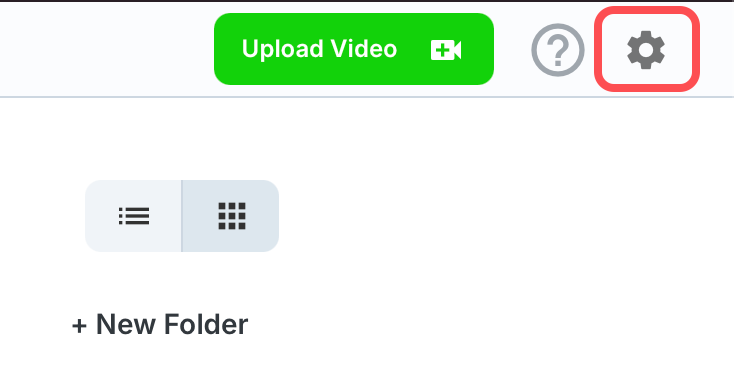
Navigate to Settings
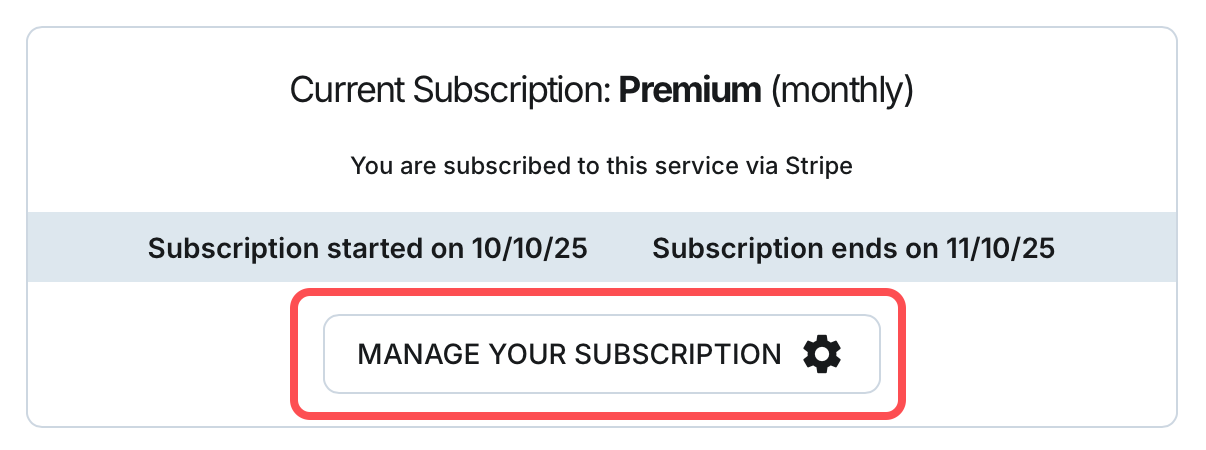
Select Subscription from the side menu
Select Manage Your Subscription
Enter your email and select Send
Select Log in to your customer portal
Select Cancel Subscription
Select Cancel Subscription
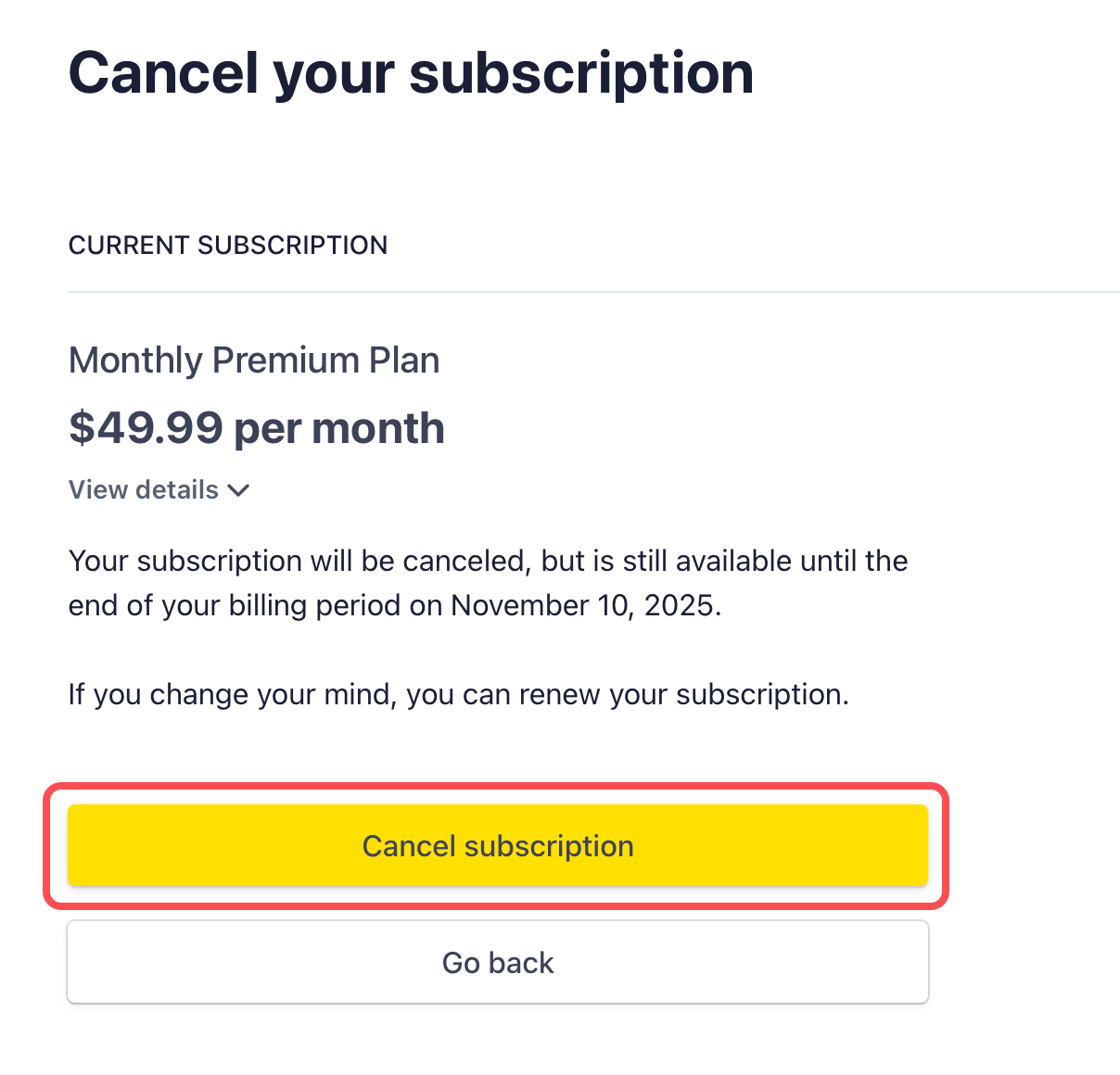
You should see the confirmation of when you billing period and subscription will end
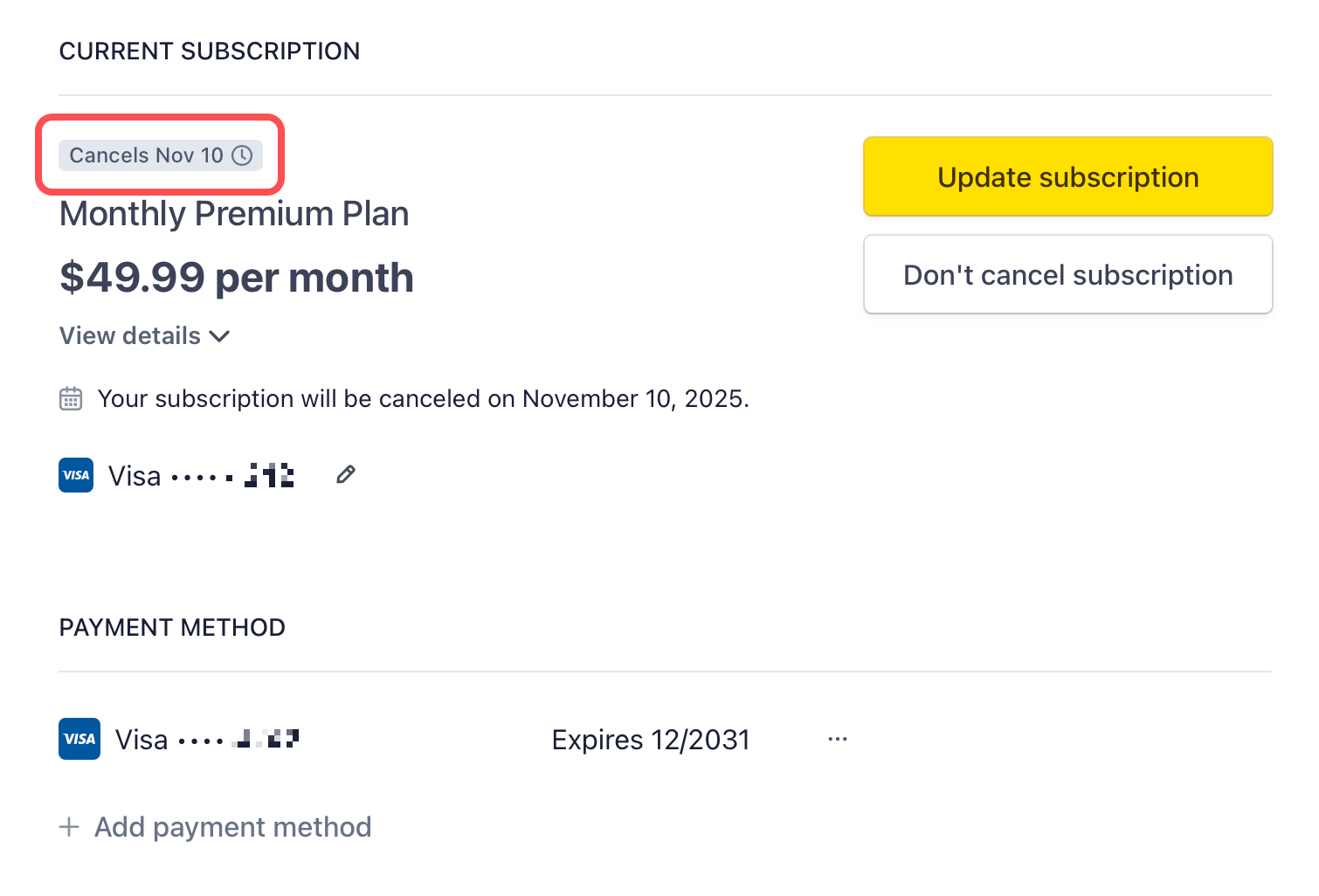
Should you change your mind and decide not to cancel, you can stop the cancellation by selecting Don’t cancel subscription
⏎ Refund Eligibility
🔌 Looking for an API?
⁉️ Looking For More?
If you still have questions or run into issues, check out our Contact Us guide or email support@pb.vision.