Sharing Games: Share Videos & Insights
Share your PB Vision games with teammates, coaches, friends, or other players. You can share an entire game, send someone directly to what you're reviewing, or share multiple games together through a folder.
📍Quick Start Summary
Share an entire game with teammates, coaches, friends, or other players
Share a specific shot, rally, bookmark, or highlight when you want someone to jump directly to that moment
Share a folder when you want one link for multiple games
Tag players who participated to connect them with the game
Copy your sharing link or use your device's sharing options to send it
📸 Video Walkthrough
📤 Share a Game
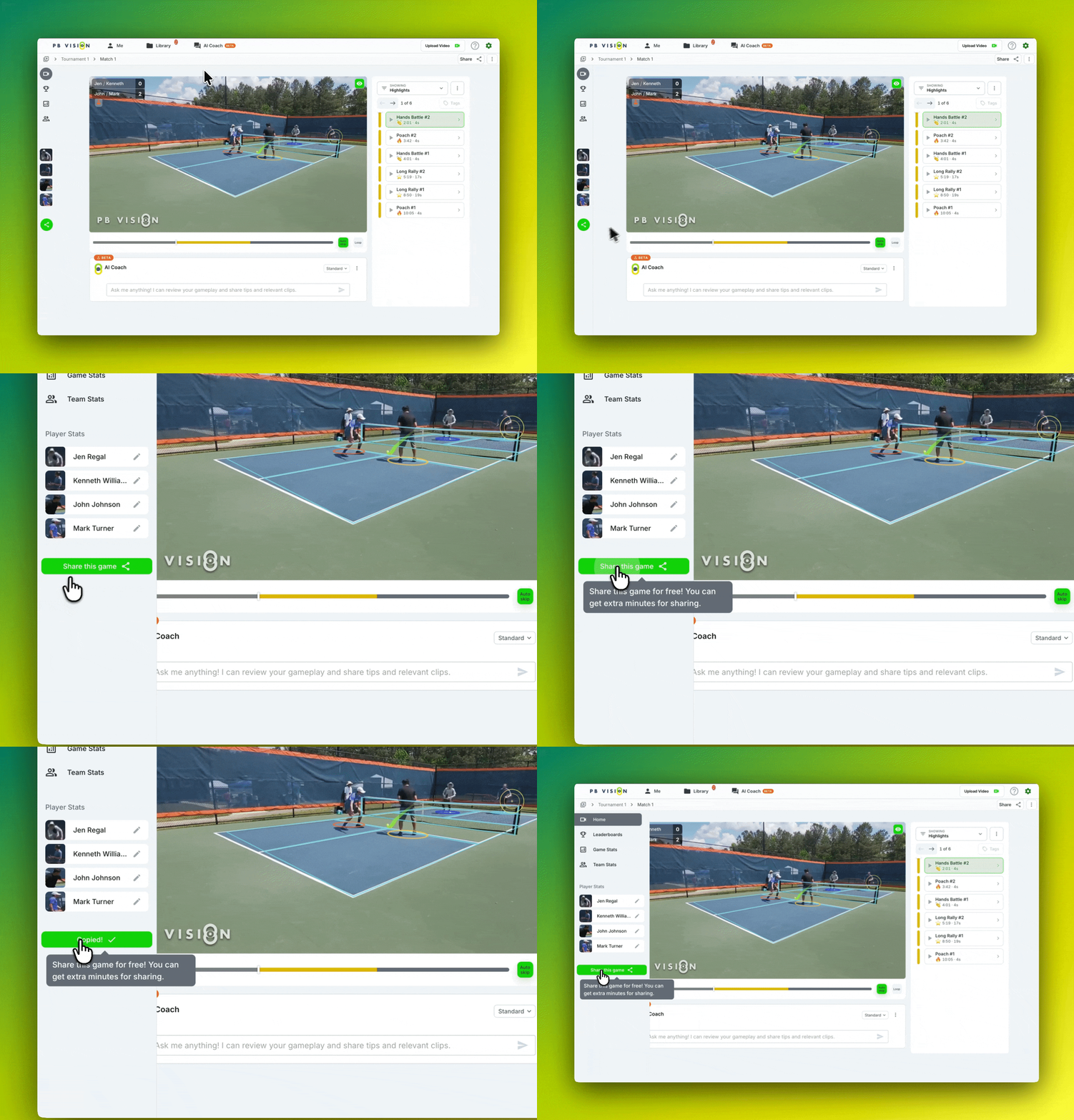
Share an individual game when you want someone to access the video, stats, and insights from that match.
Open the game you want to share
Open the side menu
Select Share This Game
Copy the link or use your device's sharing options
Send the link to whoever you'd like to share the game with
Anyone with the shared link can open the game and view the available video, stats, and insights.
🎯 Share a Shot, Rally, Bookmark, or Highlight
Want to share a specific moment instead of the entire game? You can share individual shots, rallies, bookmarks, and highlights so others can jump directly to what you want them to see.
Navigate to the moment you want to share
Select Share
Copy the link or use your device's sharing options
Send the link to whoever you'd like to share it with
The same sharing process applies to rallies , bookmarks, and highlights.
💡 Tip
Share a specific moment when you want coaching feedback, want to discuss a rally, or simply want to send someone a favorite play.
📁 Share a Folder
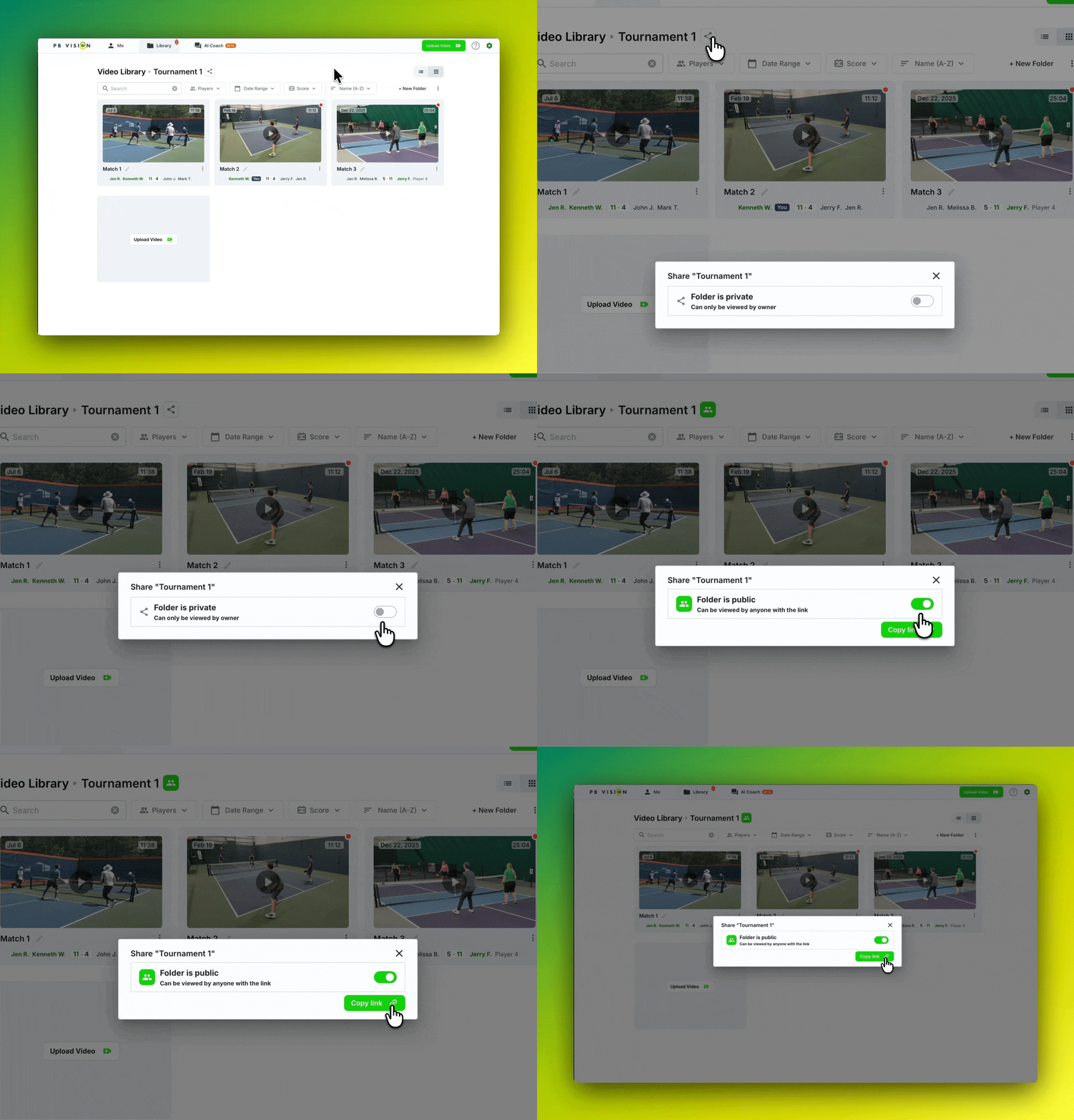
Folders make it easy to share multiple games through a single link. They're especially useful for leagues, clubs, coaches, or groups that regularly play together.
Open your Video Library
Find the folder you want to share
Open the Folder
Open the Sharing Options menu
Enable sharing and copy the folder link
When new games are added to the folder, they'll be available through the same shared link, so you don't need to send a new link each time.
🏷️ Share with Players in Your Game
Player tagging identifies who participated in your game and helps connect players with their video, stats, and insights.
You can tag players by name or connect them directly to their PB Vision account.
For step-by-step instructions on tagging, claiming a player, and managing existing tags, see Player Tagging: Identify & Share with Players.
❓ Troubleshooting
Shared Link Isn't Working?
Make sure:
Sharing is enabled for the game or folder
The complete sharing link was copied
The game or folder hasn't been unshared since the link was sent
If you're still having trouble, contact the PB Vision team and include the game or folder you're trying to share.