Player Tagging: Identify & Share with Players
Player tagging identifies who participated in your game and helps connect players with their video, stats, and insights.
📍 Quick Start Summary
Open a processed game and select the player you want to tag
Search for someone you've tagged before or add a new player
Use the player's email to connect them to their PB Vision account, or tag them by name
Players you've tagged before are easier to find again in future games
Players viewing a shared game can use This is me to identify themselves
The video owner and editors they have added can edit or remove player tags when needed
🏷️ Tag a Player
Identify the players in your game by adding their name or connecting them directly to their PB Vision account.
Open the game you want to tag
Select the player you want to identify
Search for someone you've tagged before or add a new player
Enter the player's email to connect them to their PB Vision account, or enter their name if you don't have their email
Select the player to confirm the tag
When a player is tagged using the email associated with their PB Vision account, the game is connected directly to them so they can access it from their account.
Tip
When possible, use the email associated with the player's PB Vision account. This provides the easiest way to connect them directly with their game and available stats.
🙋 Identify Yourself with "This is me"
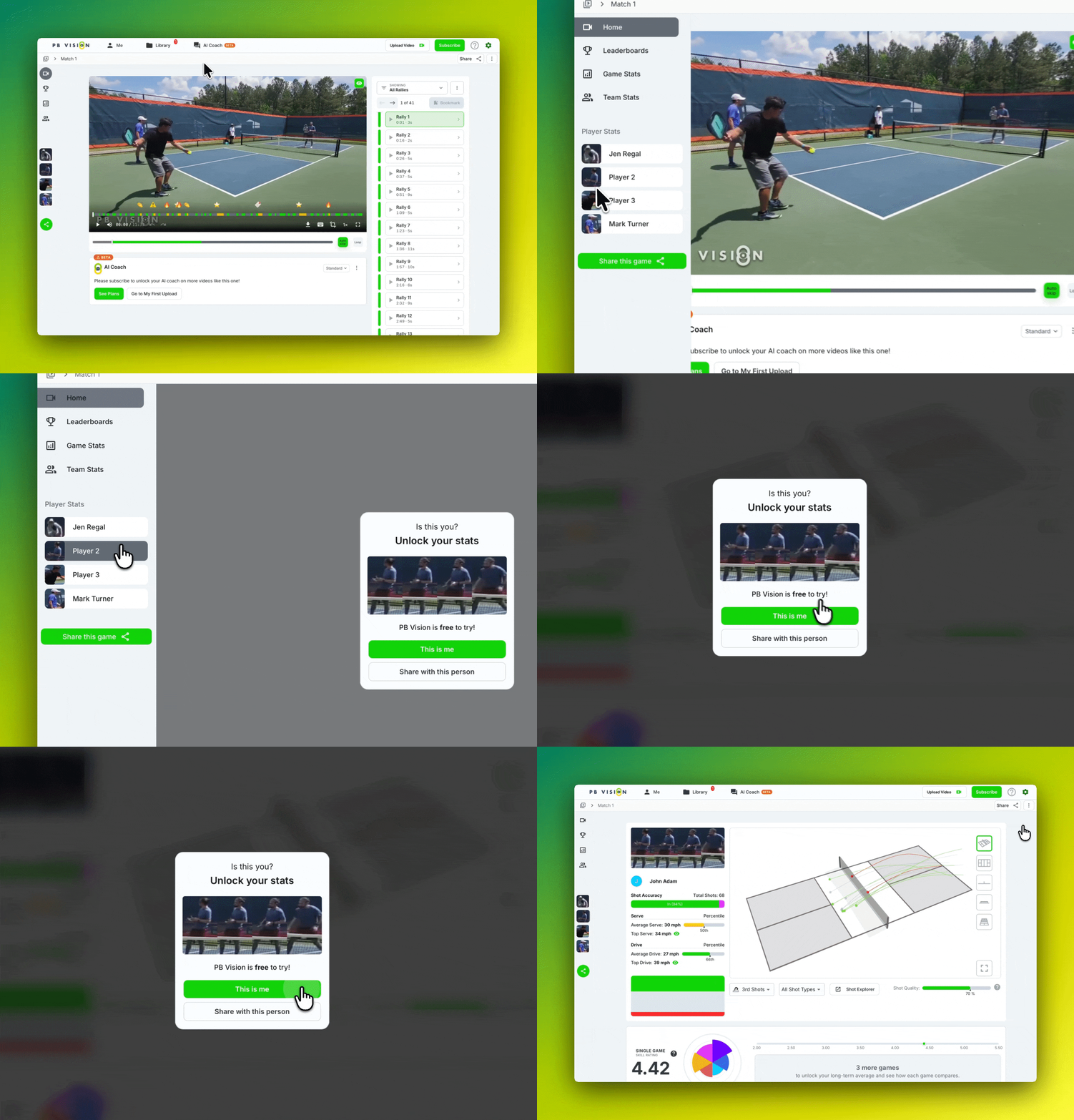
If someone else uploaded the game, you can identify yourself using This is me without needing the video owner to update your tag.
Open the shared game
Find yourself in the player list
Select This is me
Follow the prompts to connect yourself to the player
Once connected, you'll be able to access the available stats and information associated with you in that game.
Important
This is me only allows you to identify yourself. Only the video owner and editors they have added can manage tags for other players.
👥 Find Players You've Tagged Before
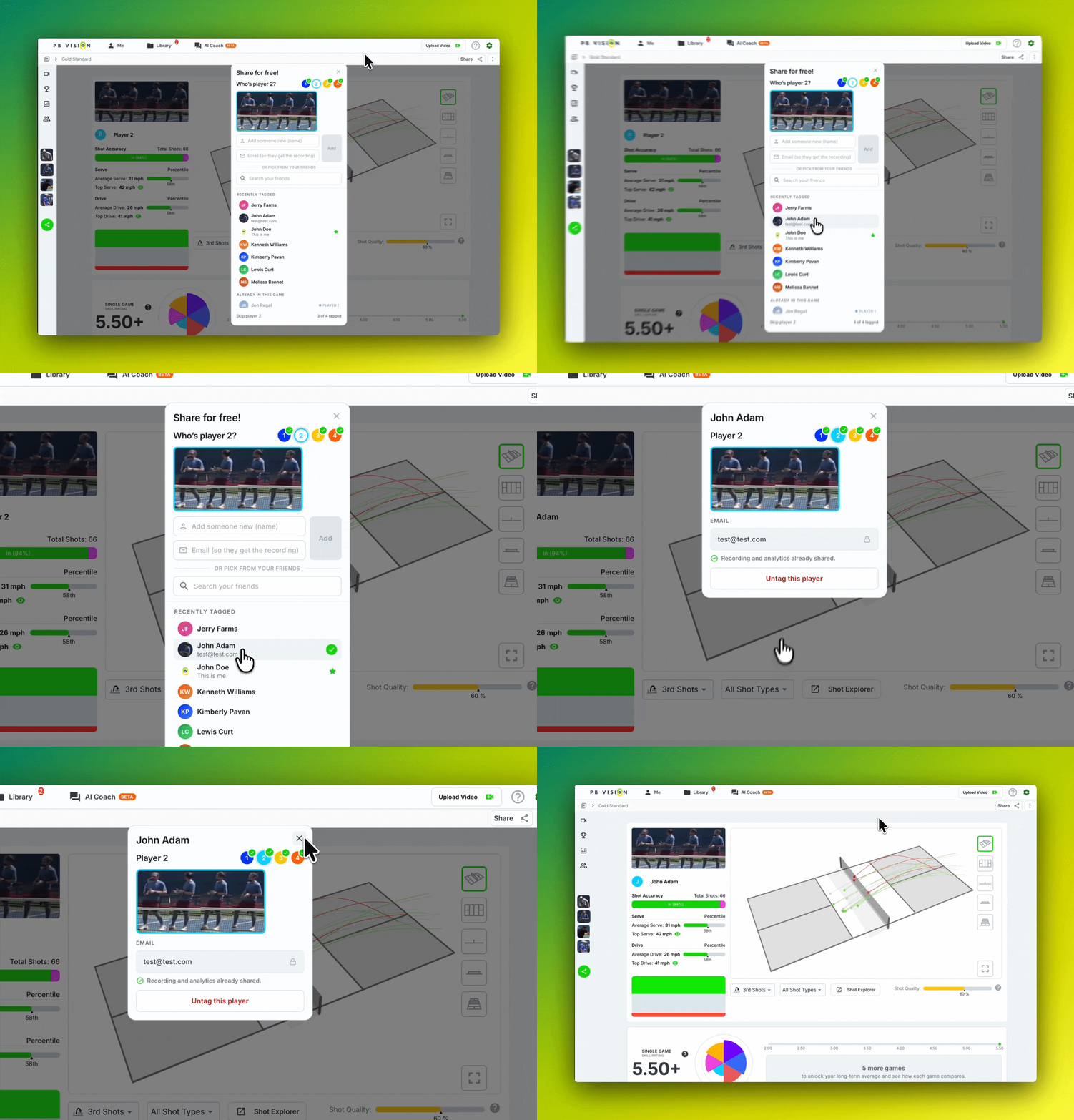
It’s easier to tag people you regularly play with by remembering players you've previously tagged.
When tagging a game, you can quickly find:
Players you've recently tagged
Players in your Friends list
Other players by searching for them
This helps you reuse an existing player instead of adding the same person again.
Tip
If you regularly play with the same group, select an existing player whenever possible to keep their games connected consistently.
✏️ Edit or Remove Player Tags
Need to correct a player's name or tagged the wrong person? The video owner and editors they have added can update existing player tags.
Open the player tagging controls
Select the player you want to update
Edit or remove the existing tag
Add the correct player when needed
If the wrong PB Vision account was connected, remove the existing tag and tag the correct player.
Important
Only the video owner and editors they have added can edit or remove tags for other players.
👀 What Tagged Players Can Access
Players don't need a paid PB Vision subscription just to access a game shared with them.
A tagged player can create a free PB Vision account to access the shared game's available video, per-game stats, and unlocked player information.
A subscription is needed when they want to upload and process their own games or access other subscription-based features.
❓ Troubleshooting
Can't See Your Player Stats?
If you were tagged by name but haven't connected yourself to your PB Vision account, open the shared game and select This is me to identify yourself.
Tagged the Wrong Player?
The video owner or an editor they have added can remove the existing tag and tag the correct player.
Combine Duplicate Player Entries
If the same person was tagged using different emails, or appears under both a name and an account, use Merge Players to bring their games under the correct identity.
In your Library, open the folder's three-dot menu and select Ratings Report.
Open the report's More options menu and select Merge Players.
Under Change From, choose the duplicate entry. Under To, choose the player identity you want to keep. Confirm both entries belong to the same person.
Review the number of games to be retagged and any games that will be skipped, then select Merge.
The merge changes tags on editable games covered by the report, so their analysis is connected to the selected player wherever those games contribute to their ratings. It does not merge login accounts or subscriptions. For folders with more than 500 games, the report covers the 500 most recent games.
Games where both entries are already tagged as different players are left unchanged, as are games you cannot edit. Review those games individually. If some retags fail, use Merge again to retry the remaining games.
Check Tags Across a Folder
Use Tag All in the Ratings Report to finish missing tags. To check or correct existing assignments, choose More options > Review Tags. Both workflows use games you have permission to edit.
Can't Find Someone You've Tagged Before?
Search for the player when tagging your game or check your Friends list for players you've previously tagged.
Was this helpful?
Still need help? Share an idea